Launching VoiSona
Quick Start Guide2025/10/2 9:232026/9/4 15:15Launching VoiSona2025/11/2 12:152026/9/3 14:14Signing In2026/2/4 13:012026/7/5 12:25Selecting a Voice Library2025/11/2 12:152026/7/5 10:17Editing the Score2025/11/2 12:152026/9/4 16:30Adjusting Parameters2025/11/2 12:072026/9/2 7:57Opening and Saving Files2025/11/2 12:072026/9/4 16:46Changing Preferences2025/11/2 12:072026/7/5 11:32Frequently Asked Questions2025/11/2 12:252026/7/5 11:46
VoiSona can be used in the following two ways.
Using VoiSona as a Standalone App
VoiSona can be launched and used immediately after installation.
Even if you do not have a DAW (Digital Audio Workstation), you can use it with ease.
- Install the "VoiSona" application here.
- Tap the app icon on the home screen to start "VoiSona."
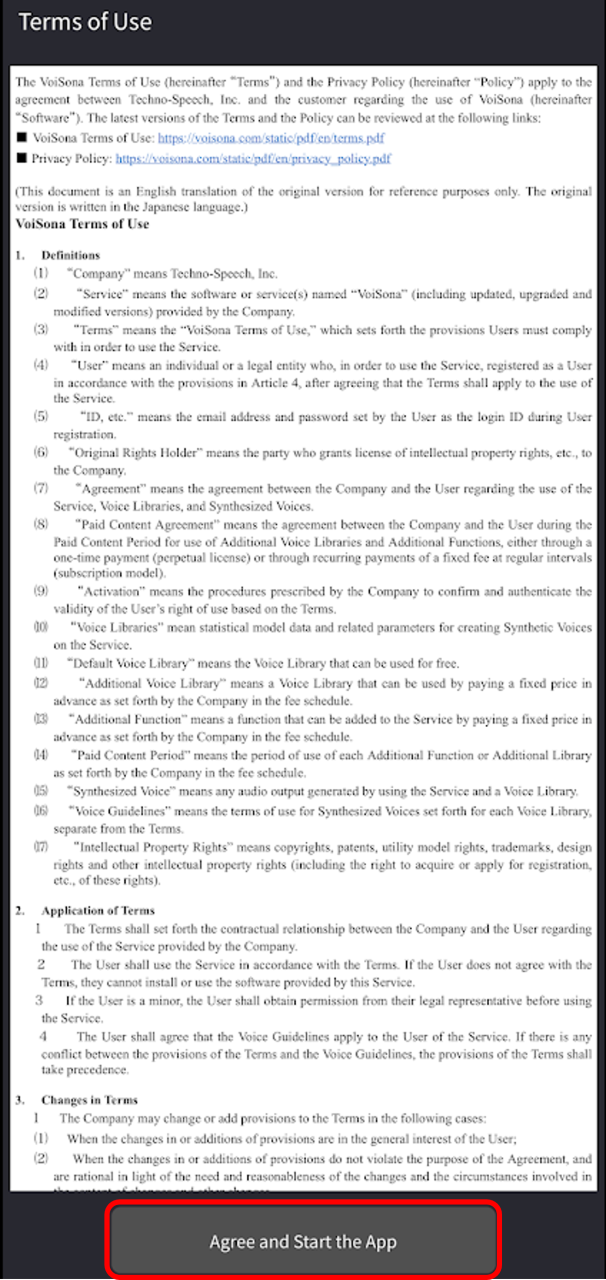
- If you agree to the Terms of Use, tap "Agree and Start the App."
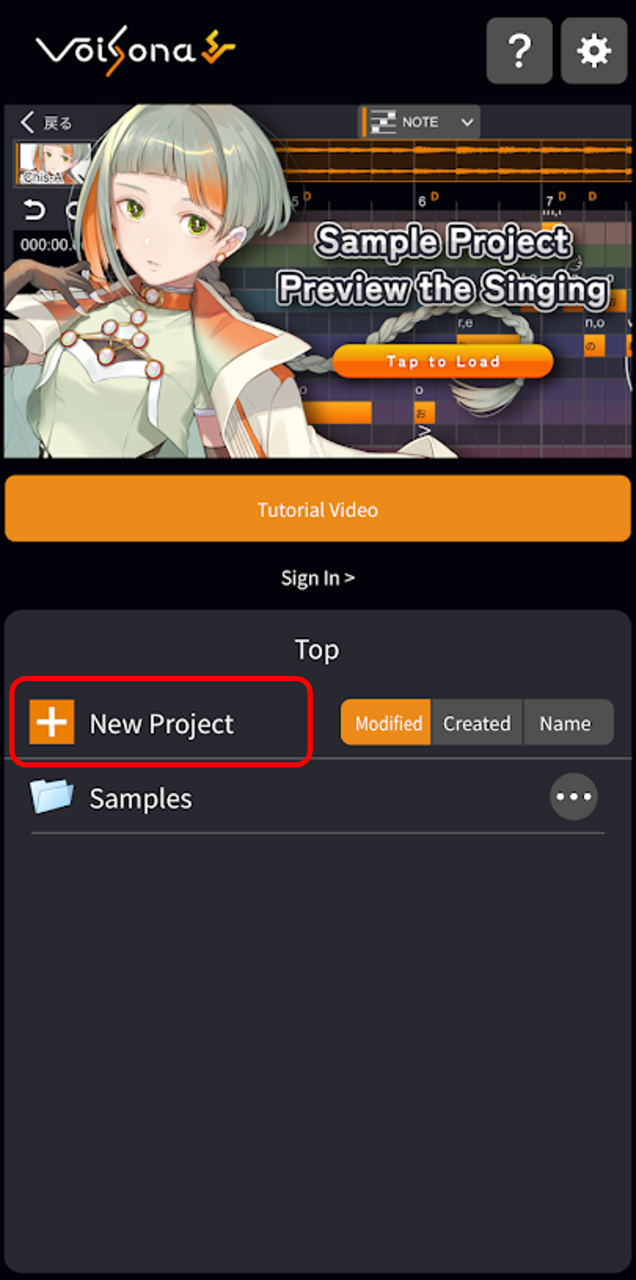
- On the start screen, tap "+ New Project". The VoiSona editing screen will be displayed.
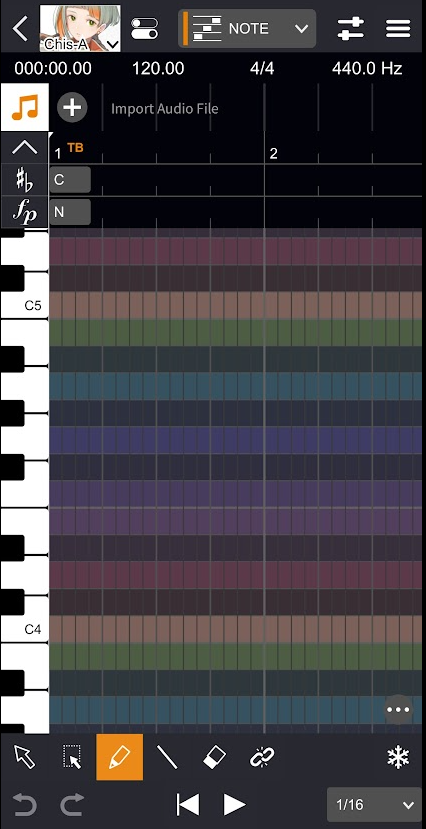
Using VoiSona as an Instrument Plug-in
If you have a DAW, you can use it as an Audio Units (AU) instrument plug-in.
As an example, here's how to use it in "GarageBand".
- Install the "VoiSona" application here.
- Launch "GarageBand".
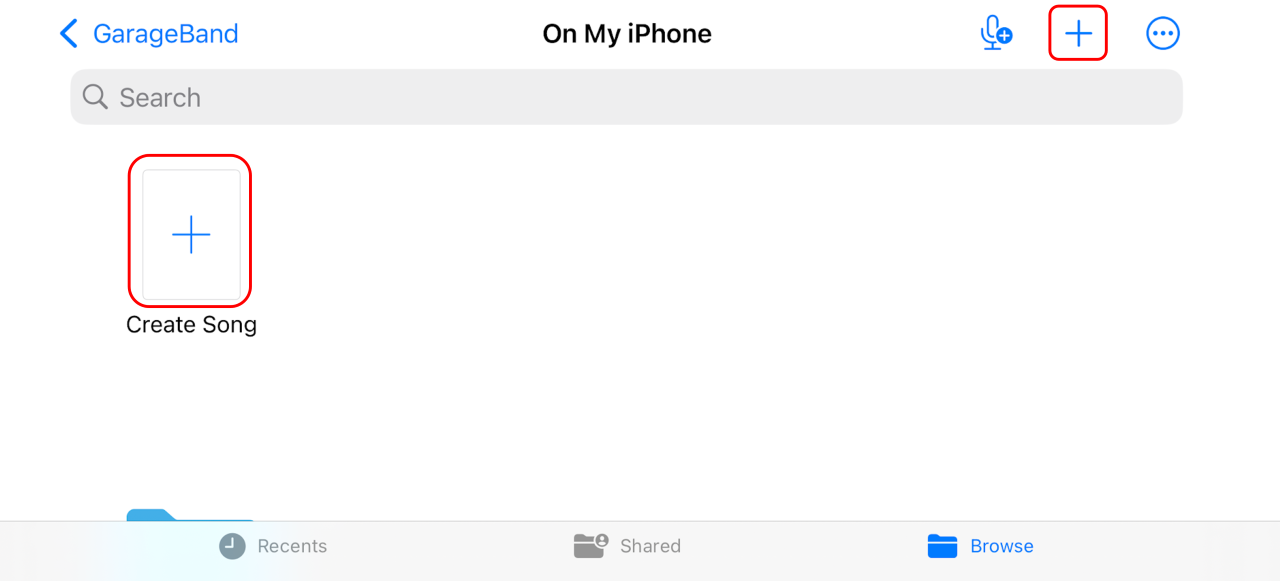
- Tap "+" (Create Song).
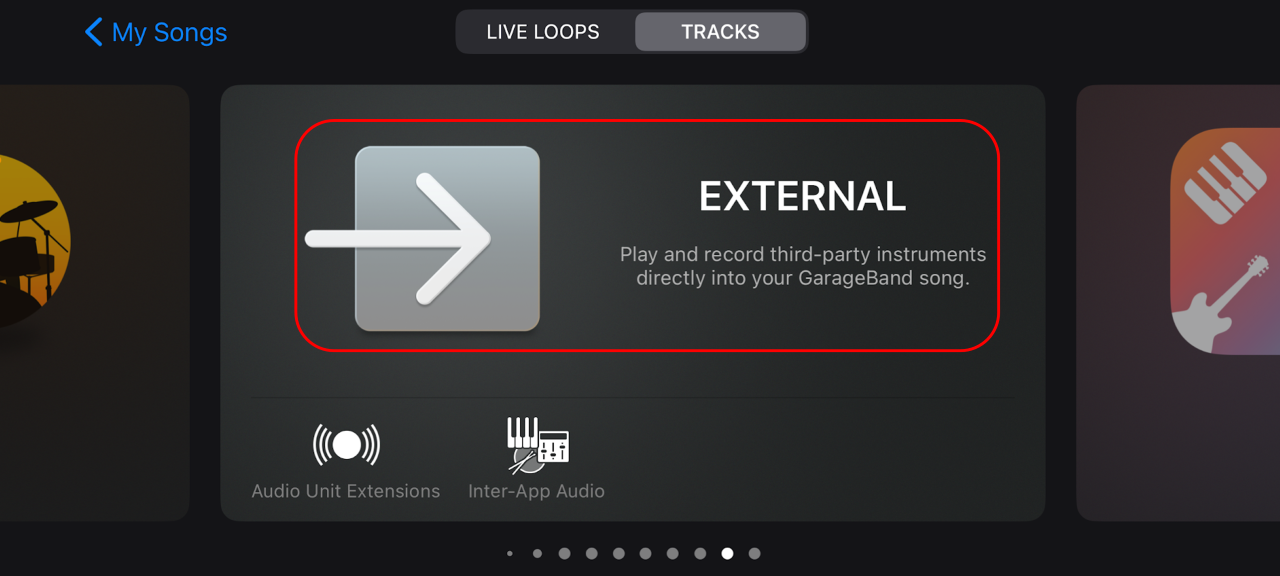
- Tap "EXTERNAL".
- Tap "VoiSona Song Editor".
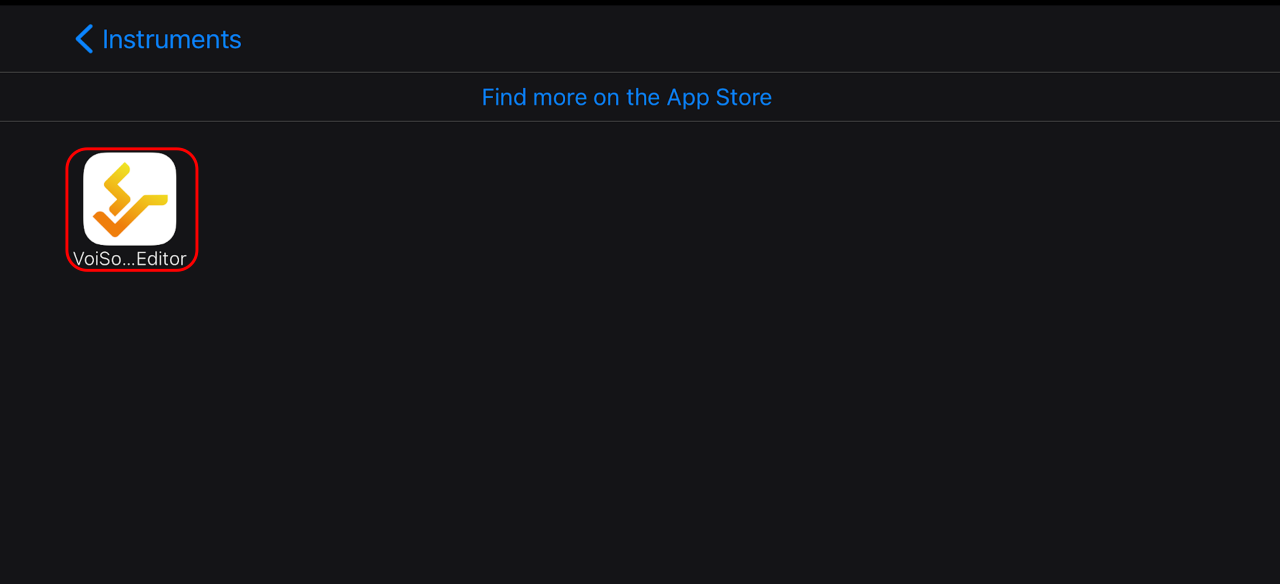
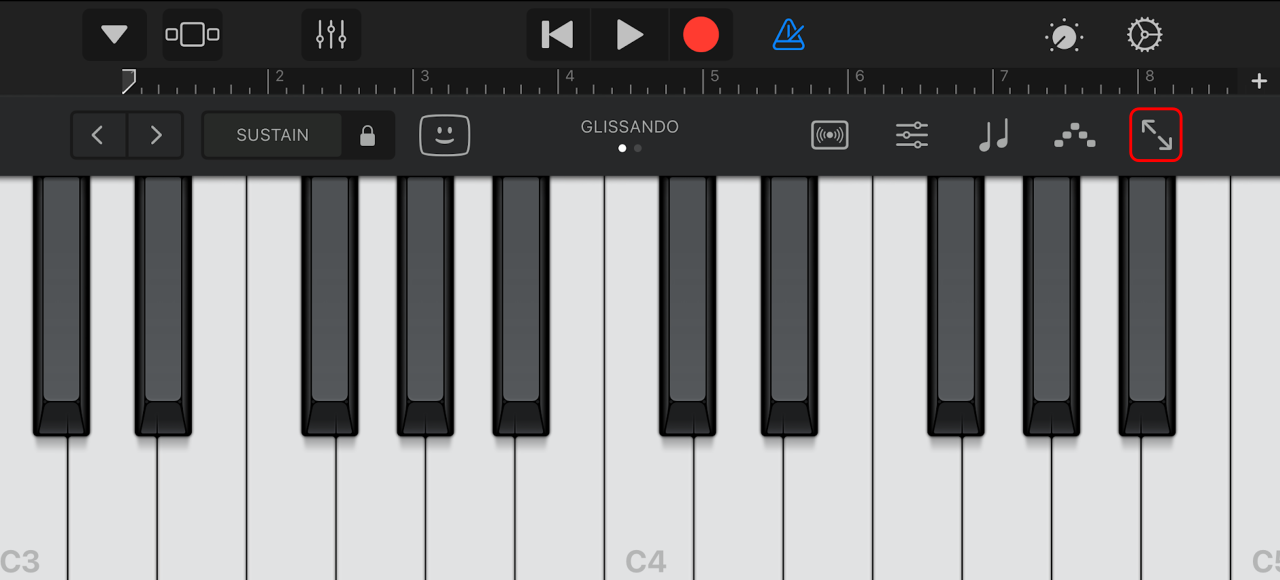
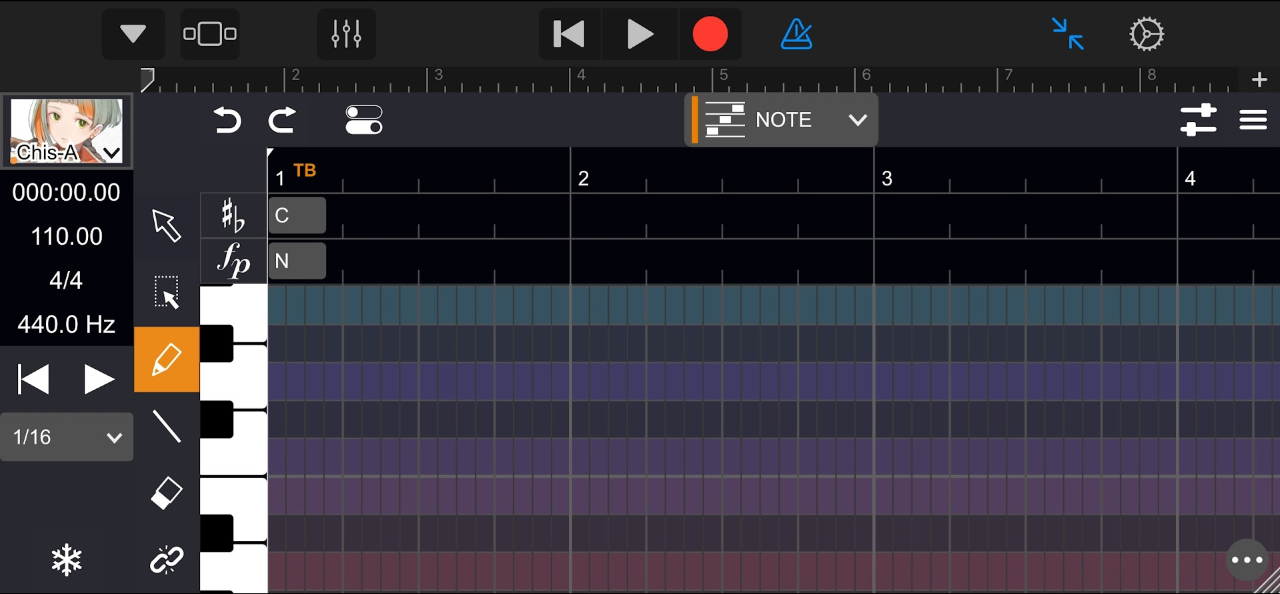
- Tap the icon in the red frame. The VoiSona editing screen will be displayed.