Selecting a Voice Library
Quick Start Guide2025/10/2 9:232026/9/4 15:15Launching VoiSona2025/11/2 12:152026/9/3 14:14Signing In2026/2/4 13:012026/7/5 12:25Selecting a Voice Library2025/11/2 12:152026/7/5 10:17Editing the Score2025/11/2 12:152026/9/4 16:30Adjusting Parameters2025/11/2 12:072026/9/2 7:57Opening and Saving Files2025/11/2 12:072026/9/4 16:46Changing Preferences2025/11/2 12:072026/7/5 11:32Frequently Asked Questions2025/11/2 12:252026/7/5 11:46
You can select the vocals used in the song from the voice library.
Adding Voice LibrariesDownloading and Selecting a Voice LibraryUsing the Latest VersionUsing a Previous VersionTrying Out Voice Libraries
Adding Voice Libraries
You can add a voice library by following the steps below.
In addition, if you sign in with the same account as the PC version, you can use the same voice library on the iOS/iPadOS version.
- If you have not yet registered an account, please register from SIGNUP on the web page.
- Please purchase a license from the ARTIST page.
- Restart the VoiSona app.
Downloading and Selecting a Voice Library
You can select and use your preferred version from the voice library you are subscribed to.
Using the Latest Version
Follow the steps below to use the latest version of the voice library you want to use.
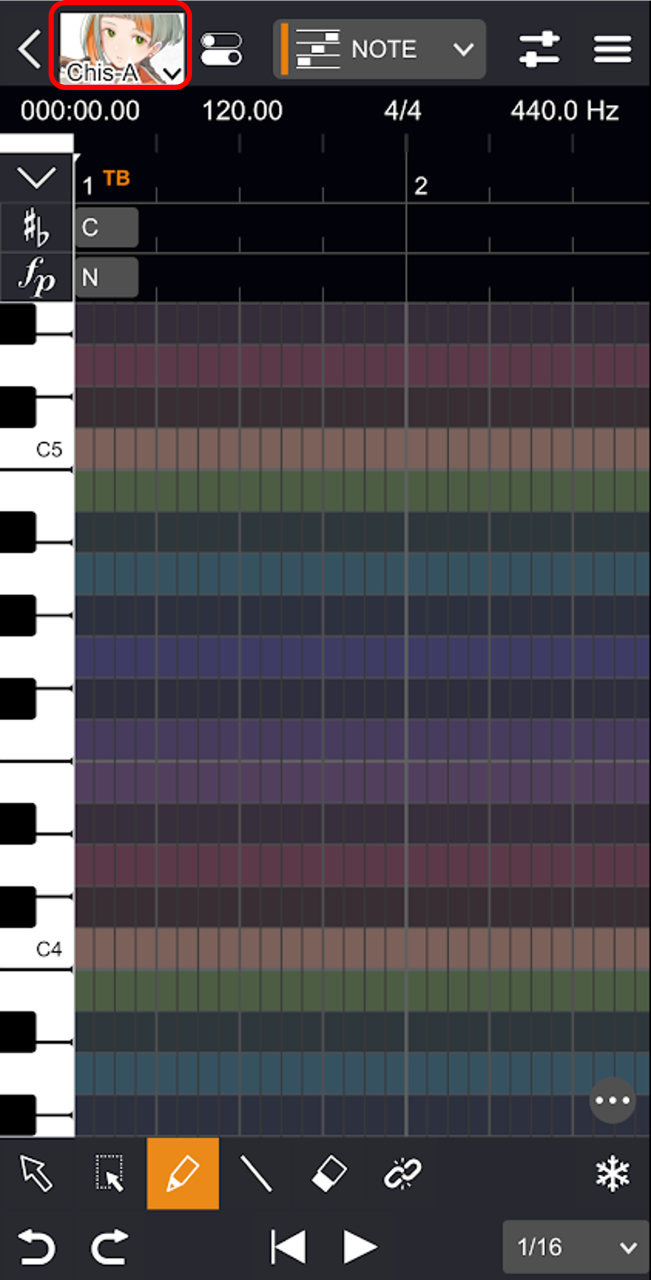
- Tap on the image of "Chis-A".
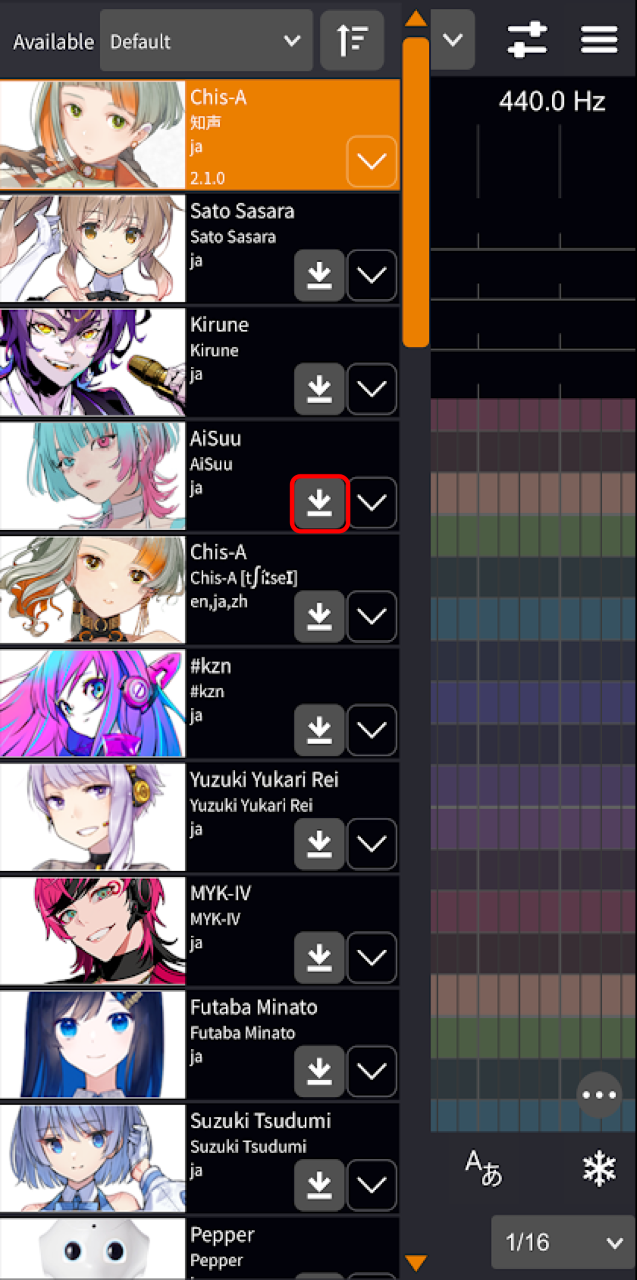
- Tap the "Download Voice Library" button for the voice library you want to use. The voice library download will start.
- Select the voice library. The score editing screen will be displayed, showing the image of the selected voice library.
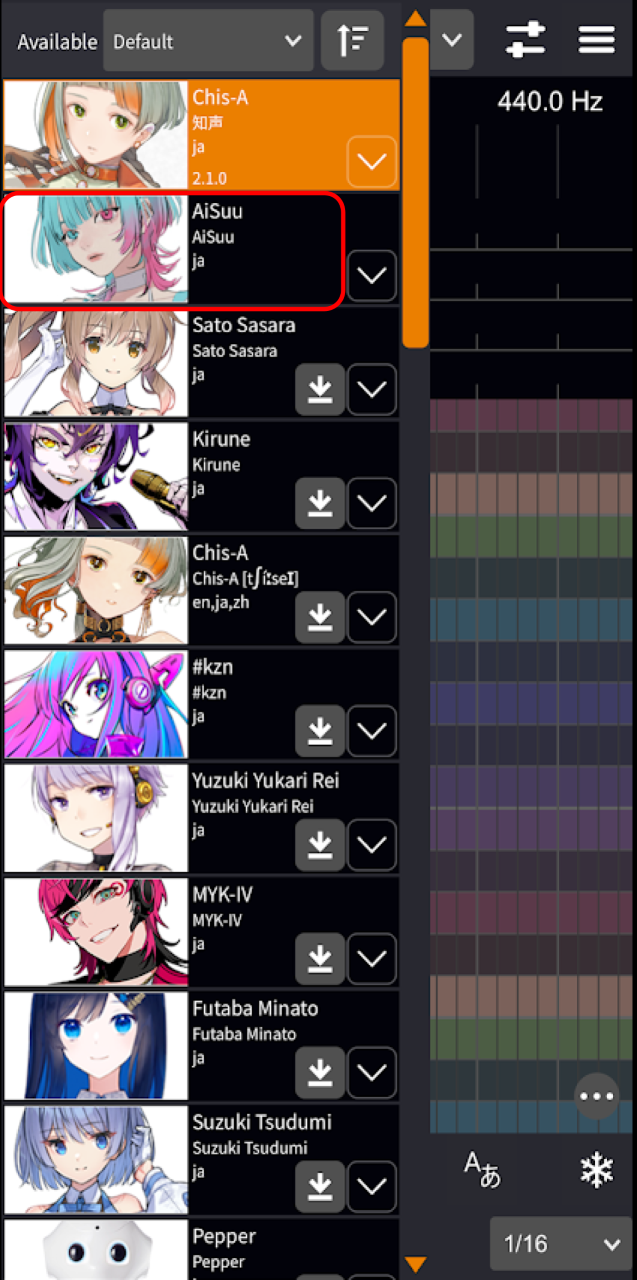
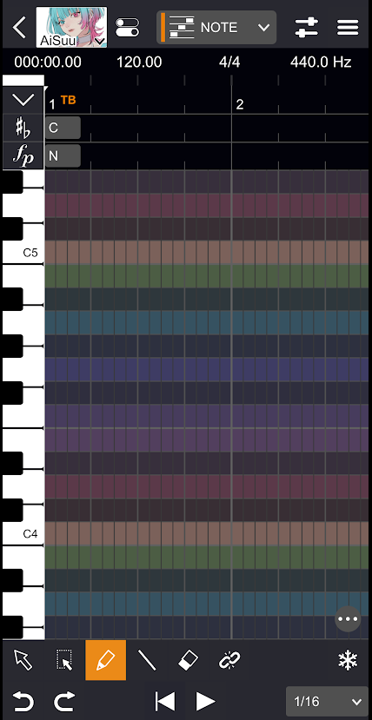
You can change the order of the voice list using the "Sort Order" pull-down menu and the "Toggle Sort Direction" button in the upper-right corner of the "Select Voice" screen.
Using a Previous Version
Follow the steps below to use a previous version of the voice library you want to use.
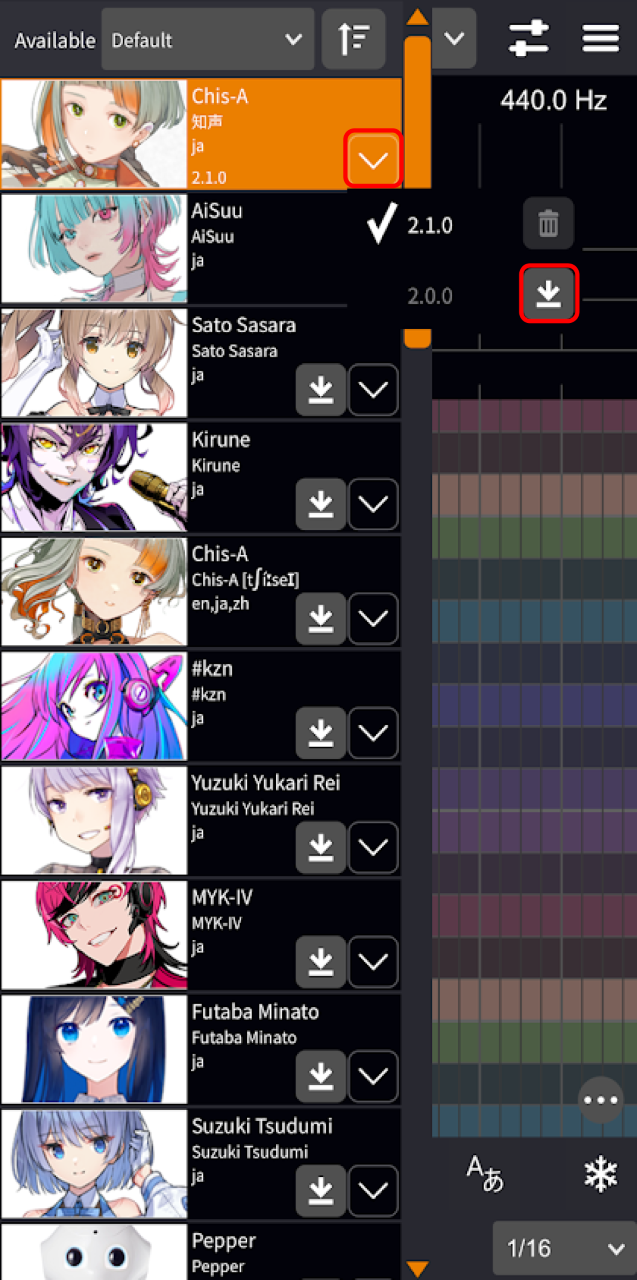
- Tap the area where the character image is displayed.
- Tap the "Select Voice Version" button.
- Tap the "Download Voice Library" button for the version you want to use. The voice library download will start. Once the download is complete, the version selection screen will close.
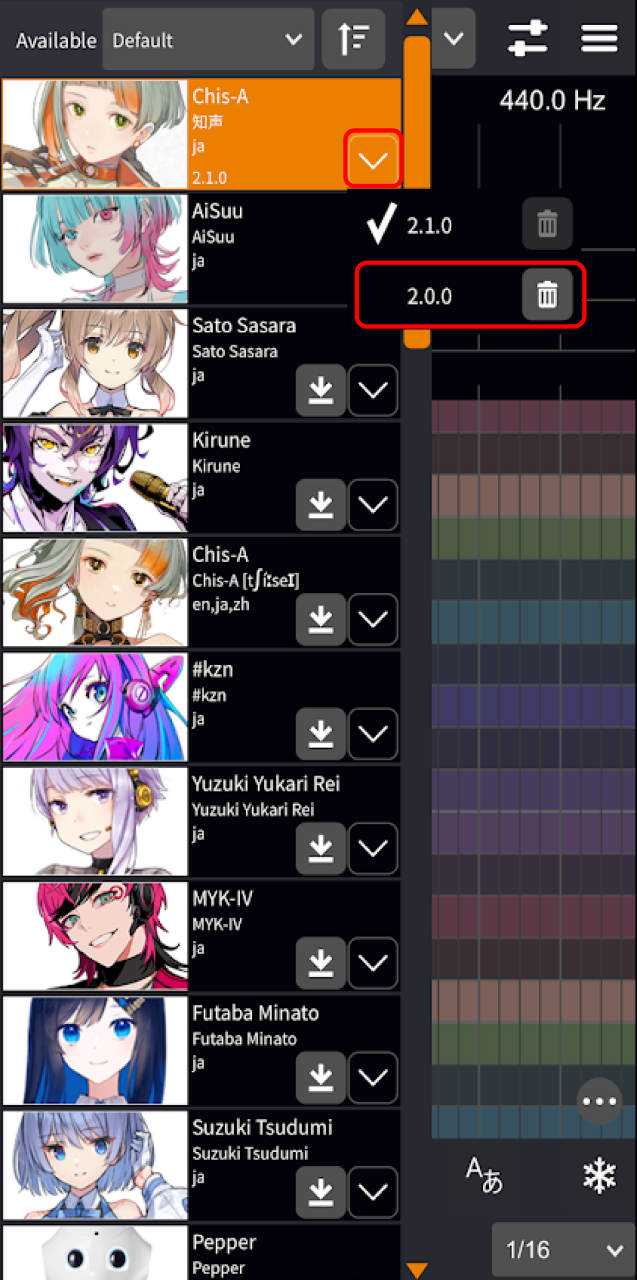
- Tap the "Select Voice Version" button again to open the selection screen, and then tap the version number. The score editing screen will be displayed, showing the image of the selected voice library.
Trying Out Voice Libraries
You may use unlicensed voice libraries for trial purposes for up to 10 seconds.
Excluding some voice libraries.
An internet connection is required to use this feature.
The export function is not available.
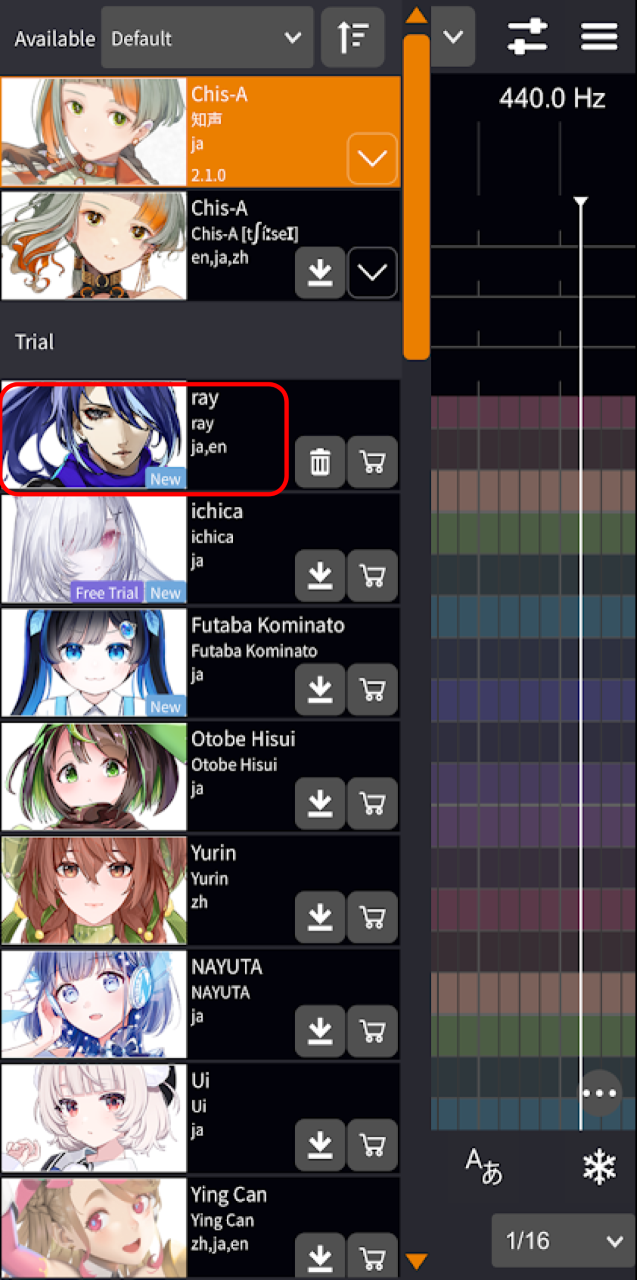
- Tap the area labeled "Select Voice".
- Tap the "Download Voice Library" button for the voice displayed in the "Trial" area.
- Check the message in the dialog box and tap "Download". The voice library download will start.
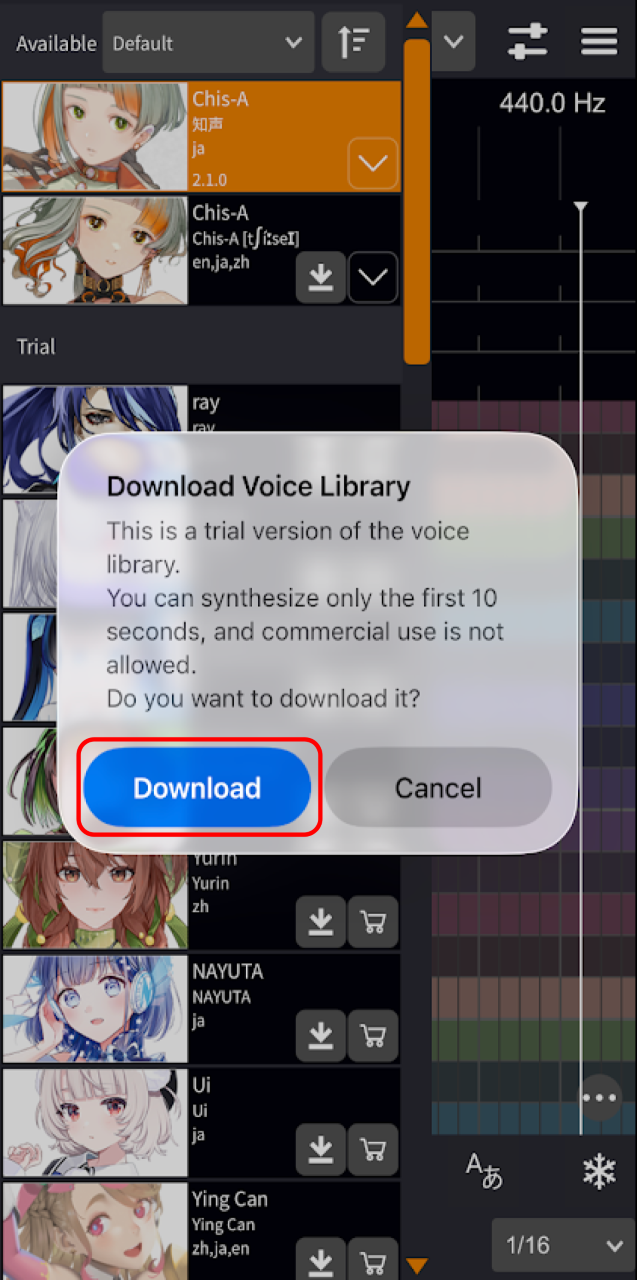
- Select the voice library. The score editing screen will be displayed, showing the image of the selected voice library.