
Quick Start Guide
Quick Start Guide2025/10/2 9:232026/9/4 15:15Launching VoiSona2025/11/2 12:152026/9/3 14:14Signing In2026/2/4 13:012026/7/5 12:25Selecting a Voice Library2025/11/2 12:152026/7/5 10:17Editing the Score2025/11/2 12:152026/9/4 16:30Adjusting Parameters2025/11/2 12:072026/9/2 7:57Opening and Saving Files2025/11/2 12:072026/9/4 16:46Changing Preferences2025/11/2 12:072026/7/5 11:32Frequently Asked Questions2025/11/2 12:252026/7/5 11:46
For those using VoiSona for the first time, we introduce the basic operation method.
- Install the "VoiSona" application here. https://apps.apple.com/us/app/voisona/id6478200421
- Tap the app icon on the home screen to start "VoiSona."
The screen can be used in either portrait or landscape orientation.
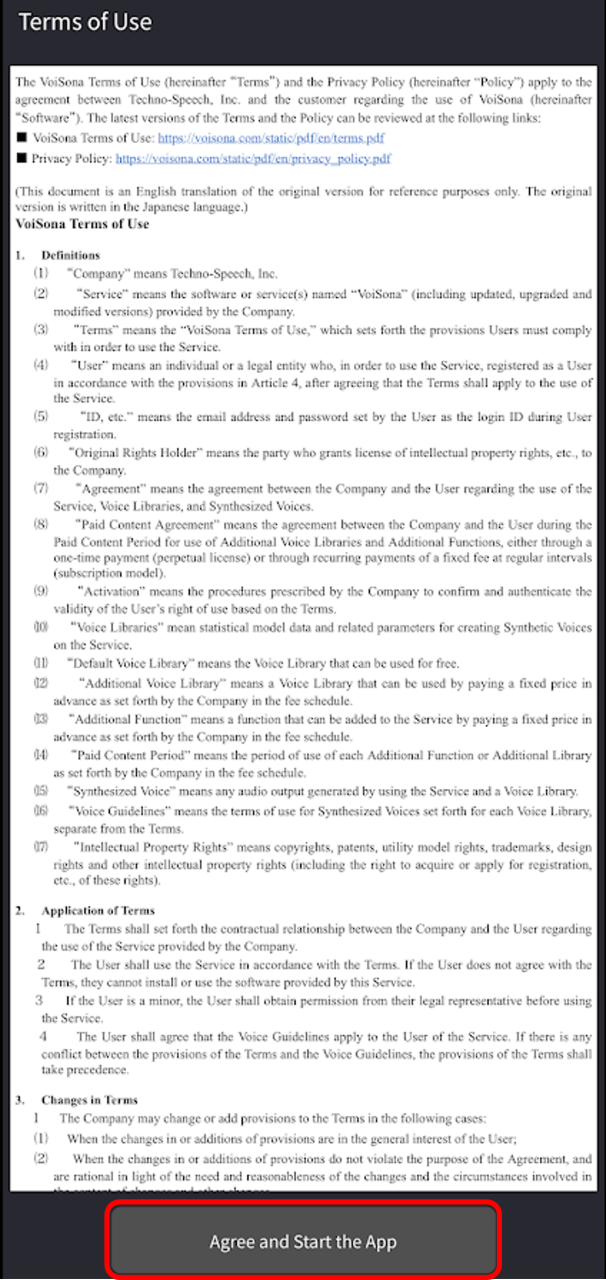
- If you agree to the Terms of Use, tap "Agree and Start the App".
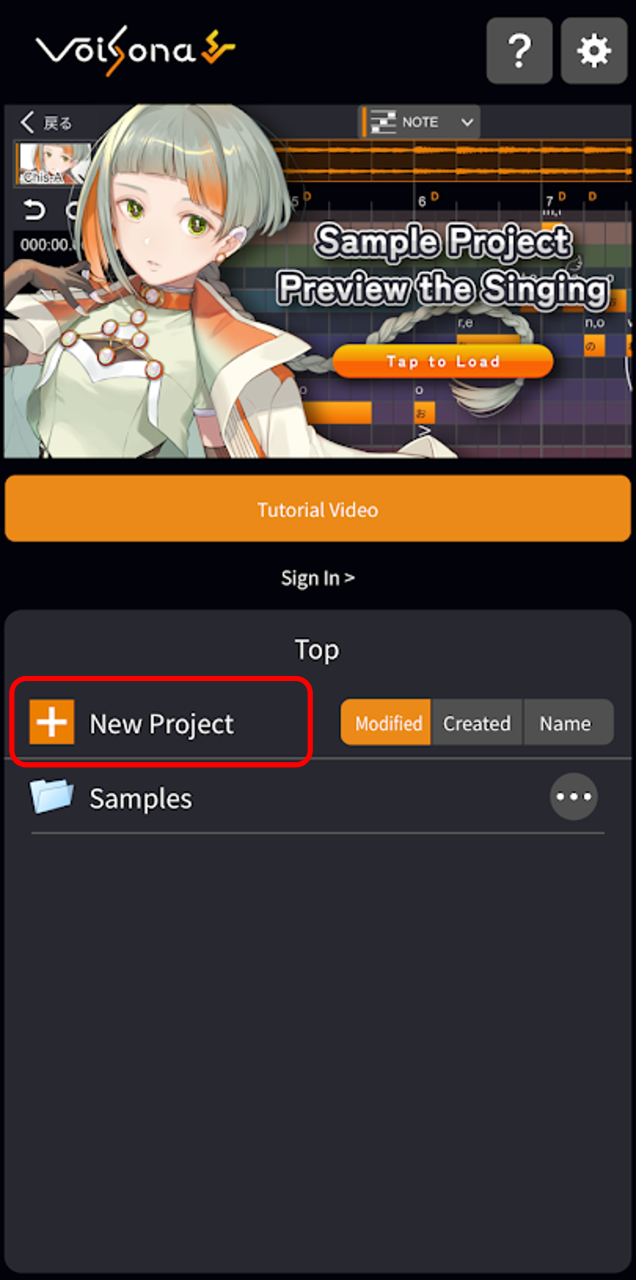
- On the start screen, tap "+ New Project". The VoiSona editing screen will be displayed.
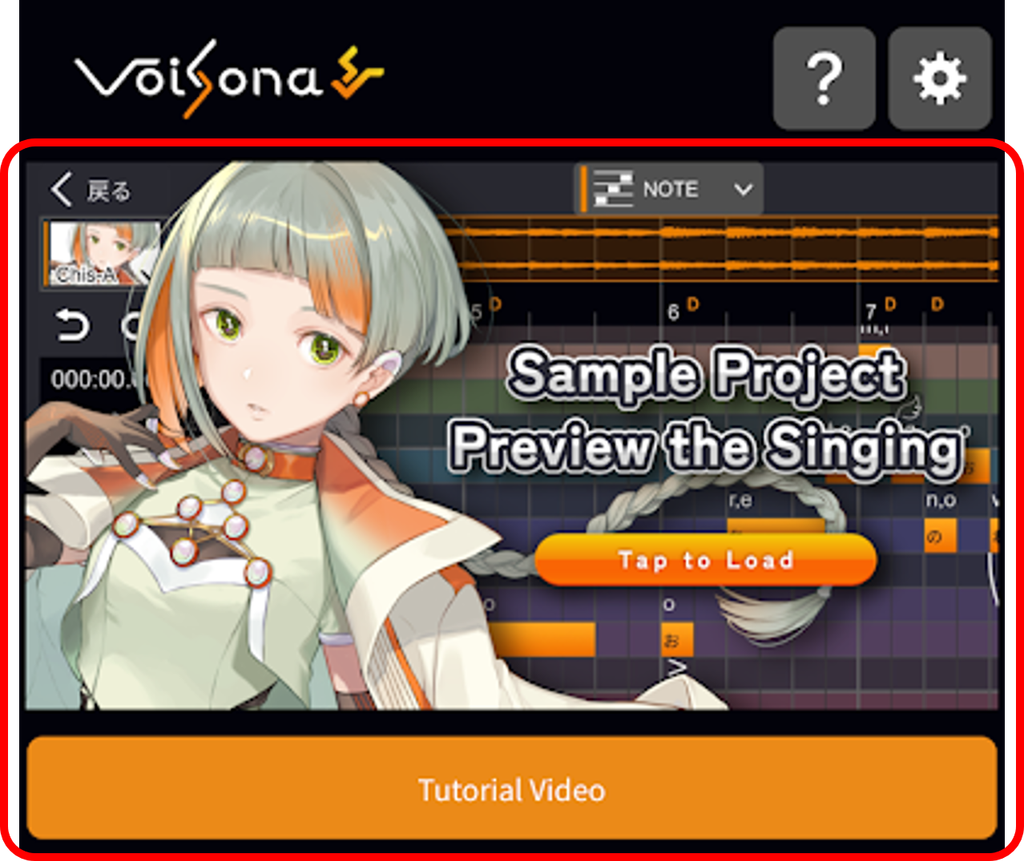
To get a clear idea of the operations and projects, we also provide tutorial videos and sample projects.
Please take a look.
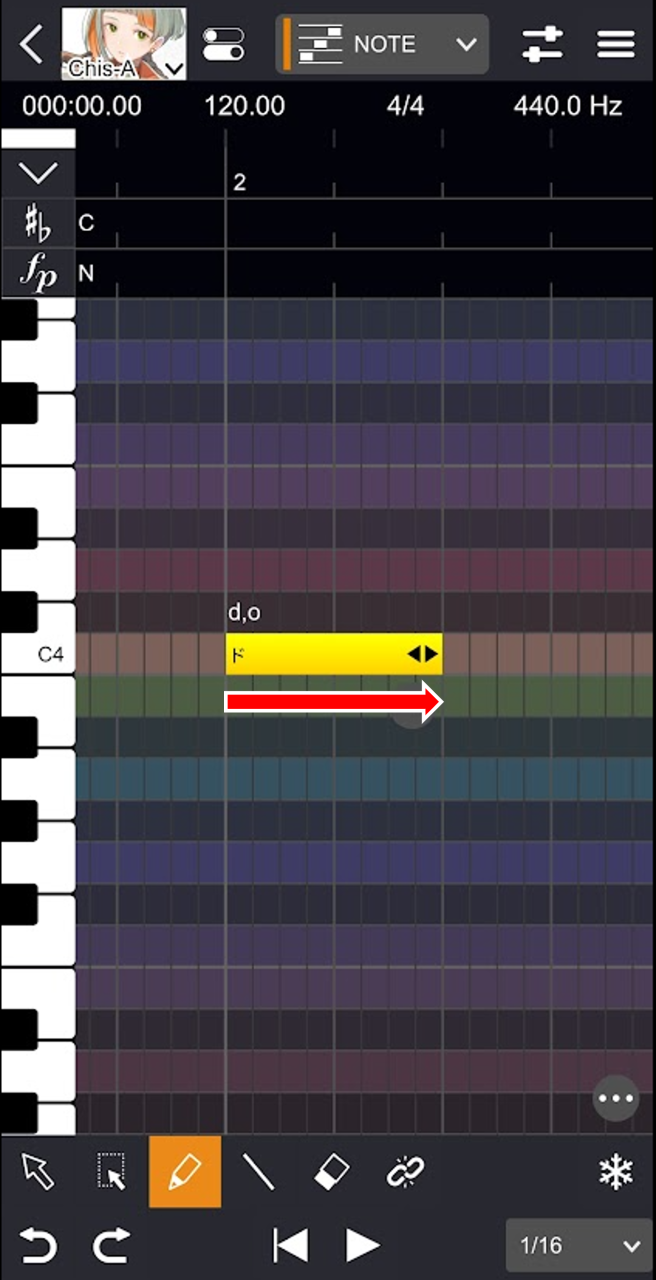
- Drag the piano roll. A note will be input.
Slide with two fingers to scroll freely around the screen.
Pinch in or pinch out to zoom in or out.
- Double-tap the note, enter text, and confirm. The lyric will change.
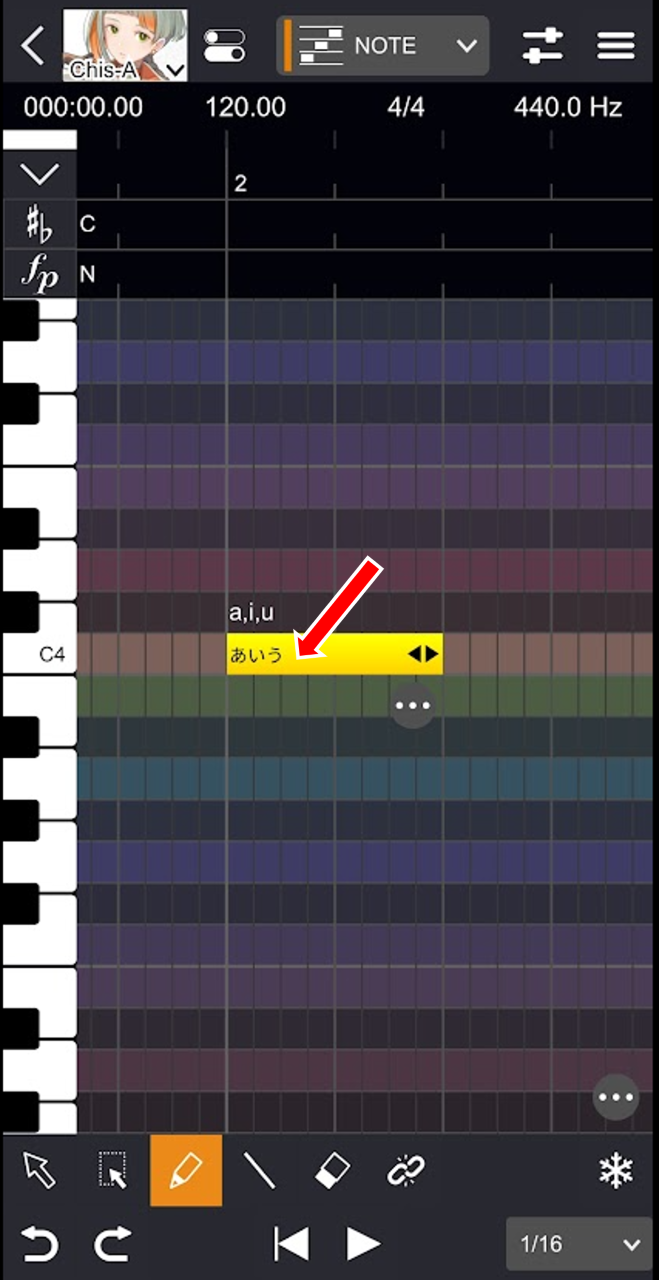
- Tap the ruler displayed at the top of the piano roll. The position cursor moves.
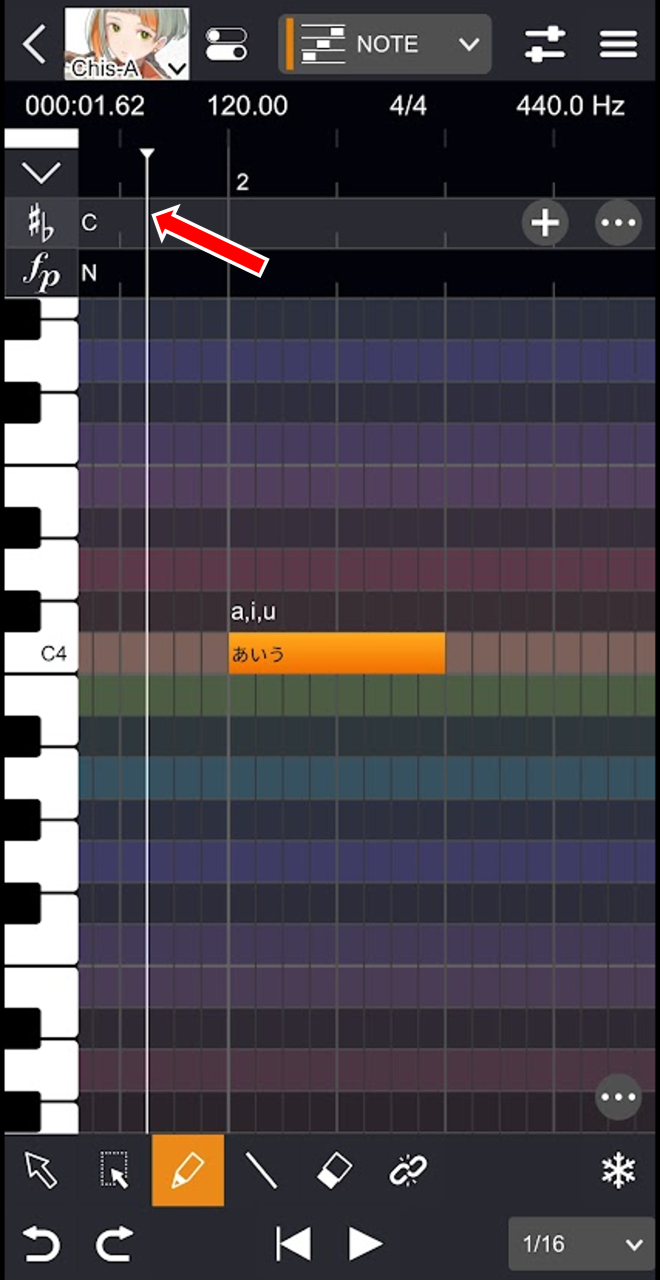
- Tap the "Play" button. The score progresses from the position cursor and the audio plays.
- Tap the "Play" button again. The score playback stops at the position cursor.
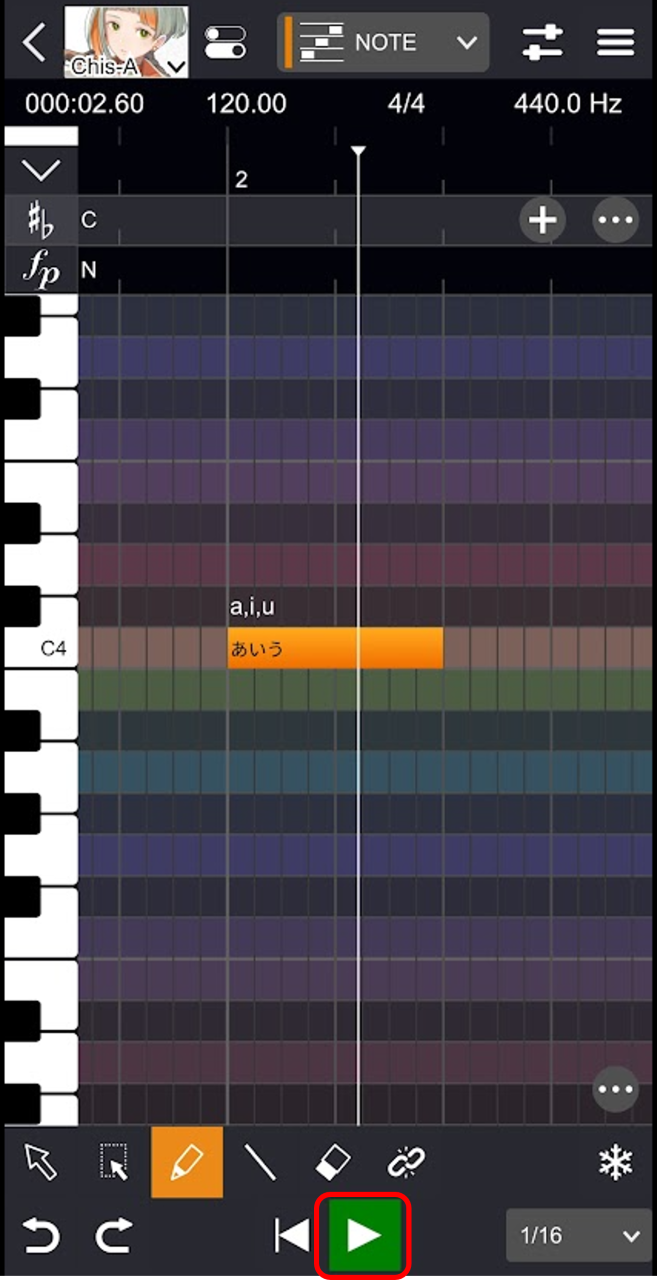
- Tap the row at the top of the piano roll.
- Tap the "+" button on the right, then select the item you want to set. The symbol corresponding to the tapped row will be set.
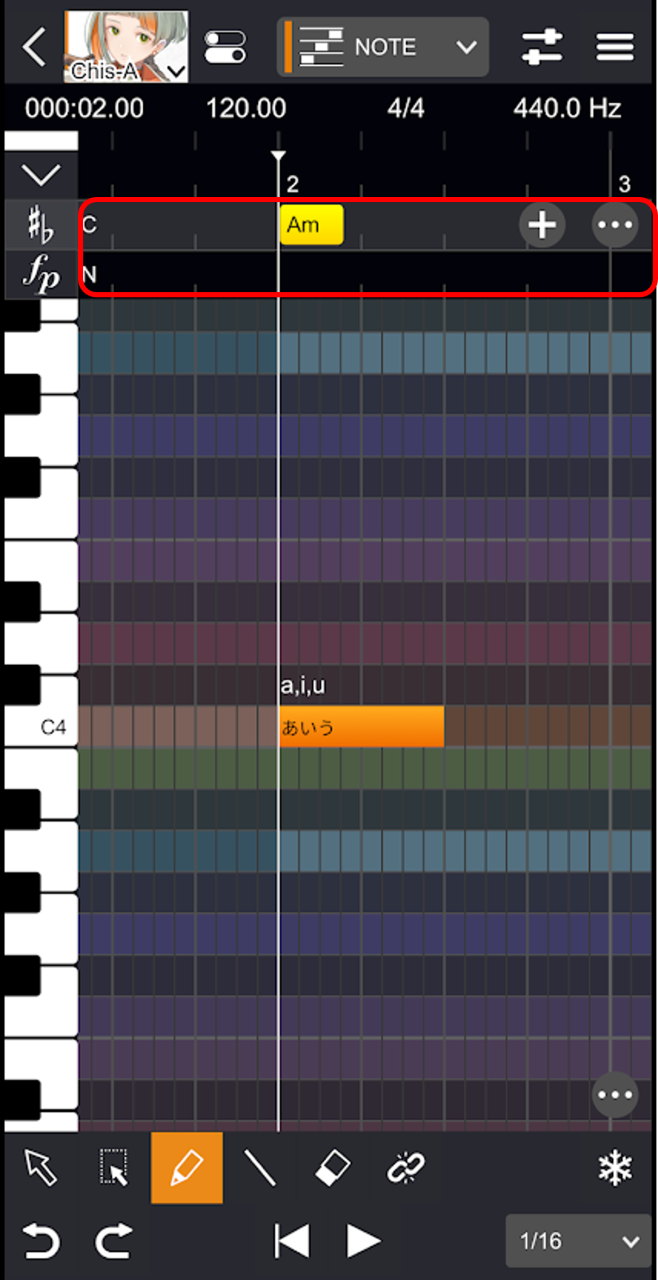
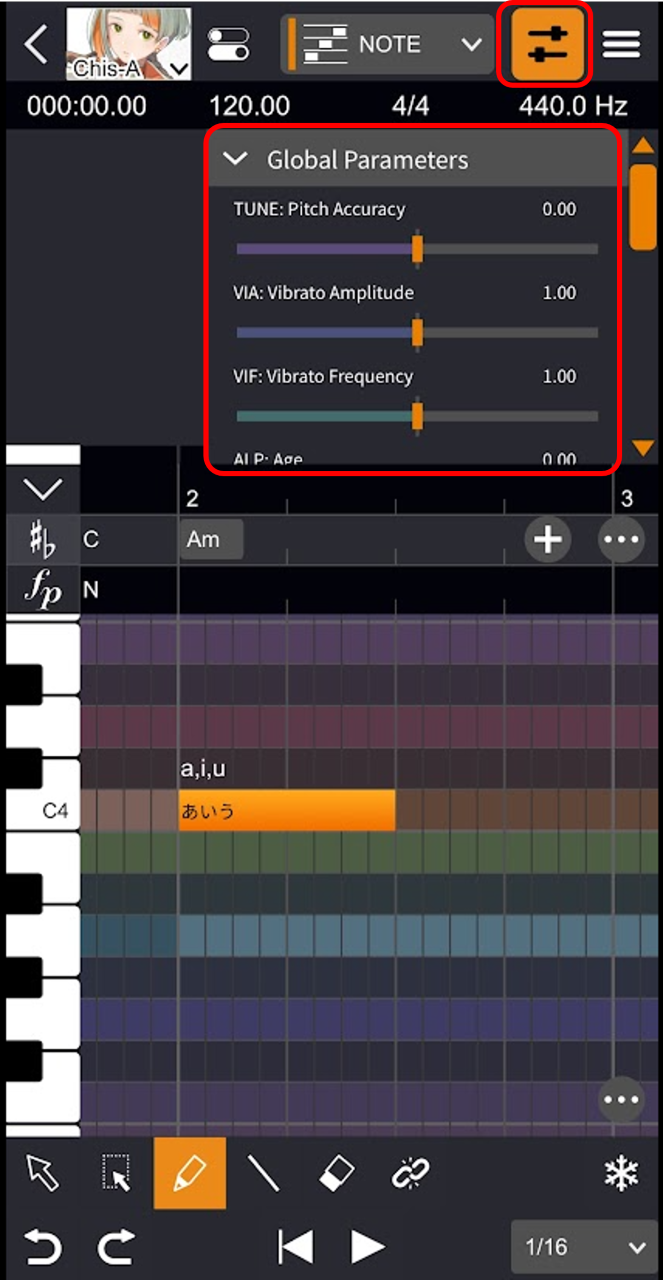
- Tap the "Parameter" button. The global parameters are displayed.
- Drag the sliders for "TUNE", "VIA", "VIF", "ALP", and "HUS". Parameters affecting the entire song are adjusted.
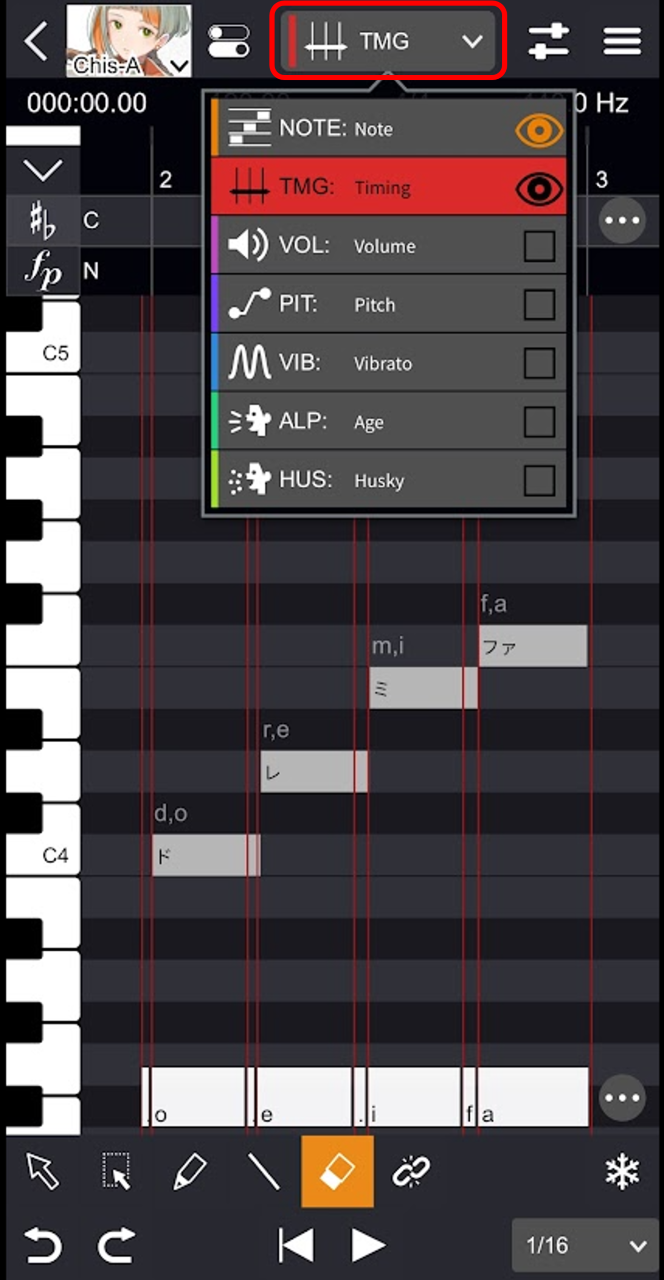
- Select "TMG" from the pull-down menu and tap the edit screen.
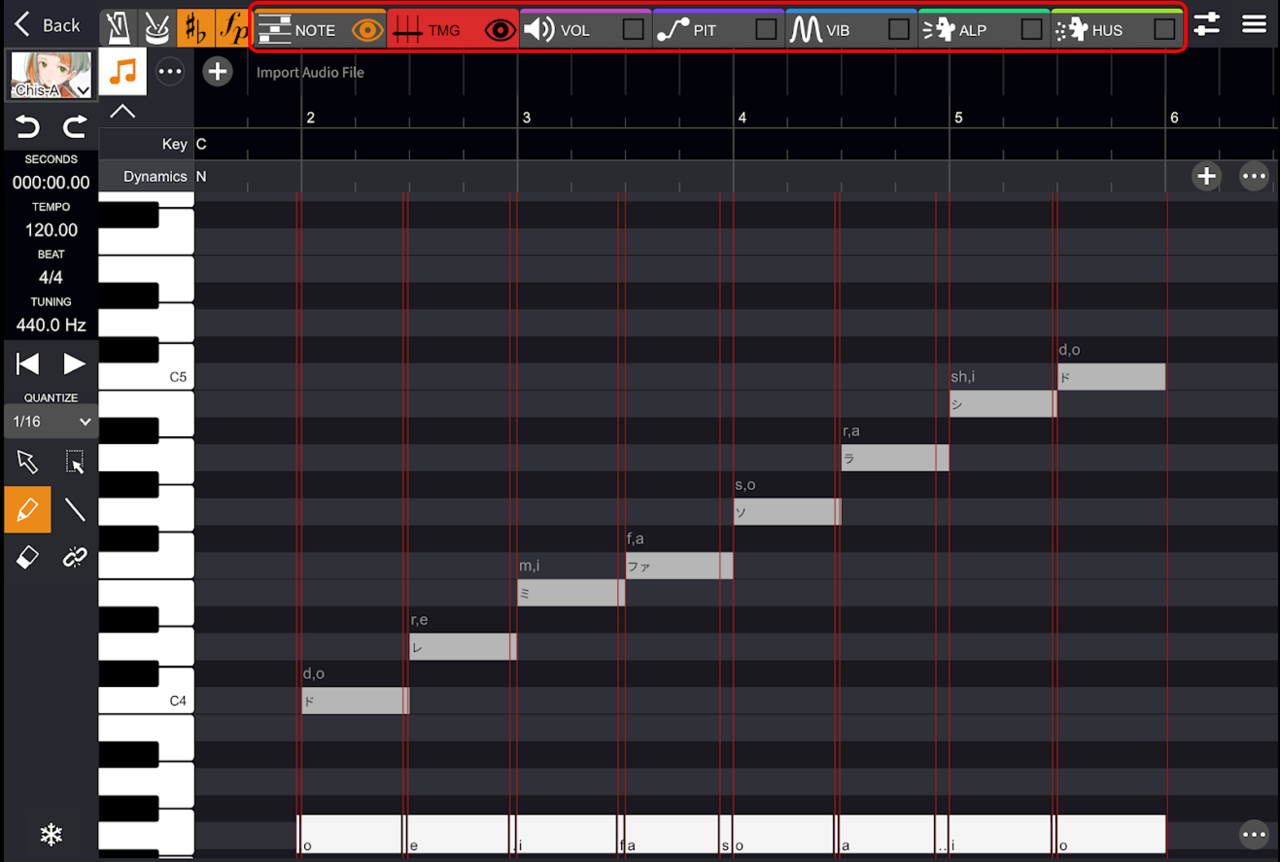
If you are using a device with a large screen, such as an iPad, tap the tab.
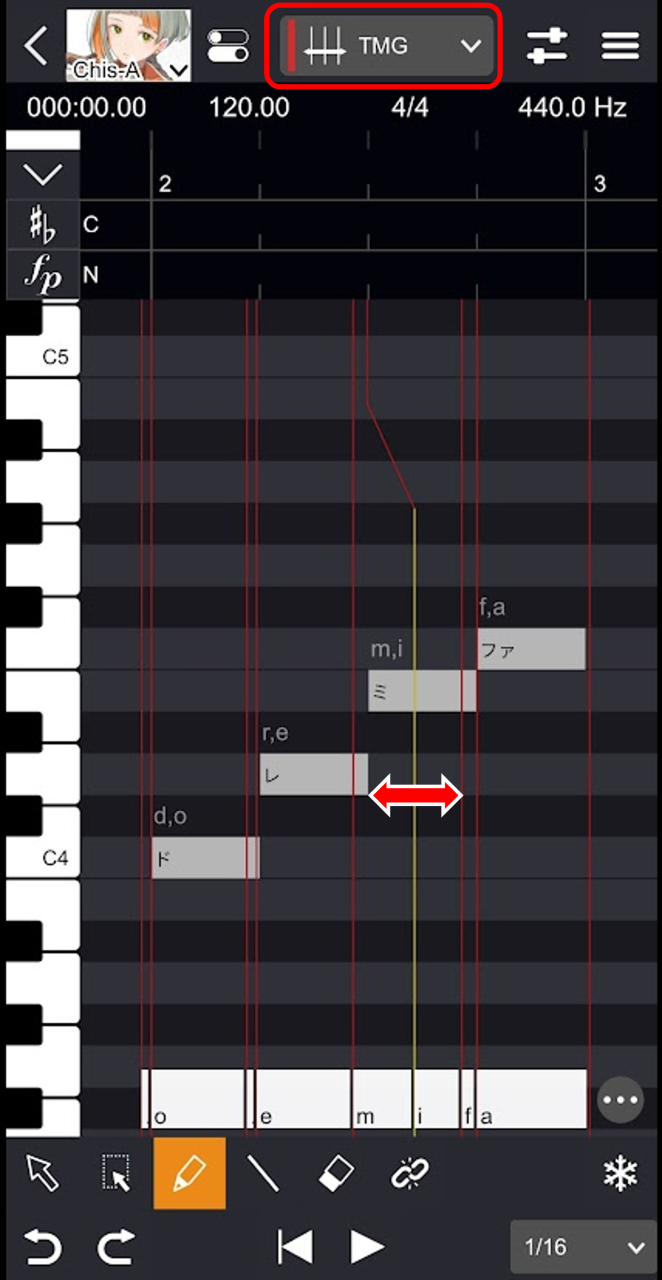
- Drag the red line left and right. The timing of the phoneme start and end is adjusted.
- Select one of "VOL", "PIT", "ALP", or "HUS" from the pull-down menu and tap the edit screen.
- Draw lines freely. Each parameter is finely adjusted.
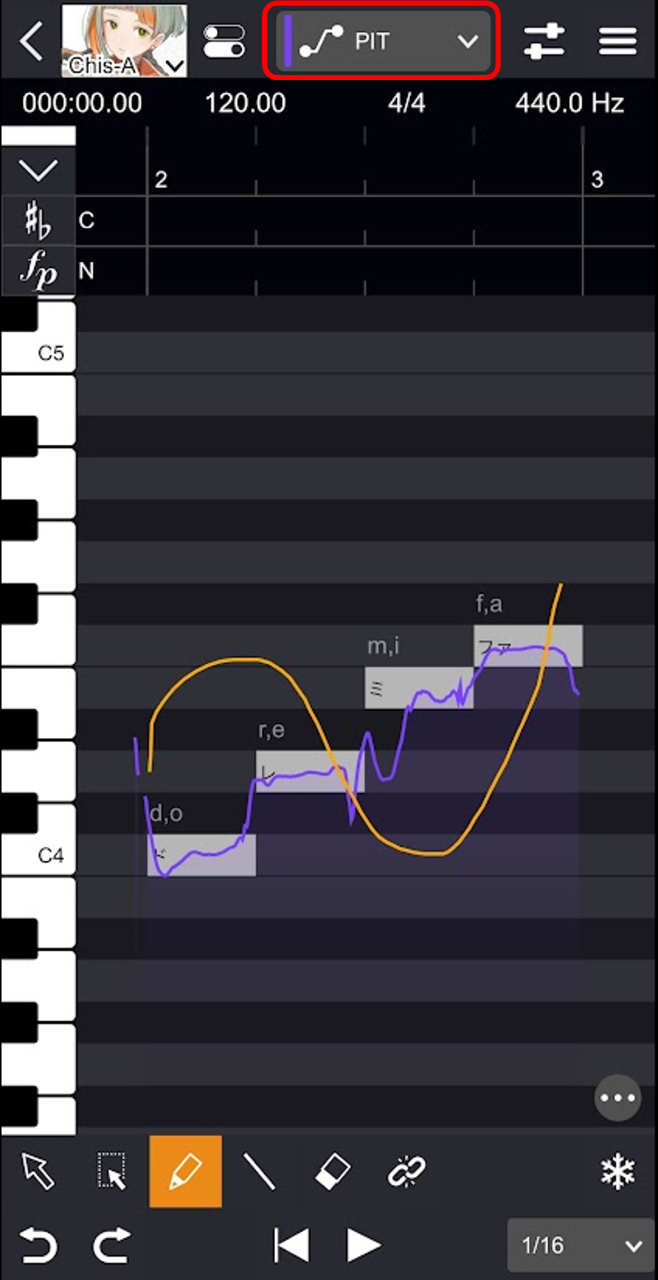
- Select "VIB" from the pull-down menu and tap the edit screen.
- Draw lines freely. A rectangular area is created.
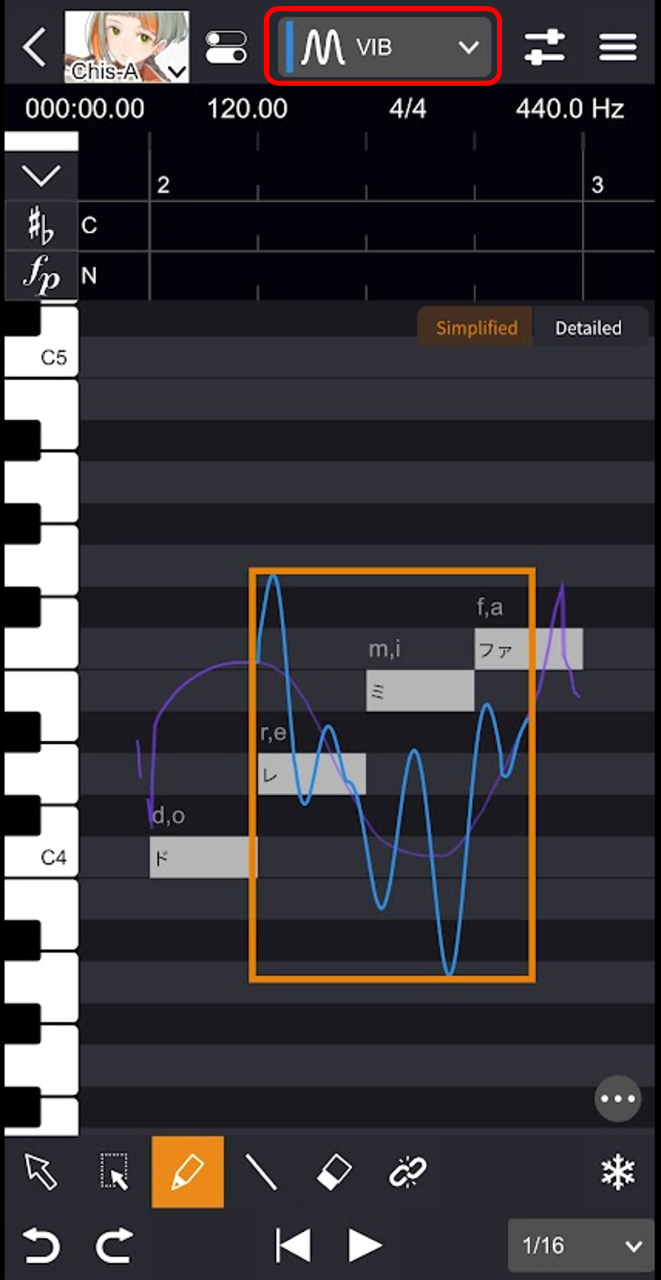
This area can be used to adjust amplitude, period, etc.
For detailed instructions, see Adjusting Vibrato.
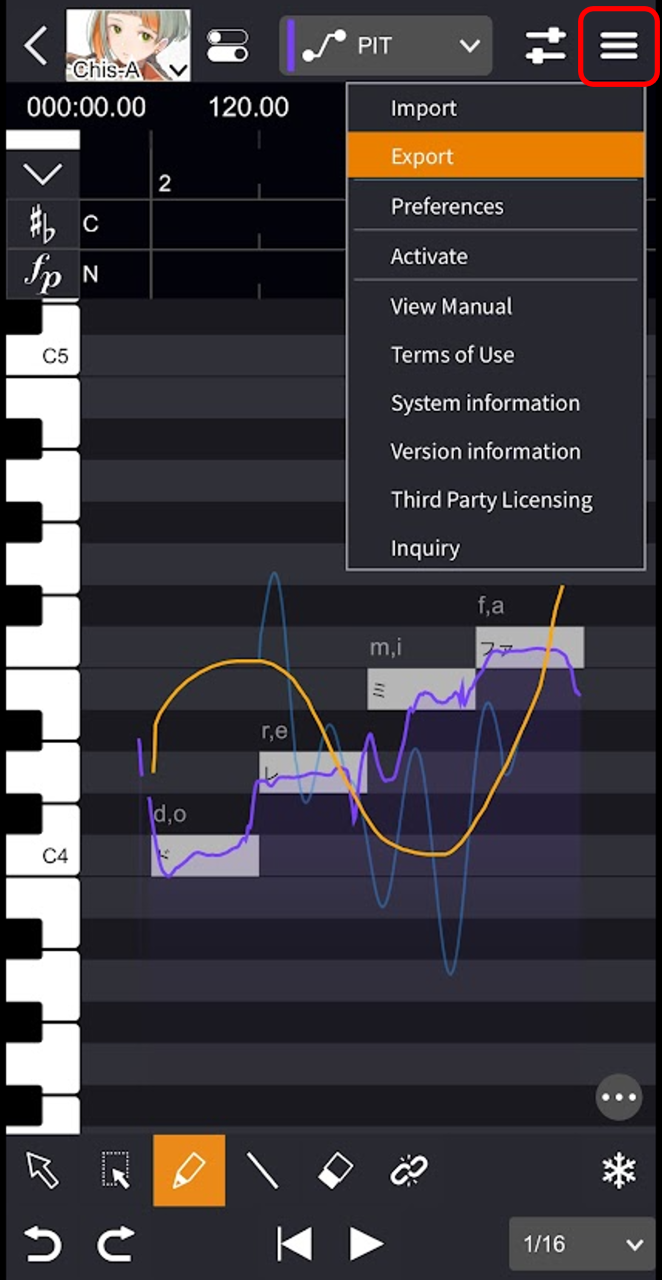
- Tap the "Menu" button and select "Export".
- Specify the file format on the settings screen and tap "Export". The exported file will be saved.
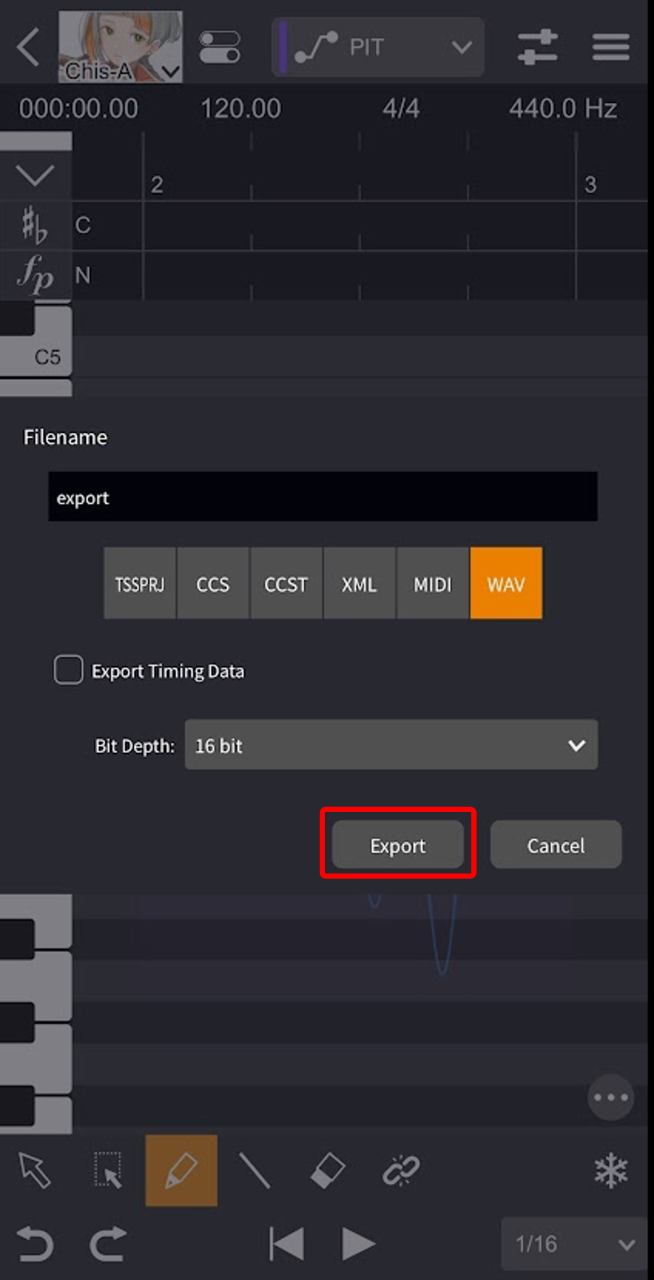
The exported file will be saved in the "VoiSona" folder under "Browse" in the "Files" app.