Adjusting Parameters
Quick Start Guide2025/10/2 9:232026/9/5 16:27Installing VoiSona2025/11/3 8:252026/1/5 10:39Launching VoiSona2025/11/2 12:152026/7/1 13:55Signing In2025/11/2 12:152026/7/2 14:11Selecting a Voice Library2025/11/2 12:152026/9/5 9:20Editing the Score2025/11/2 12:152026/9/4 16:37Adjusting Parameters2025/11/2 12:152026/7/2 13:10Opening and Saving Files2025/11/2 12:152026/9/5 8:41Changing Preferences2025/11/2 12:152026/7/2 13:35Frequently Asked Questions2025/11/2 12:152026/7/2 13:56
In VoiSona, you can make a wide range of parameter adjustments—from those that affect the entire song to detailed edits such as timing and vibrato.
Adjusting Global ParametersAdjusting Singing StylesAdjusting Advanced ParametersAdjusting TimingMaking Even Finer AdjustmentsAligning Vowels to the Beginning of NotesAdjusting Other ParametersDuplicating Parameter LinesDisabling Parameter CurvesAdjusting the Connection PointAdjusting VibratoMaking More Precise Adjustments (Detailed Mode)Selecting Notes and Parameters Together
Adjusting Global Parameters
You can adjust parameters that affect the entire song, individually for each track.
- Click the "Parameter" button to open the panel.
- Enter a value directly or adjust it using the slider.
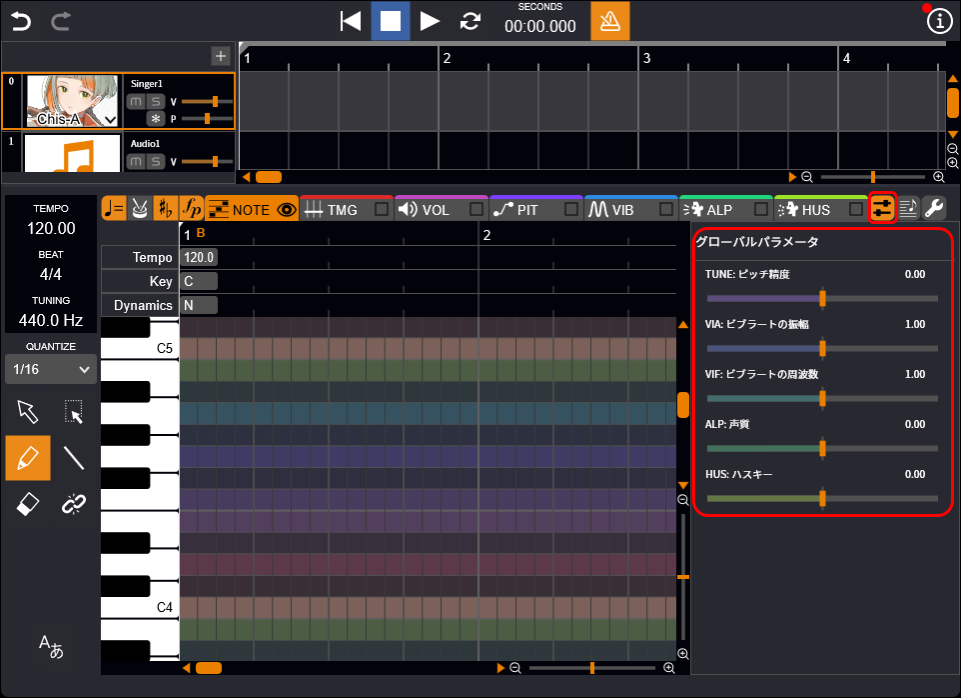
Adjustable Parameters
- TUNE Pitch Accuracy. Lower values result in looser pitch matching; higher values make the pitch more faithful to the score.
- VIA Vibrato Amplitude. Higher values produce a wider vibrato.
- VIF Vibrato Frequency. Higher values result in shorter, finer vibrato cycles.
- ALP Age. Lower values make the voice sound more childlike, while higher values make it sound more mature.
- HUS Husky. Higher values result in a huskier vocal tone.
Adjusting Singing Styles
Depending on the voice library, you can blend multiple singing styles such as "Sweet" and "Powerful" in your preferred proportions.
- Click the "Parameter" button to open the panel.
- Adjust the proportion of each singing style by entering a value directly or using the slider.
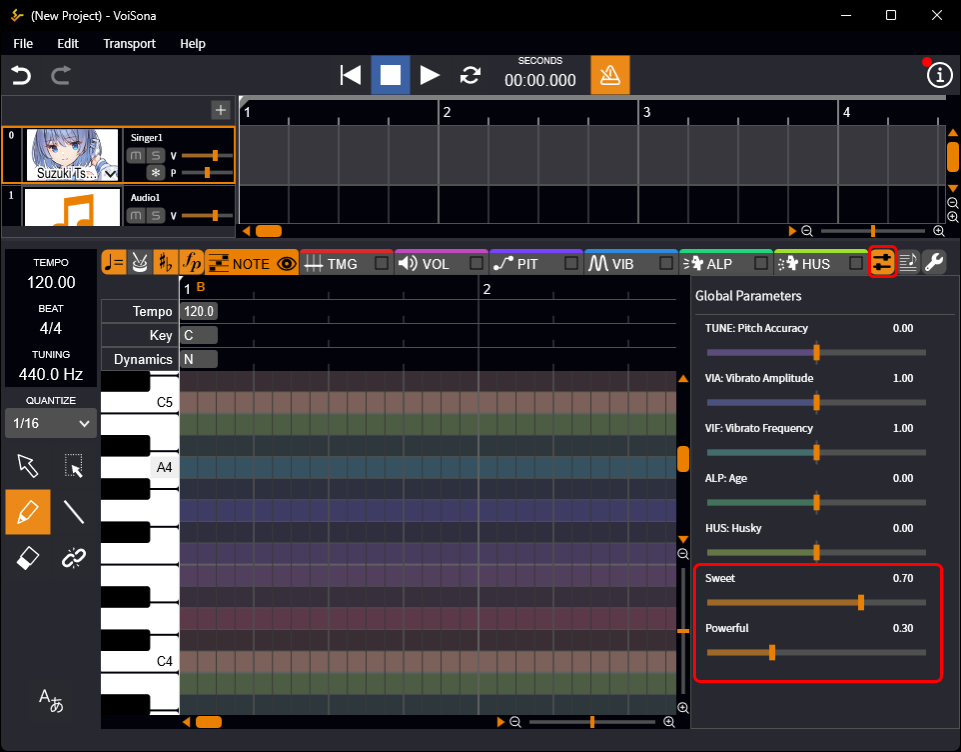
About Singing Style Proportions
The values of each style are automatically adjusted so that they total 1.0, and the styles are blended in those proportions.
For example, if you set "Sweet" to 0.70 and "Powerful" to 0.30, they are blended at 70% and 30%, respectively.
The availability and types of singing styles vary depending on the voice library.
Adjusting Advanced Parameters
Switching between adjustment screens allows more detailed parameter settings.
The adjustment screens for each parameter can be switched by tabs, and can also be displayed or hidden on the tabs.
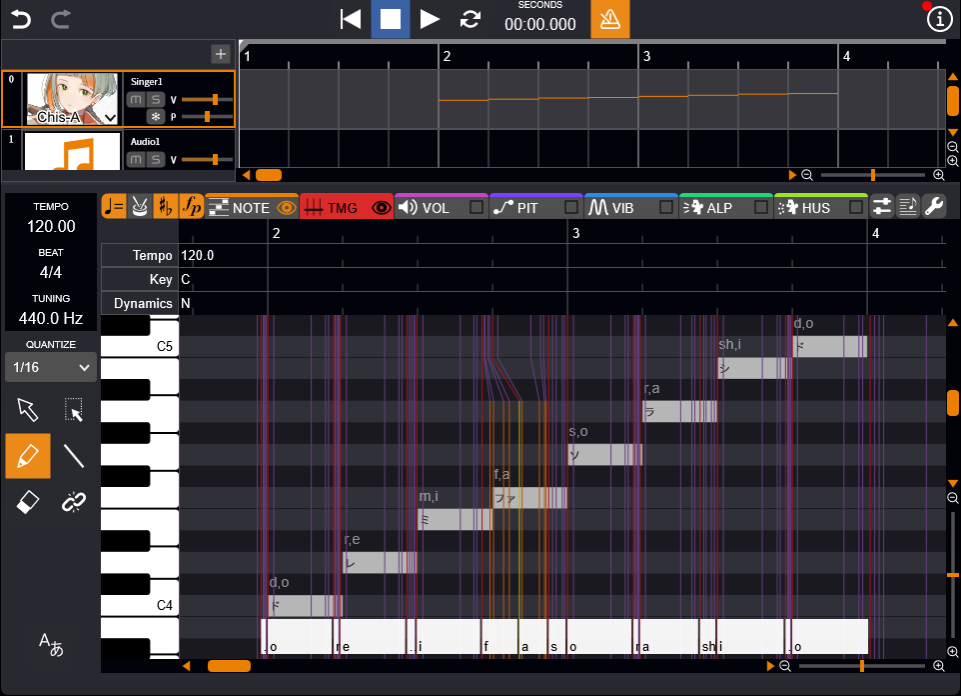
Adjusting Timing
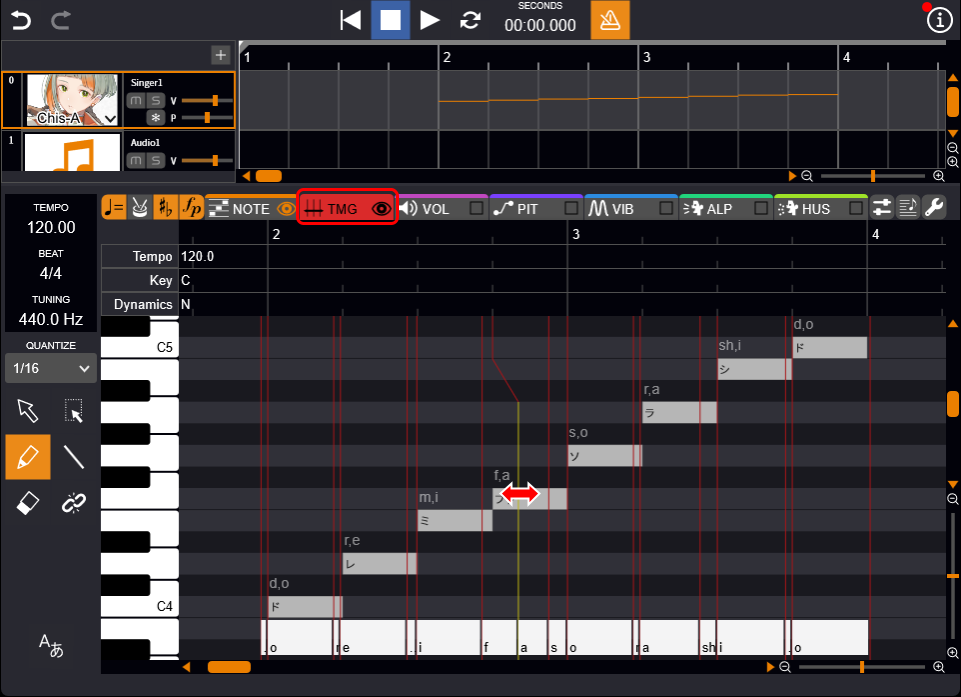
You can adjust the start and end timing of phonemes.
- Click the "TMG" to open the timing adjustment view.
- Select either the "Draw Tool" or the "Line Tool".
- Drag the timing line to adjust.
Making Even Finer Adjustments
In the "Preferences" window under the "Editor" tab, enable "Timing Status Line".
This will display five sub-sections within each phoneme, allowing for more precise timing adjustments.
Timing adjustments at this level may have subtle or hard-to-notice effects.
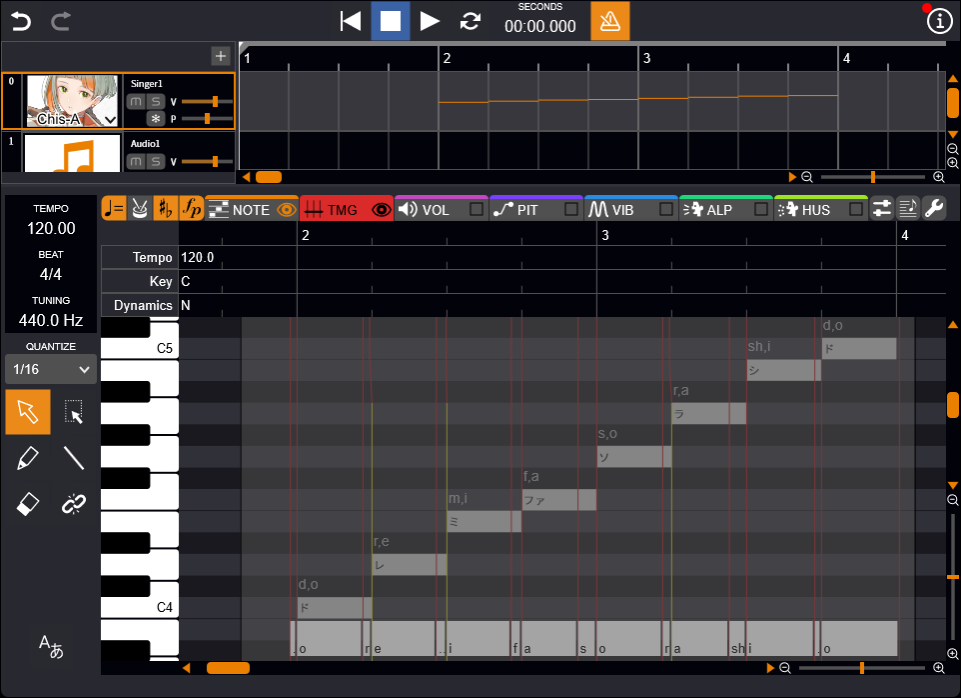
Aligning Vowels to the Beginning of Notes
After selecting a range with the "Selection Tool", right-click and choose "Vowel Timing Correction".
This automatically adjusts the line so that vowels are aligned with the start of each note.
Adjusting Other Parameters
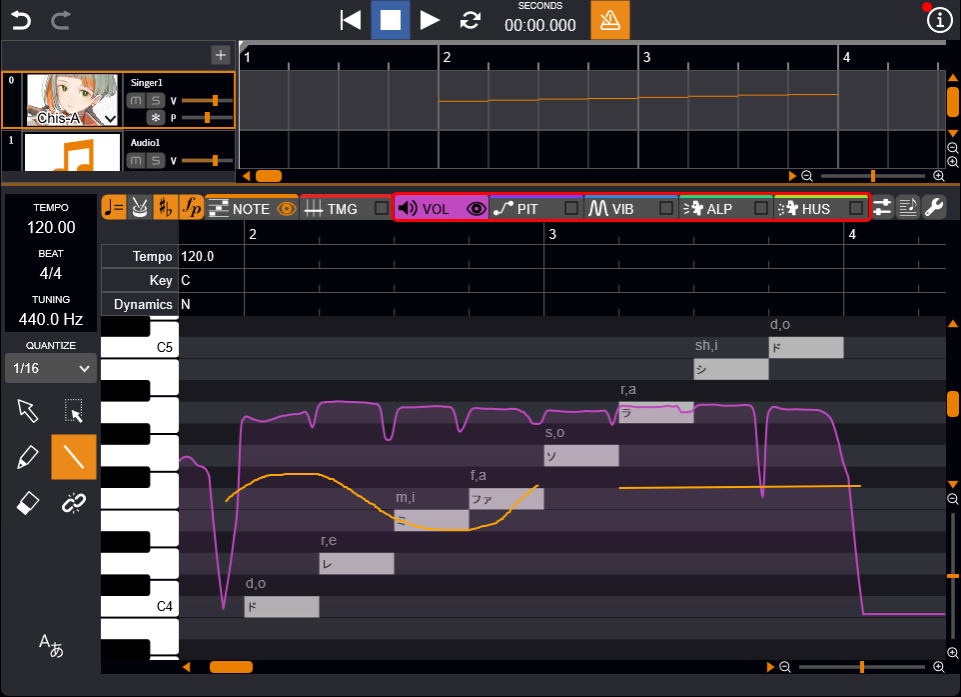
Other parameters can also be easily and freely adjusted.
- Click any of the tabs: "VOL", "PIT", "ALP", or "HUS" to open the adjustment view.
- Select either the "Draw Tool" or the "Line Tool".
Use the "Draw Tool" for freeform adjustments, and the "Line Tool" for linear, straight-line edits.
- Draw a line to make adjustments.
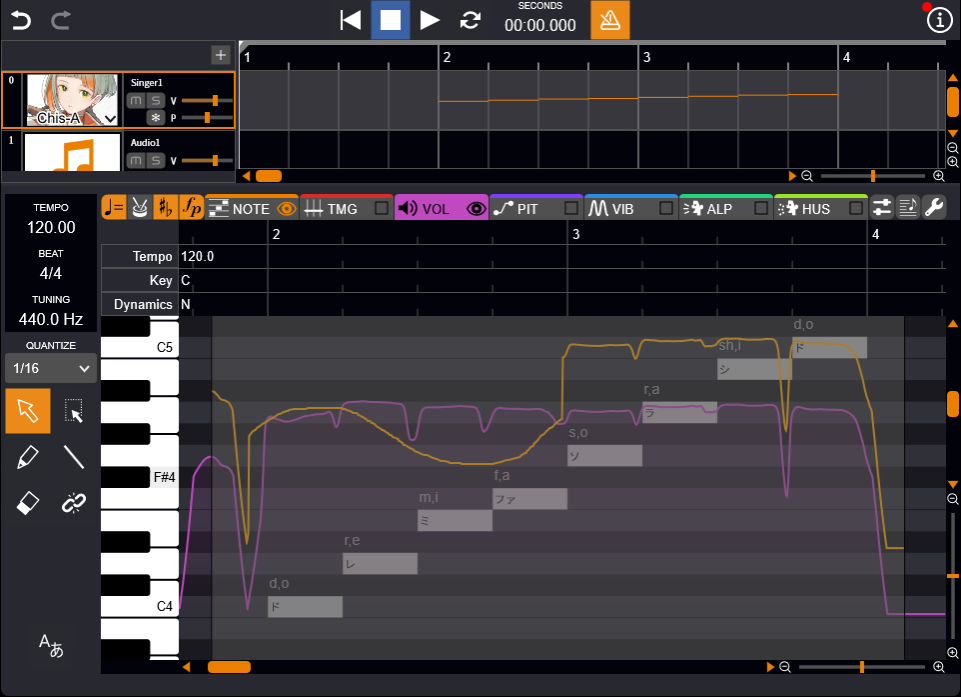
Drawn lines are displayed in orange, allowing you to distinguish between manually edited areas and the original parameter curves.
Adjustable Parameters
- VOL Volume. Measured in dB (decibels).
- PIT Pitch. Measured in Hz (hertz).
- ALP Age. Lower values result in a more childlike voice, while higher values produce a more mature tone.
- HUS Husky. Higher values make the voice sound huskier.
Duplicating Parameter Lines
To duplicate parameter lines, select a range using the "Selection Tool", then use one of the following methods:
- Duplicate only manually drawn lines
Copy the selection, move the position cursor to the desired location, and paste.
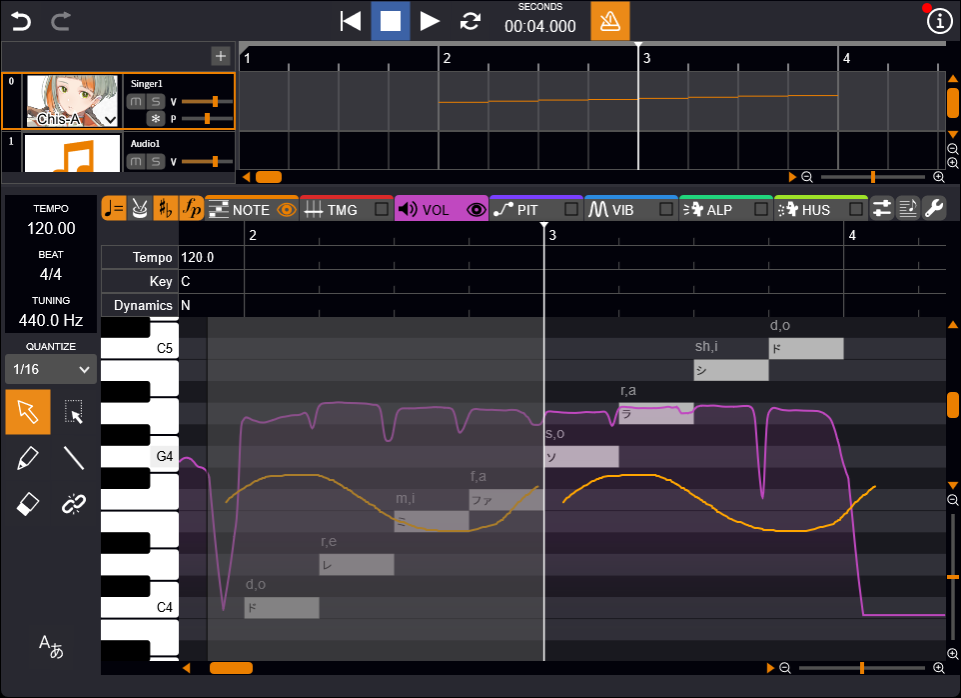
- Duplicate both original and manually drawn lines
Drag the selected range up or down. Manually drawn lines will overwrite the original in the corresponding areas, while the rest will retain the original parameters.
Disabling Parameter Curves
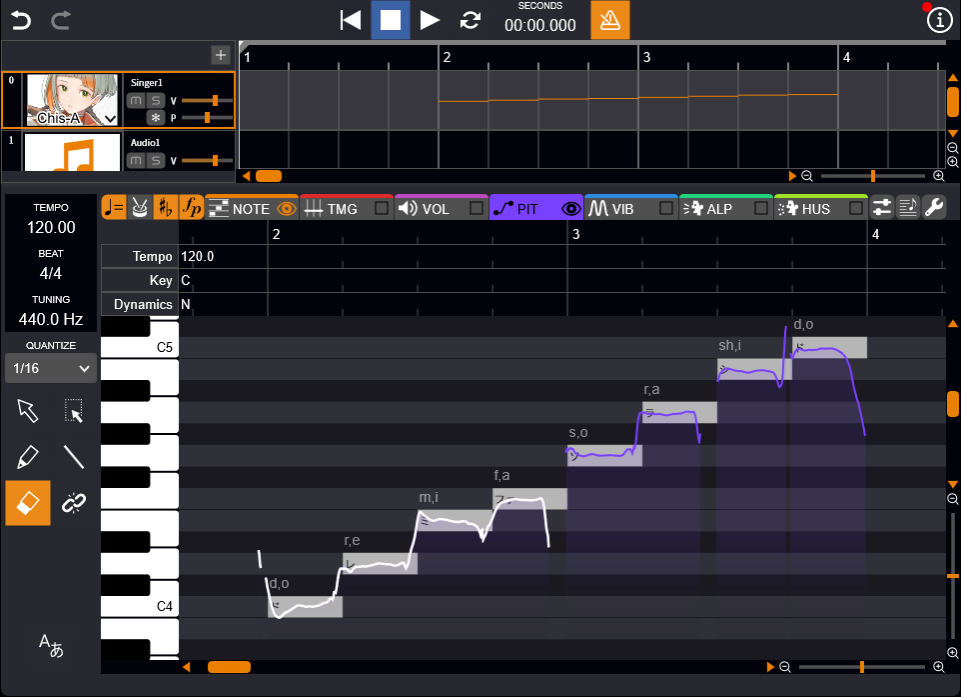
In PIT and VIB (Detailed mode), you can disable the effects of parameter curves.
By holding down the Shift key and dragging the "Eraser Tool" over the original parameter curve, the line turns white, indicating that the parameter in that section has been disabled.
When disabled, the settings have the following effects:
PIT: The pitch is removed, resulting in a thin, breathy vocal sound.
VIB: The vibrato is removed, resulting in a flat, expressionless vocal sound.
Adjusting the Connection Point
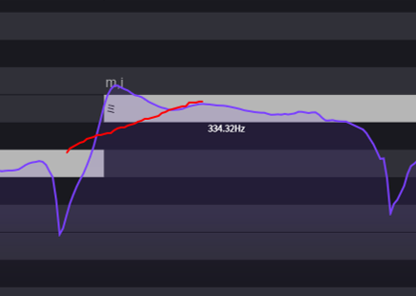
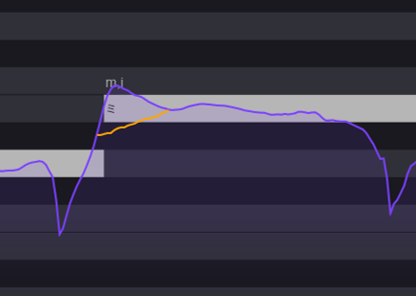
When adjusting pitch, volume, or vibrato, hold the Alt key and drag to draw a smooth line that connects back to the original value.
While holding Alt and dragging, a red line is displayed. Releasing the Alt key applies the adjustment between the connection points where the red line meets the original line.
While Alt is held, only a single line representing the adjusted value is shown, allowing the effective values to be clearly identified.
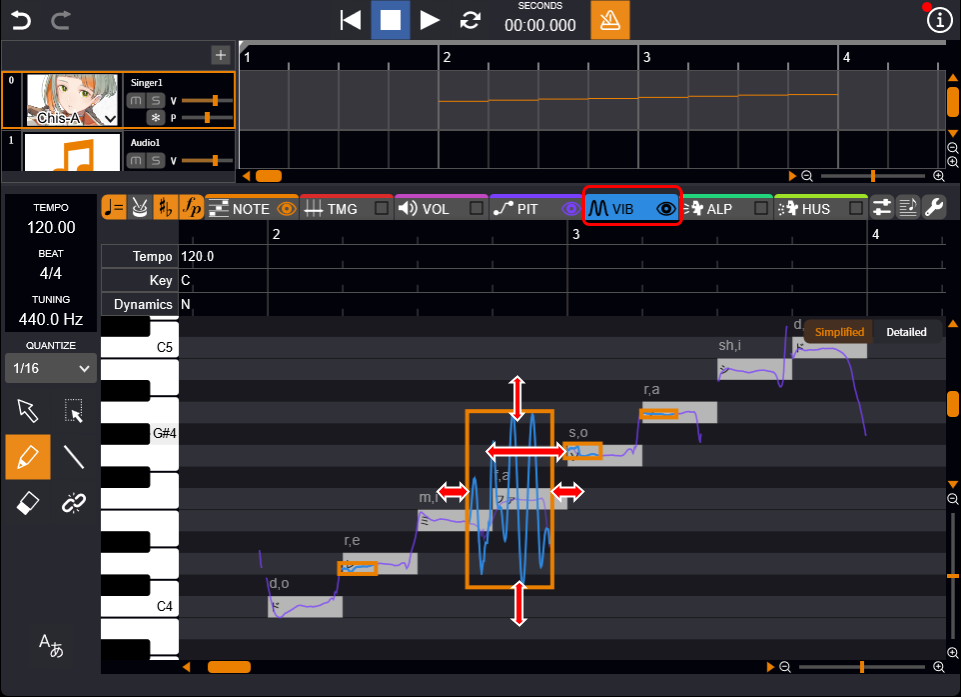
Adjusting Vibrato
You can add new vibrato and adjust its amplitude and frequency.
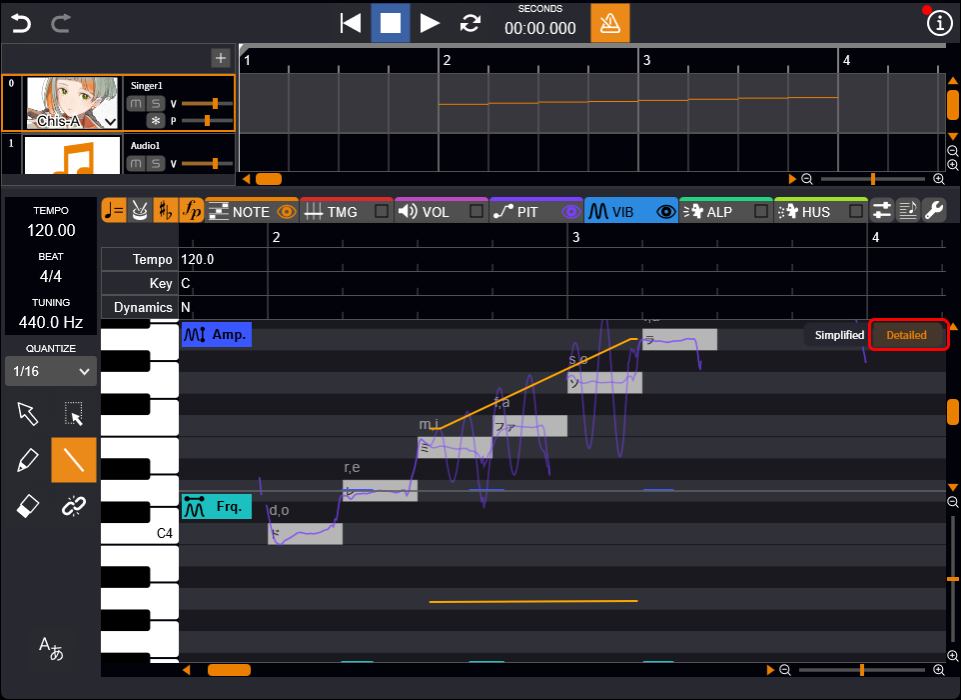
There are two modes: use Simplified mode for intuitive control, or Detailed mode for more precise editing.
- Click the "VIB" to open the vibrato adjustment view.
- Select either the "Draw Tool" or the "Line Tool".
- Edit the vibrato section. By default, Simplified mode is enabled, and the following operations are available:
- Add new vibrato Draw a line to automatically create a new vibrato section.
- Adjust start/end positions Hover over the edge of a section until the cursor turns into a double arrow, then drag left or right.
- Adjust amplitude Hover over the top or bottom edge of the section until the cursor becomes a vertical arrow, then drag up or down.
- Adjust frequency Drag outward horizontally from the center of the section to adjust frequency.
About Amplitude and Frequency
- Amplitude Measured in cents, where 100 cents = one semitone up/down. Higher values result in a wider vibrato depth.
- Frequency Measured in Hz, indicating the number of cycles per second. Higher values produce faster, tighter waves.
Making More Precise Adjustments (Detailed Mode)
Click the "Detailed" button in the upper right of the piano roll to switch modes.
The screen will split into two: the upper section "Amp." allows amplitude editing, and the lower section "Frq." allows frequency editing.
Basic operations are the same as Adjusting Other Parameters, but adding or deleting a line in one section is automatically reflected in the other.
Selecting Notes and Parameters Together
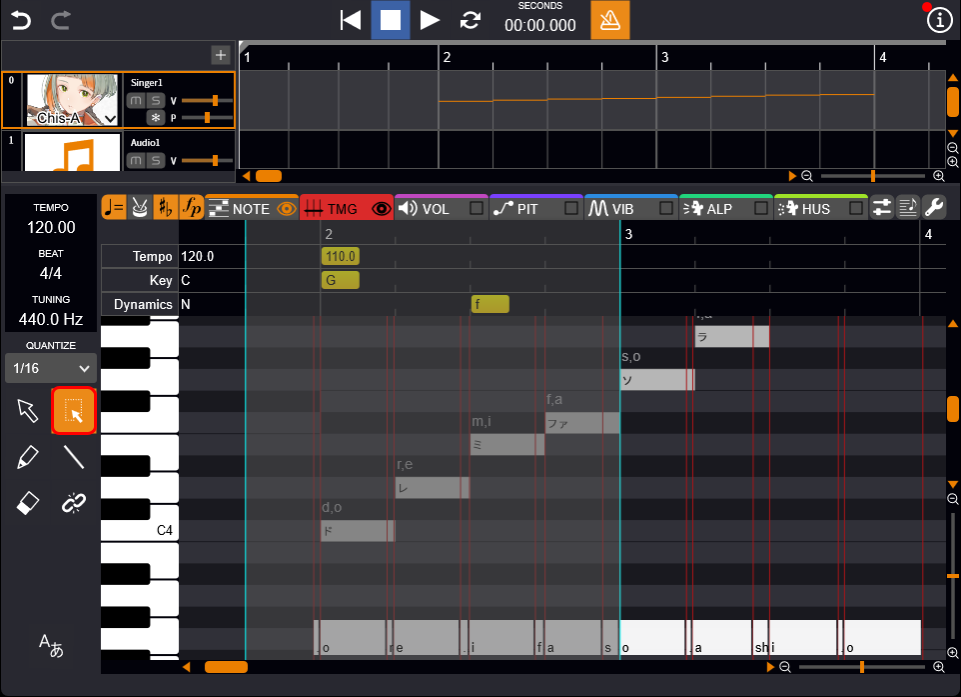
The "Bulk Selection Tool" allows you to select notes and parameters in bulk.
This enables you to perform operations such as moving, copying, and deleting in bulk.
- Select the "Bulk Selection Tool".
- Drag left and right to include notes and parameters.