Launching VoiSona
Quick Start Guide2025/10/2 9:232026/9/5 16:27Installing VoiSona2025/11/3 8:252026/1/5 10:39Launching VoiSona2025/11/2 12:152026/7/1 13:55Signing In2025/11/2 12:152026/7/2 14:11Selecting a Voice Library2025/11/2 12:152026/9/5 9:20Editing the Score2025/11/2 12:152026/9/4 16:37Adjusting Parameters2025/11/2 12:152026/7/2 13:10Opening and Saving Files2025/11/2 12:152026/9/5 8:41Changing Preferences2025/11/2 12:152026/7/2 13:35Frequently Asked Questions2025/11/2 12:152026/7/2 13:56
VoiSona can be used in the following three ways.
Using VoiSona as a Standalone AppUsing VoiSona as an Instrument Plug-inUsing VoiSona as an ARA Plug-in
Using VoiSona as a Standalone App
VoiSona can be launched and used immediately after installation.
Even if you do not have a DAW (Digital Audio Workstation), you can use it with ease.
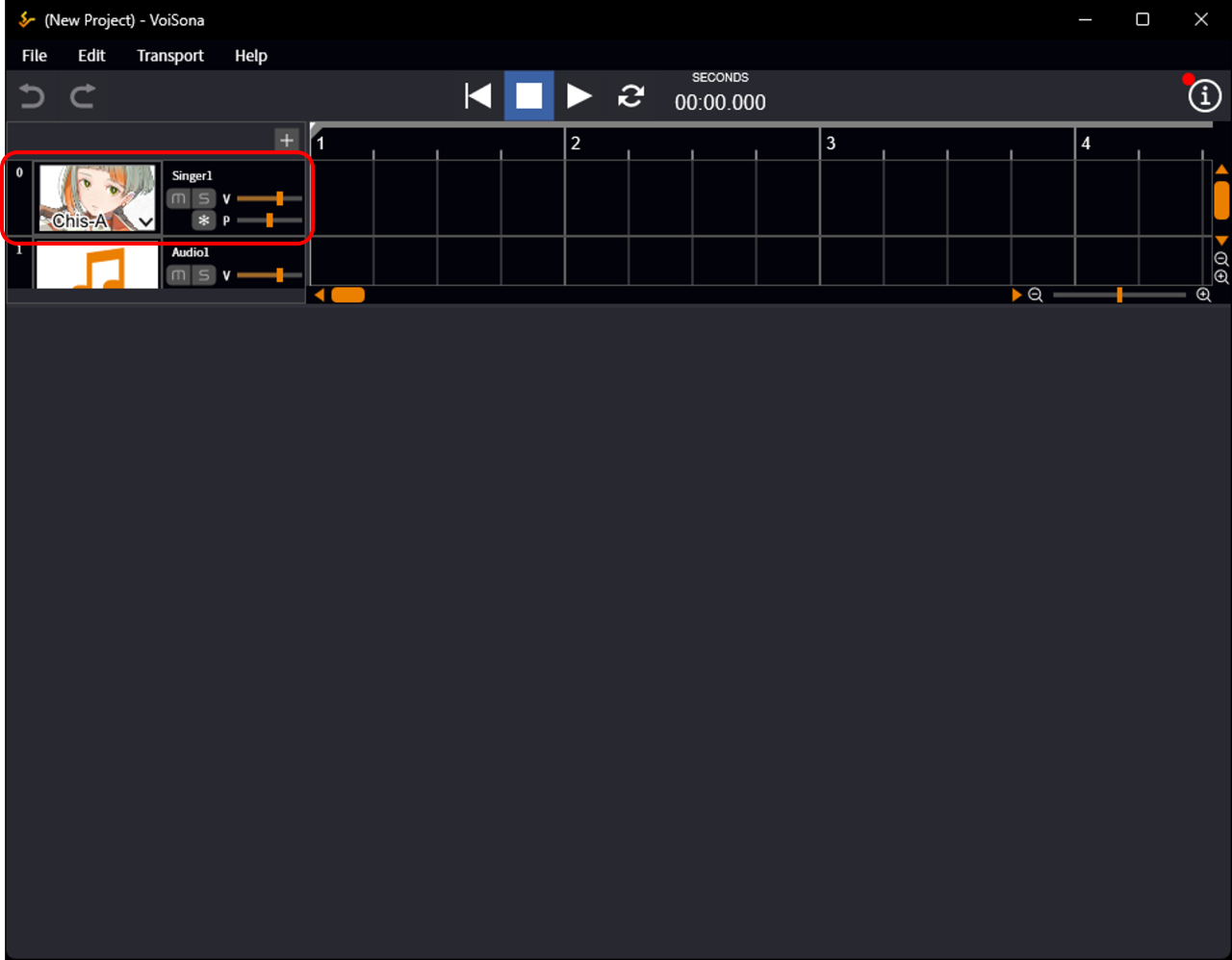
- Launch the VoiSona app. A new project will be created.
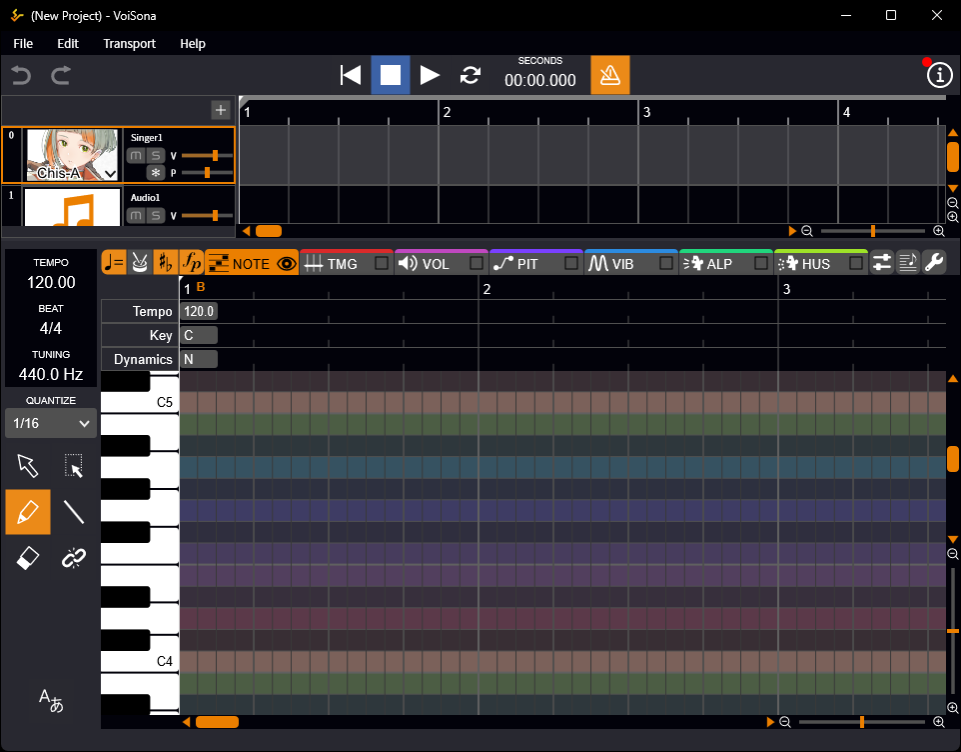
- Select the song track. The score editing screen will be displayed.
Using VoiSona as an Instrument Plug-in
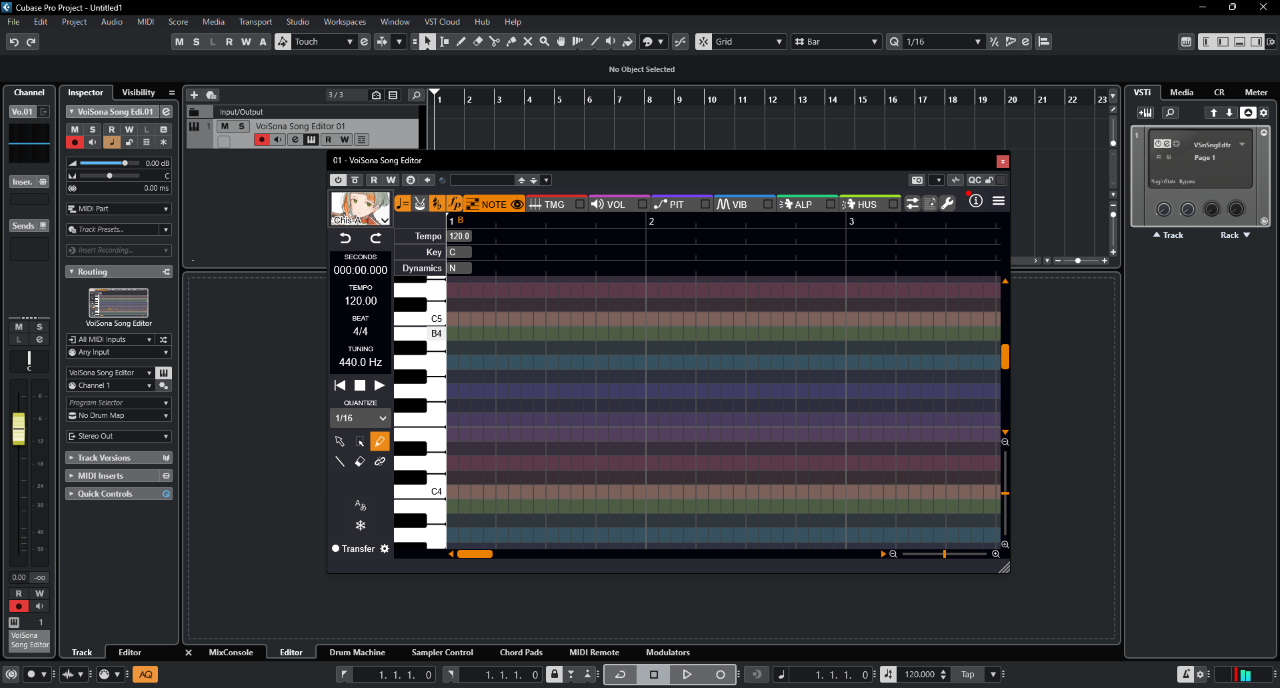
For those who have a DAW, you can use VoiSona as a VST or Audio Units (AU) instrument plug-in.
As an example, we will introduce how to use it with the VST instrument plug-in (VSTi) in "Cubase Pro 13".
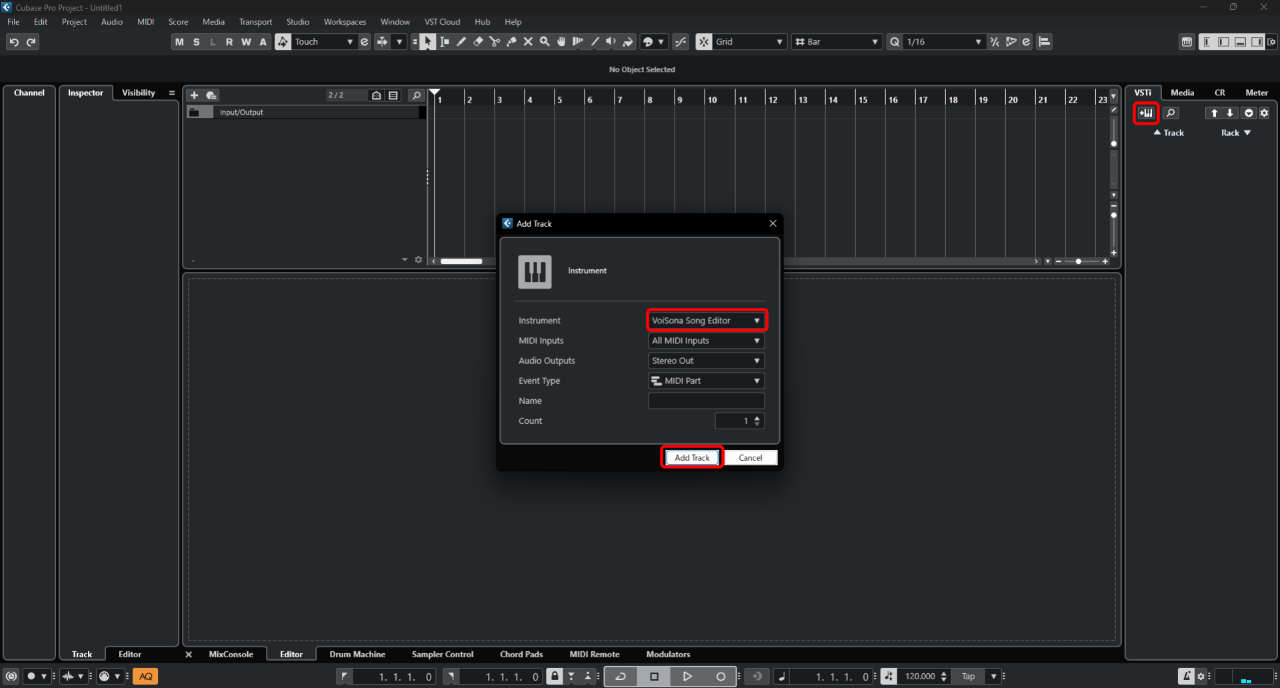
- Launch "Cubase Pro 13".
- Click "Add Track Instrument".
- Select "VoiSona Song Editor" and click "Add Track". The VoiSona editing screen will be displayed.
Using VoiSona as an ARA Plug-in
Those with a DAW supporting ARA can use it with the ARA plug-in for VST or Audio Units.
As an example, we will introduce how to use it with the ARA plug-in in "Cubase Pro 13".
- Launch "Cubase Pro 13".
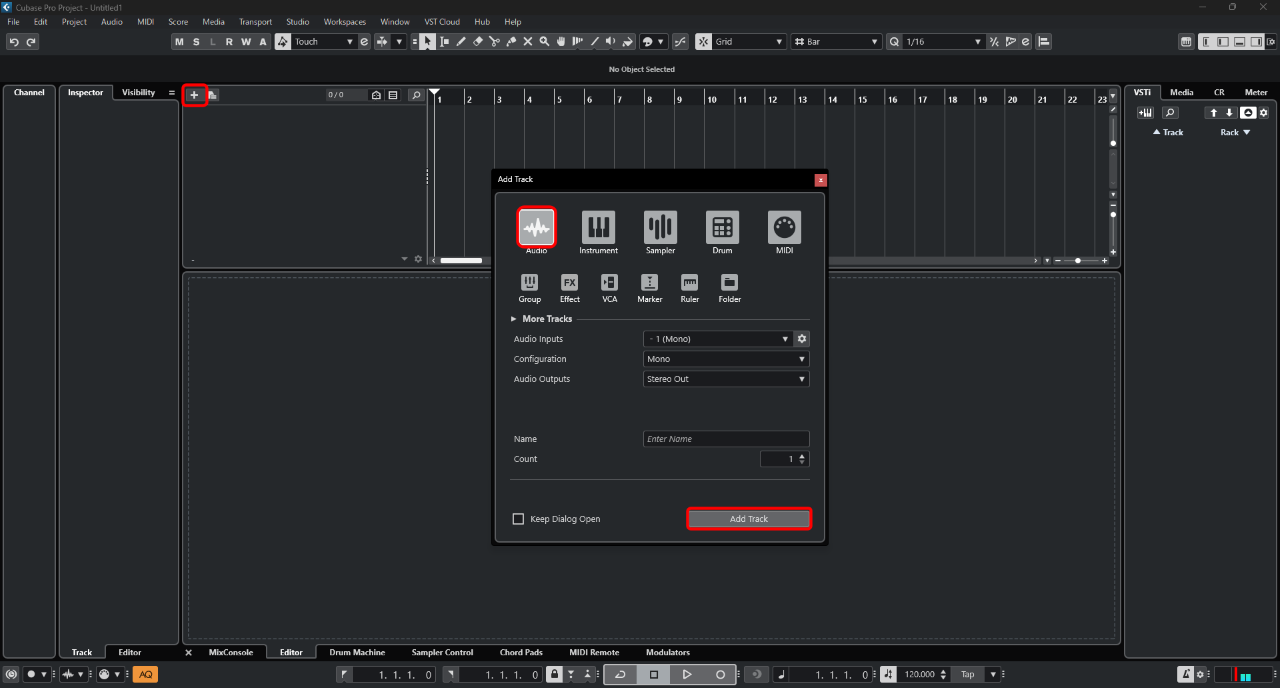
- Click "+ (Add Track)".
- Select "Audio" and click "Add Track".
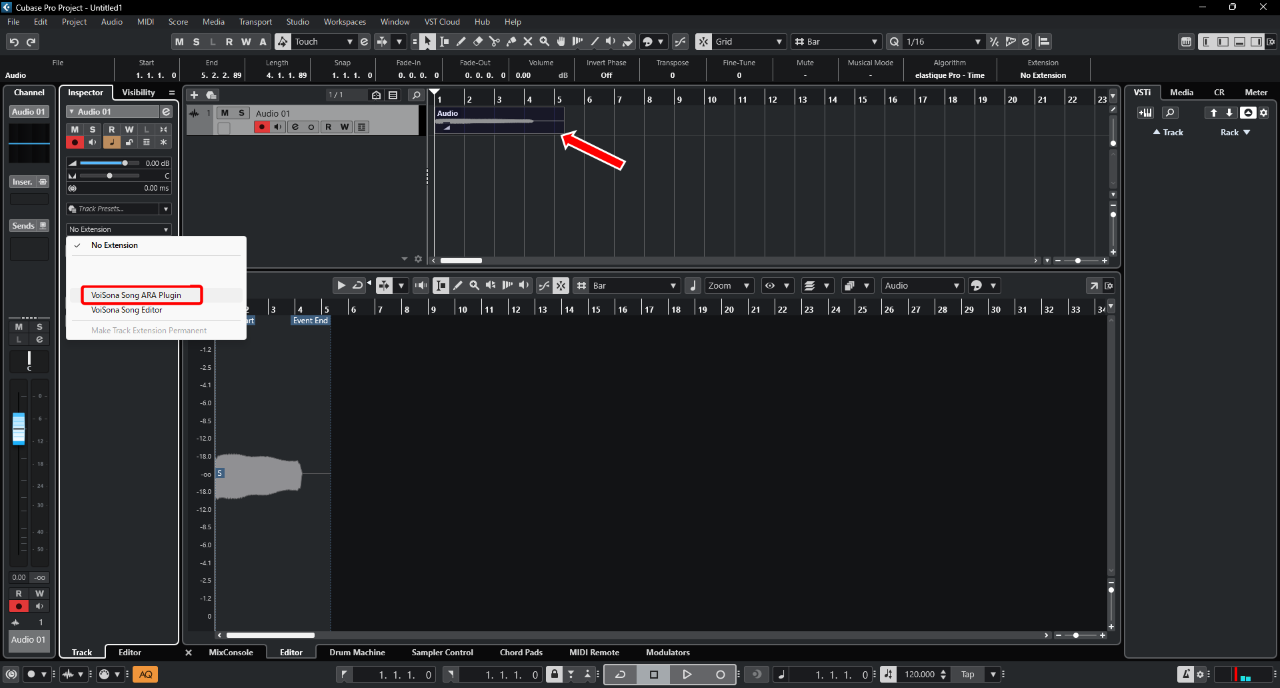
- Drag & drop an audio file onto the added track or record to set the audio.
When using as an ARA plug-in, you need to set sufficiently long audio in the plug-in’s input audio track.
Please note that some DAWs will not output sound for parts without audio set.
- Click "No Extension" in "Inspector" > "Track" tab.
- Select "VoiSona Song ARA Plug-in". The VoiSona editing screen will be displayed.
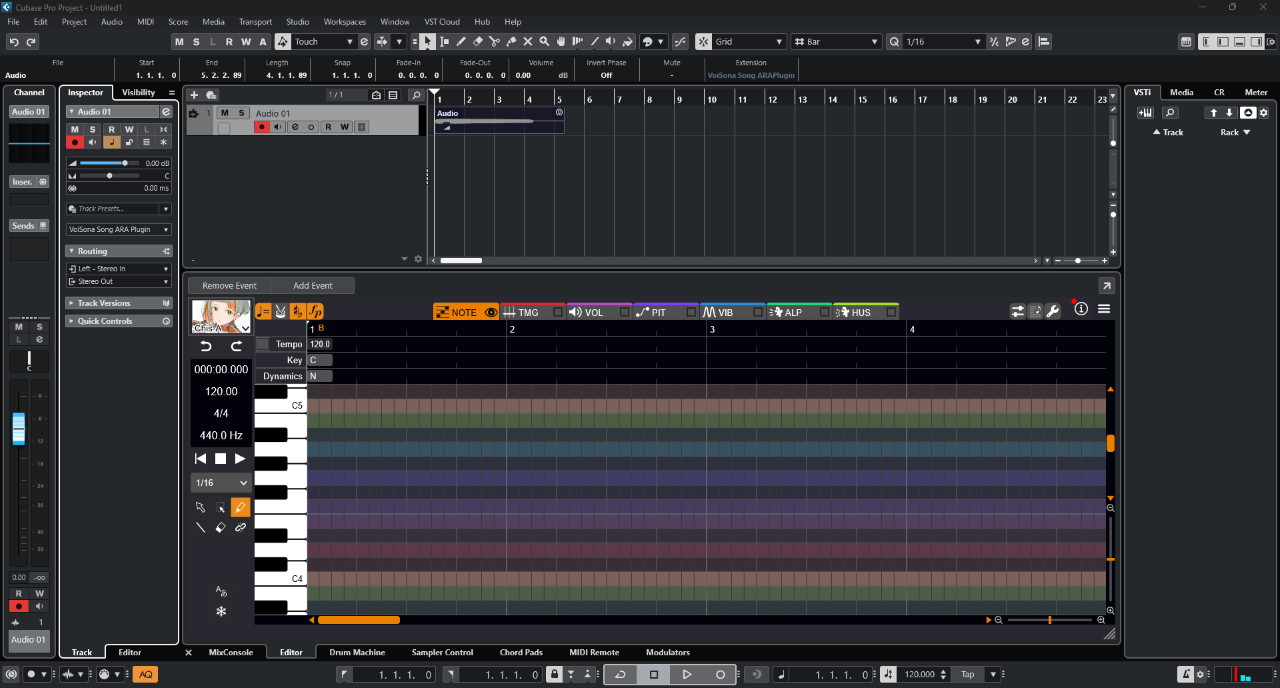
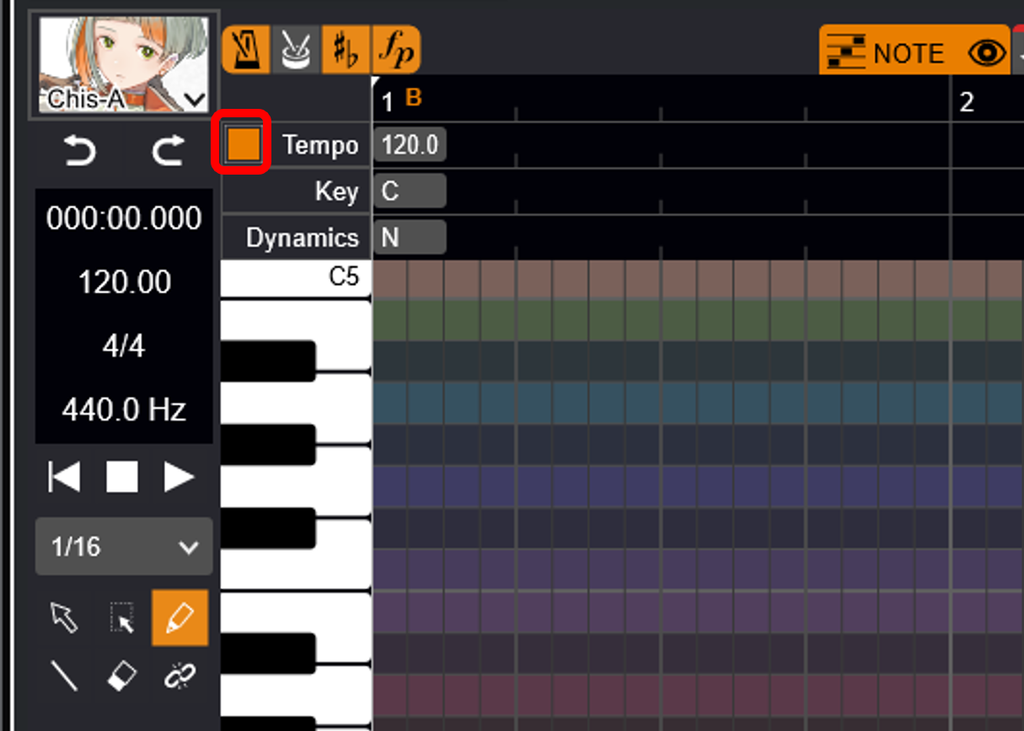
With the ARA plug-in, you can choose whether to edit the tempo in VoiSona’s editing screen or match the DAW’s settings.
To switch, click the square to the left of "Tempo".