
Opening and Saving Files
Quick Start Guide2025/10/2 9:232026/9/5 16:27Installing VoiSona2025/11/3 8:252026/1/5 10:39Launching VoiSona2025/11/2 12:152026/7/1 13:55Signing In2025/11/2 12:152026/7/2 14:11Selecting a Voice Library2025/11/2 12:152026/9/5 9:20Editing the Score2025/11/2 12:152026/9/4 16:37Adjusting Parameters2025/11/2 12:152026/7/2 13:10Opening and Saving Files2025/11/2 12:152026/9/5 8:41Changing Preferences2025/11/2 12:152026/7/2 13:35Frequently Asked Questions2025/11/2 12:152026/7/2 13:56
You can load files created in VoiSona or other applications, and export the data being edited.
Creating a New ProjectOpening a File (.tssln)Saving a File (.tssln)Importing FilesImporting StandaloneImporting Using a PluginImporting an Audio FileTransferring MIDI from a DAWExporting Files
Creating a New Project
Create a new project and start editing.
- From the menu bar, select "File" > "New Project". A new project will be created.
If a project is currently open, a screen will appear asking you to save it.
Opening a File (.tssln)
You can open a saved file and resume editing.
- From the menu bar, select "File" > "Open".
If a project is currently open, a screen will appear asking you to save it.
- Select a file and click "Open". The selected file will open.
Saving a File (.tssln)
When you save a file, all the tracks you are working on are saved into a single file.
- From the menu bar, select "File" > "Save" or "Save As".
- If a dialog box appears, specify the location and file name, and confirm. The file will be saved to the specified location.
Audio files are not saved inside the project file.
The project file records only the location of each audio file.
When you move or share the project file, move the original audio files together with it.
Always keep them in the same folder structure.
If you move only the project file, the audio track will not load correctly.
Importing Files
You can import files created in other projects or applications.
Importable File Formats
- CCS Files saved per project in CeVIO Creative Studio and CeVIO AI. If multiple tracks exist, you can select which track to load.
- CCST Files saved per track in CeVIO Creative Studio and CeVIO AI.
- MIDI Music data files in MIDI format. If multiple tracks exist, you can select which track to load.
- MusicXML Music notation data files in MusicXML format.
- tssprj VoiSona proprietary format project files.
- tsmsln iOS/iPadOS version VoiSona proprietary format project files.
- UST UTAU vocal data files.
- SVP Synthesizer V project files.
Importing Standalone
In standalone mode, you can import files into the selected track or a new track, then edit and play them in the editor.
- Select one of the following options:
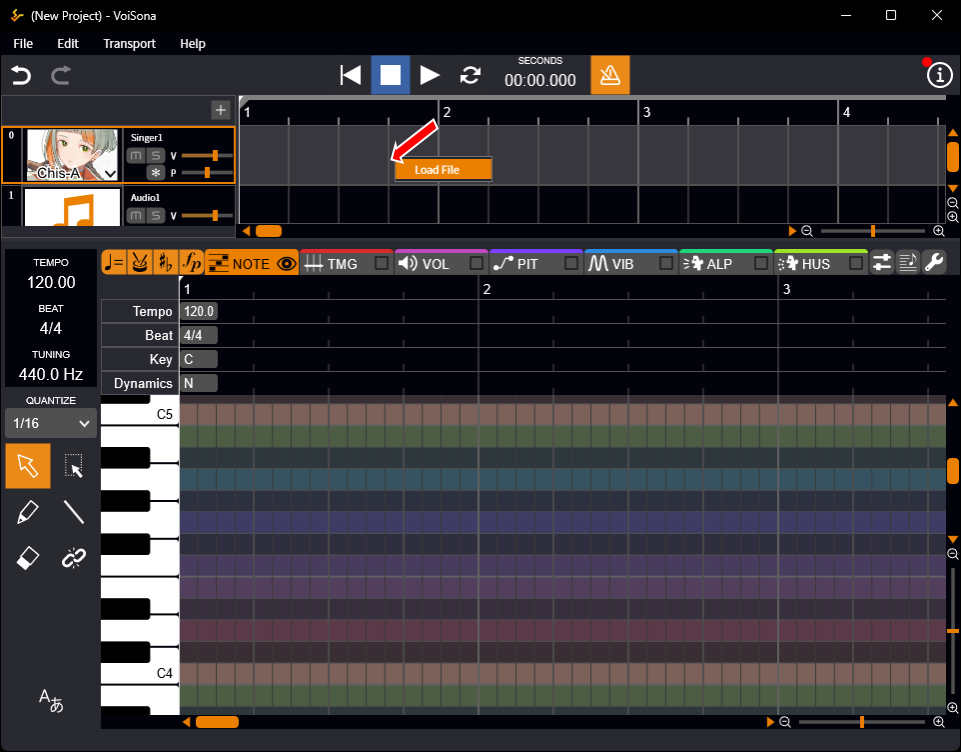
- To import into the selected track Right-click on the track and select "Load File".
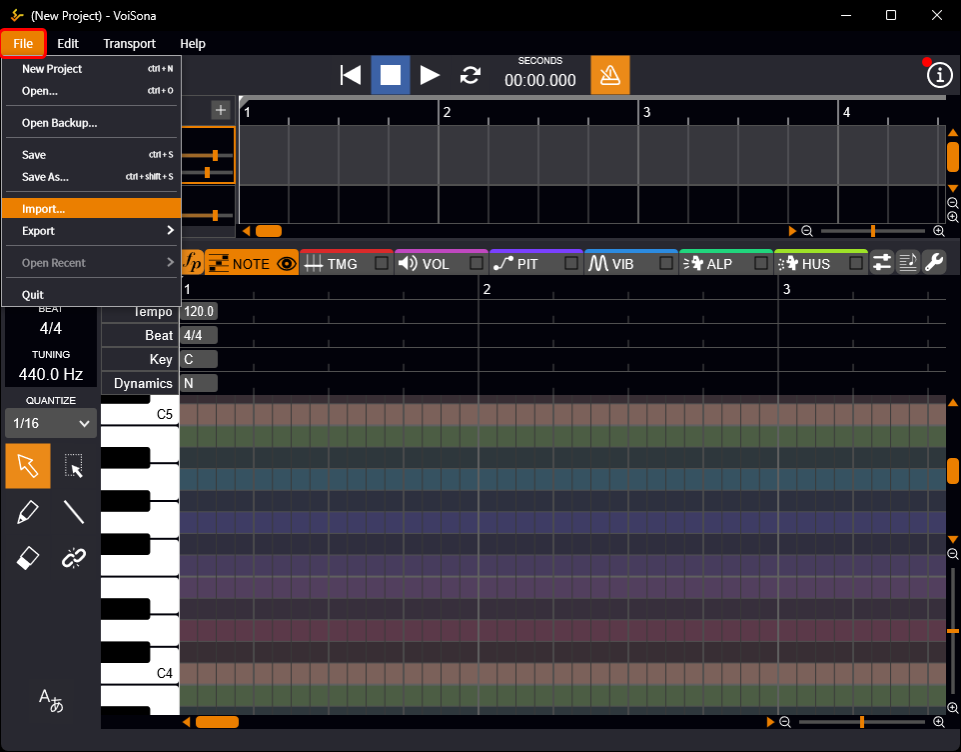
- To import into a new track From the menu bar, select "File" > "Import".
- Select a file and click "Open". The contents of the file will be imported into the selected track or a new track.
When you select a MIDI or CCS file, the Import Settings screen will appear.
Importing Using a Plugin
With a plugin, you can import files into the selected track and edit and play them in the editor.
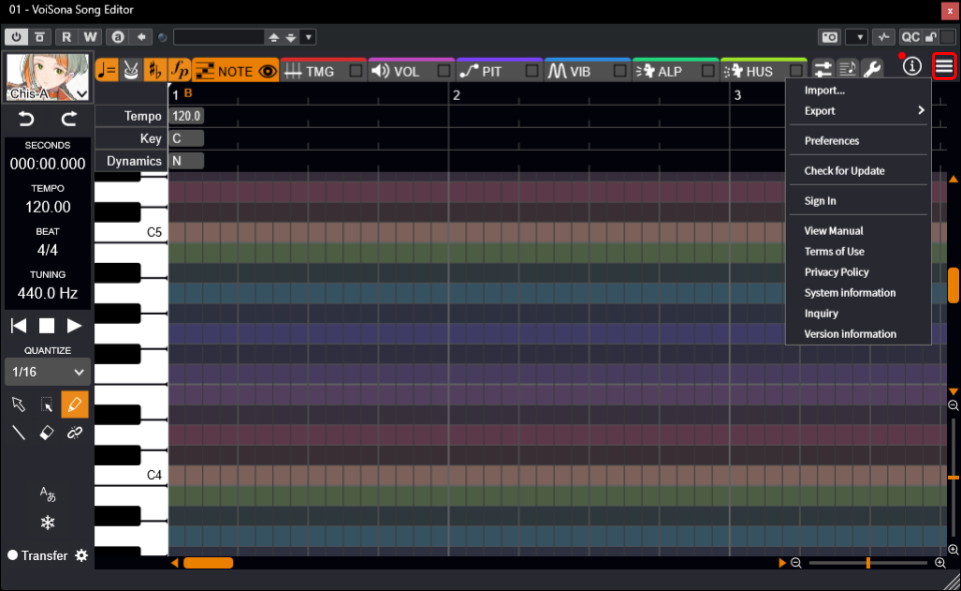
- Click the "Menu" button and select "Import".
- Select a file and click "Open". The contents of the file are imported into the selected track.
When you select a MIDI or CCS file, the Import Settings screen will appear.
Importing an Audio File
When using the application standalone, you can import audio files into the audio track.
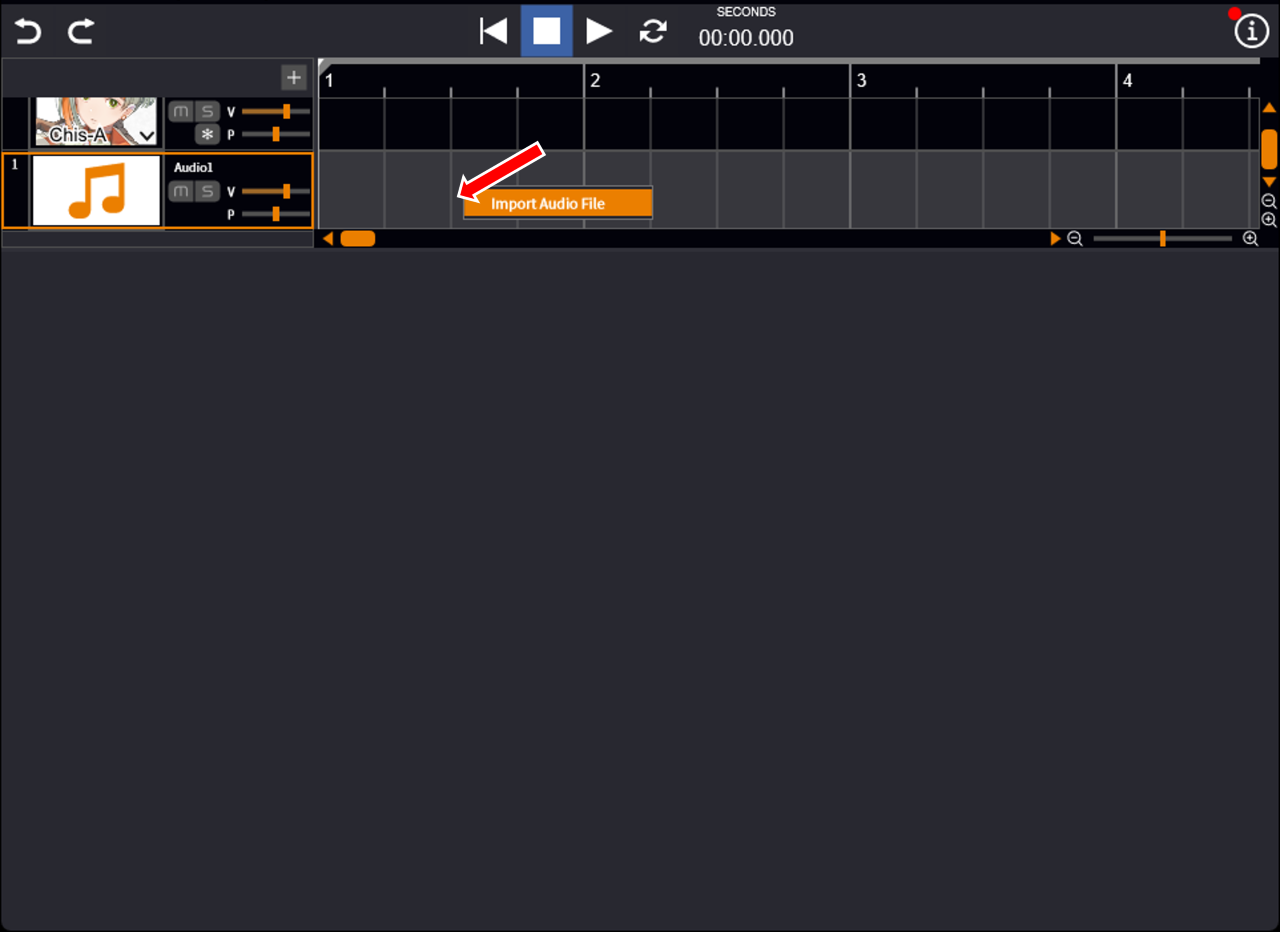
- Right-click on the audio track timeline and select "Import Audio File".
- Choose a file and click "Open". An audio file will be imported.
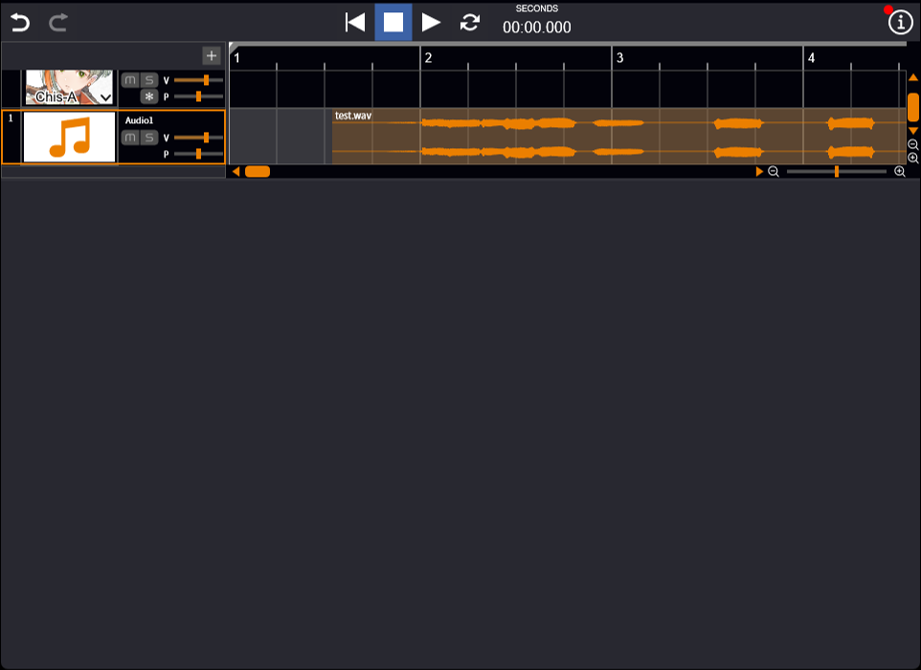
You can also import files by dragging and dropping them onto the timeline.
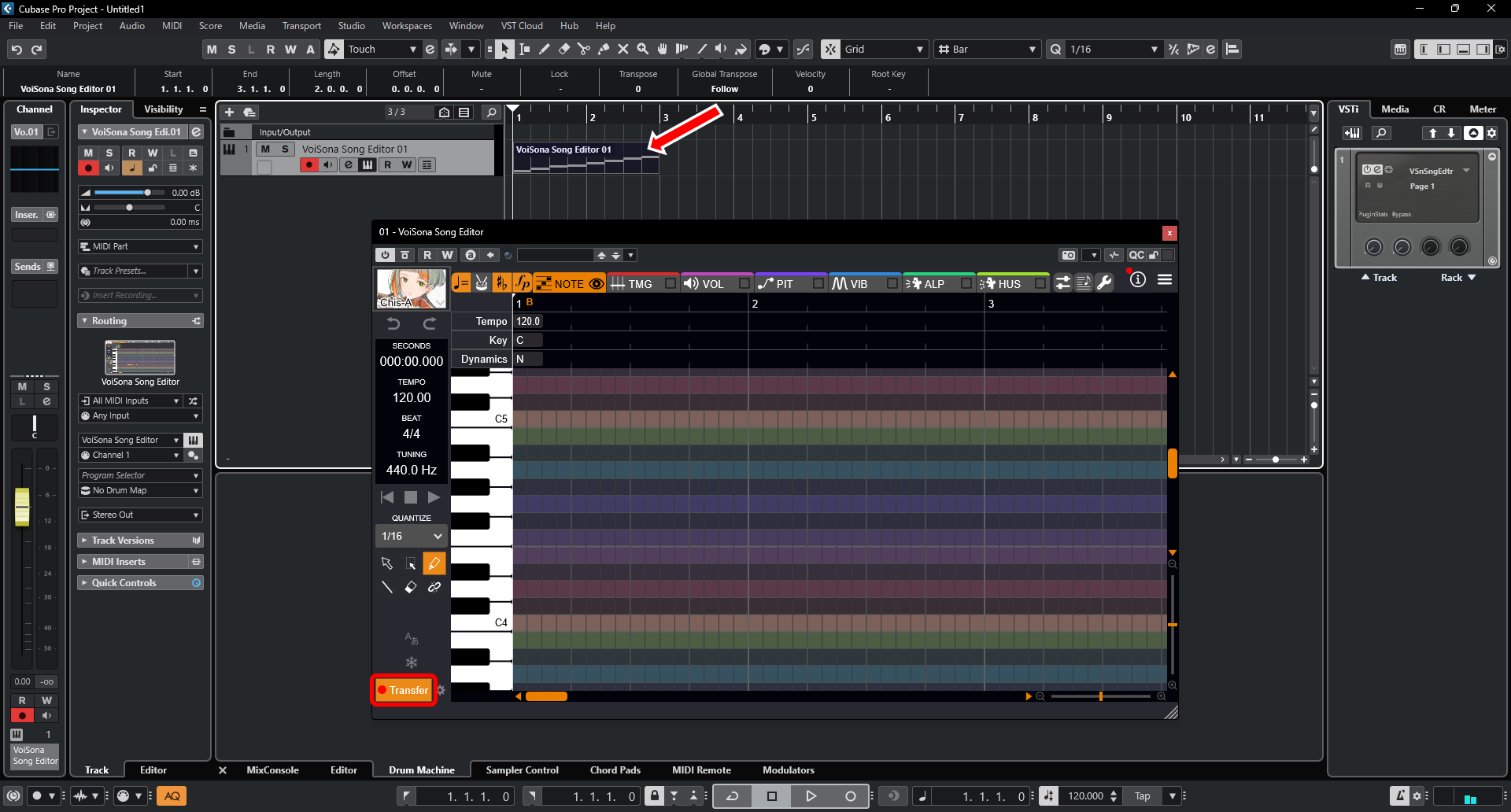
Transferring MIDI from a DAW
When using VoiSona as an instrument plugin, you can transfer MIDI data from your DAW into VoiSona.
- Prepare the MIDI information on the same track as VoiSona within your DAW.
- Within VoiSona's editing interface, turn on the "Transfer" button.
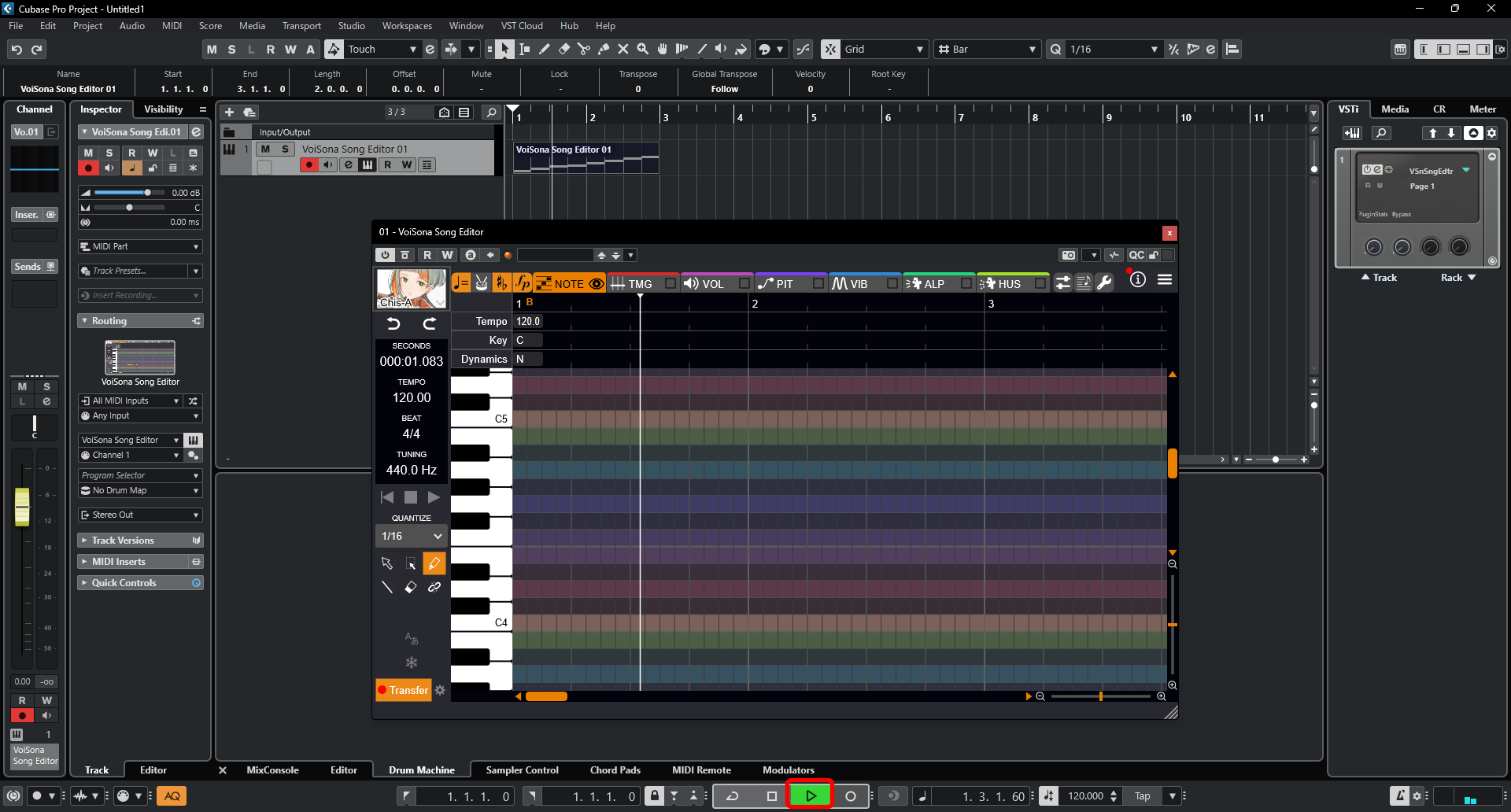
- Start playback in your DAW.
- When playback of the entire section you wish to transfer has finished, stop playback. The transfer will be completed.
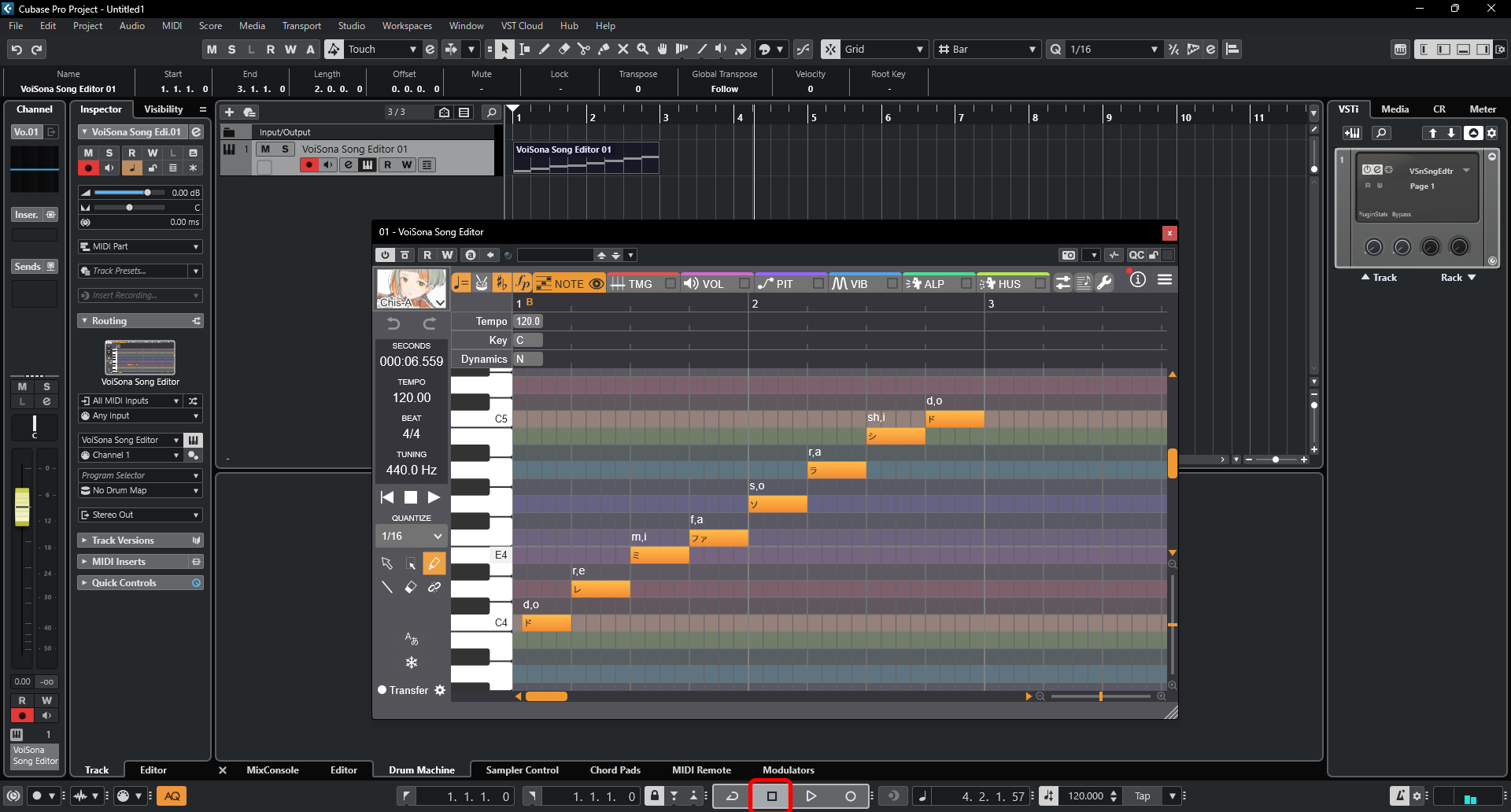
Only the MIDI information from the played section will be reflected in VoiSona.
Exporting Files
You can export files for use in other projects or other applications.
- Select the following items.
- Standalone From the menu bar, select "File" > "Export" > File format to export.
- Instrument Plug-in, ARA Plug-in Click the "Menu" button and select "Export" > File format to export.
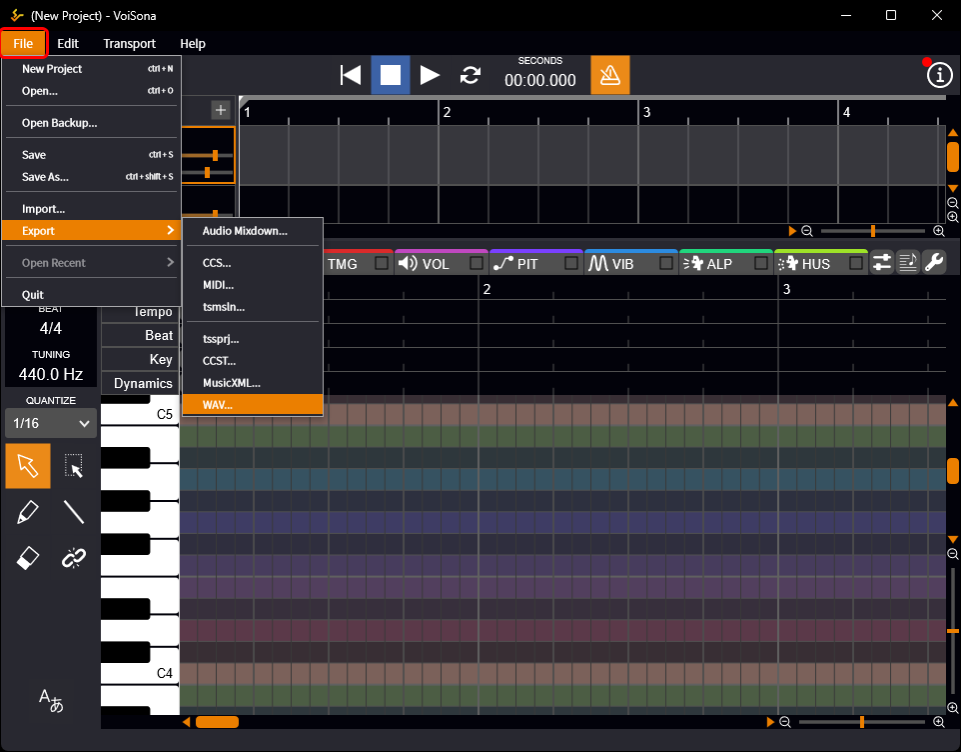
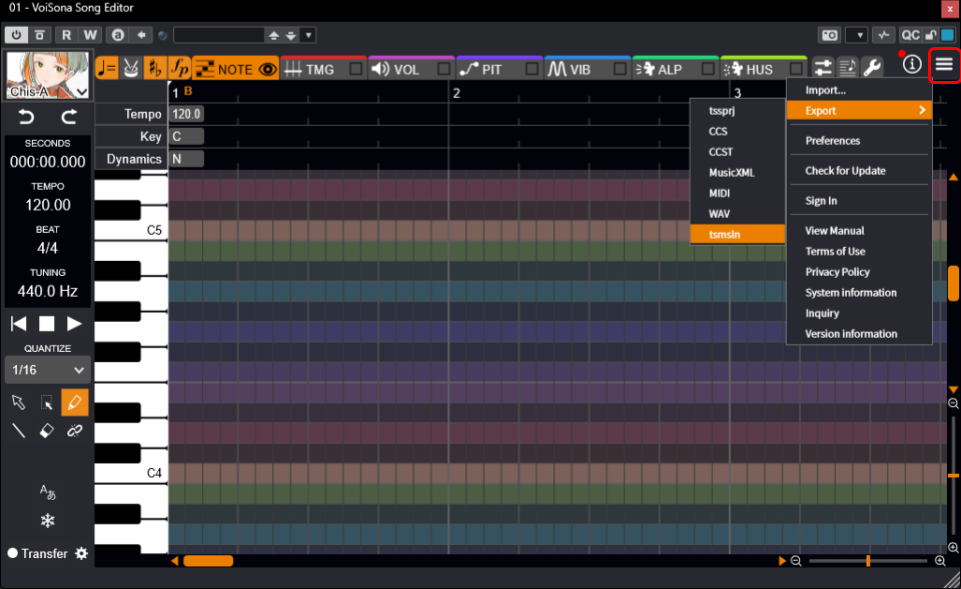
- Make the necessary settings in the dialog box, and confirm. The file will be saved to the specified location.
File Formats and Output Methods
- Audio Mixdown Combines all tracks and outputs a single file in WAV format.
- CCS CeVIO Creative Studio or CeVIO AI project file. Exports all tracks into one file.
- MIDI Music data files in MIDI format. Exports all tracks into one file. Adjustment parameters are not included.
- tsmsln VoiSona’s proprietary project format for iOS/iPadOS. You can select one song track and one audio event to export. You can also select "None" for the audio event. The voice library selection is also saved.
- tssprj VoiSona’s proprietary project file format. Exports only one song track. The voice library selection is also saved.
- CCST CeVIO Creative Studio or CeVIO AI project file. Exports only one song track.
- MusicXML Music notation data files in MusicXML format. Exports only one song track. Adjustment parameters are not included.
- WAV Rendered vocal audio. You can select multiple tracks to export. Enable "Export Timing Data" to also output a Lab file.