
Adjusting Parameters
Quick Start Guide2025/10/2 9:232026/10/5 10:08Installing VoiSona Talk2025/11/3 7:492026/9/1 15:12Signing In2025/11/3 7:492026/9/1 15:19Creating, Opening, and Saving Projects2026/10/2 10:252026/10/2 10:26Selecting a Voice Library2025/11/3 7:492026/9/1 15:28Entering Sentences2025/11/3 7:492026/9/1 16:49Playing Back Sentences2026/9/1 15:022026/9/1 15:04Editing Sentences (Japanese Voice Libraries)2025/11/3 7:492026/10/2 5:05Editing Sentences (English Voice Libraries)2026/10/5 16:182026/10/2 5:17Adjusting Parameters2025/11/3 7:492026/10/1 6:47Importing and Exporting Files2025/11/3 7:482026/10/4 17:18Setting Preferences2025/11/3 7:482026/10/4 17:19REST API Tutorial2025/11/3 7:482026/10/4 12:46Frequently Asked Questions (FAQ)2025/11/3 7:472026/10/3 13:55
In VoiSona Talk, you can finely adjust the speed, volume, pitch, style, and other aspects of the synthesized speech.
You can adjust the parameters that affect the whole sentence (global parameters), and switch the tabs of the adjustment pane to adjust more detailed time-series parameters.
Adjusting the Parameters of the Whole SentenceAdjusting the Style of a SentenceSaving Parameter Settings (Presets)Adjusting Parameters in More DetailAdjusting the Style at a Specified PositionCopying StylesAdjusting Other ParametersSelecting a Range and Operating on It
Adjusting the Parameters of the Whole Sentence
For each sentence, you can adjust the parameters that affect the whole sentence, such as speed, volume, and pitch.
- Click the "Parameter" button to open the panel.
- In the global parameter area, adjust the values by entering them directly or by using the sliders.
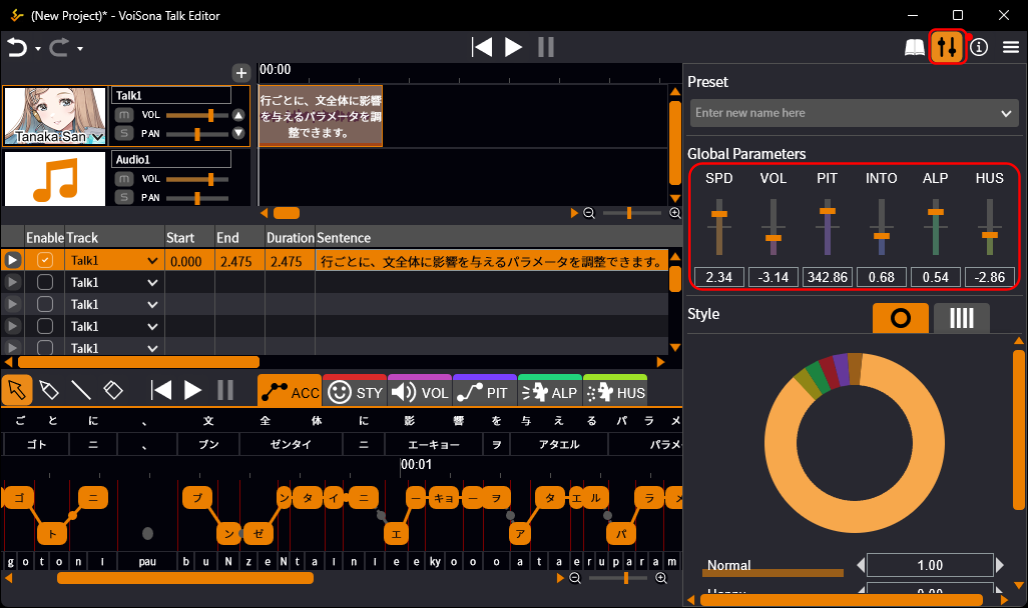
Adjustable parameters
- SPD Speed.
- VOL Volume.
- PIT Pitch.
- INTO Intonation. Lower values sound flatter, and higher values give stronger intonation.
- ALP Alpha details. Lower values sound more childlike, and higher values sound more adult.
- HUS Huskiness. Higher values sound huskier.
Double-click a slider to return it to the default value.
Adjusting the Style of a Sentence
You can mix multiple styles such as "Happy" and "Angry" in any ratio you like.
- Click the "Parameter" button to open the panel.
- In the style area, click the tab at the upper right to select the pie chart or the bar chart.
- Adjust the ratio of each style by entering the values directly or by operating the chart.
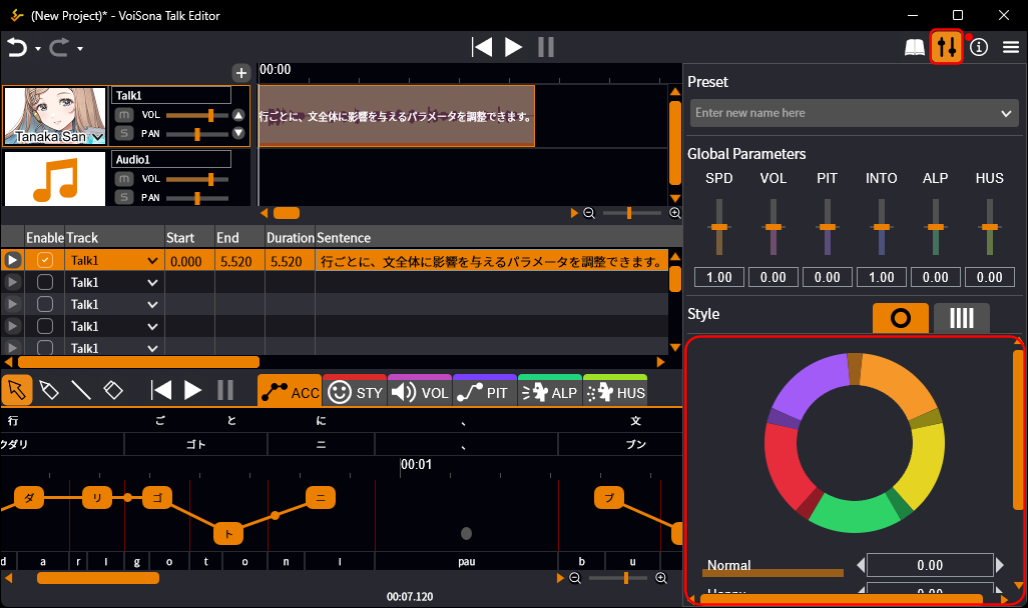
About style ratios
When styles are combined, they are synthesized according to the ratio of each value to the total.
For example, combining "Happy 100" and "Angry 100" gives 50% each.
That is, "Happy 100 + Angry 100" and "Happy 50 + Angry 50" mean the same thing.
The available styles and their number depend on the voice library.
Saving Parameter Settings (Presets)
Adjustments to the global parameters and styles can be saved as presets.
- Click the "Parameter" button to open the panel.
- Adjust the global parameters and styles.
- In the preset area, click where "Enter new name here" is displayed.
- Enter the text and confirm. The preset is saved, and you can select it from the drop-down menu by clicking "v".
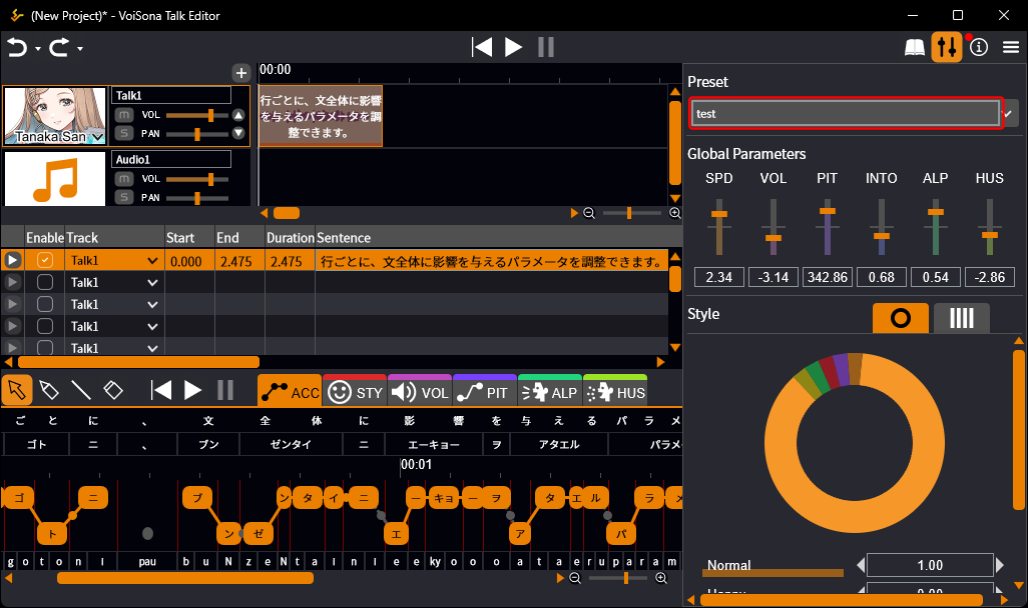
Select "Default" to return the parameter settings to their initial state.
Select "Reorder Presets" to open the "Preset Parameters" dialog, where you can delete or reorder presets.
Clicking the trash can button to the right of a voice library name deletes all presets registered for that voice library.
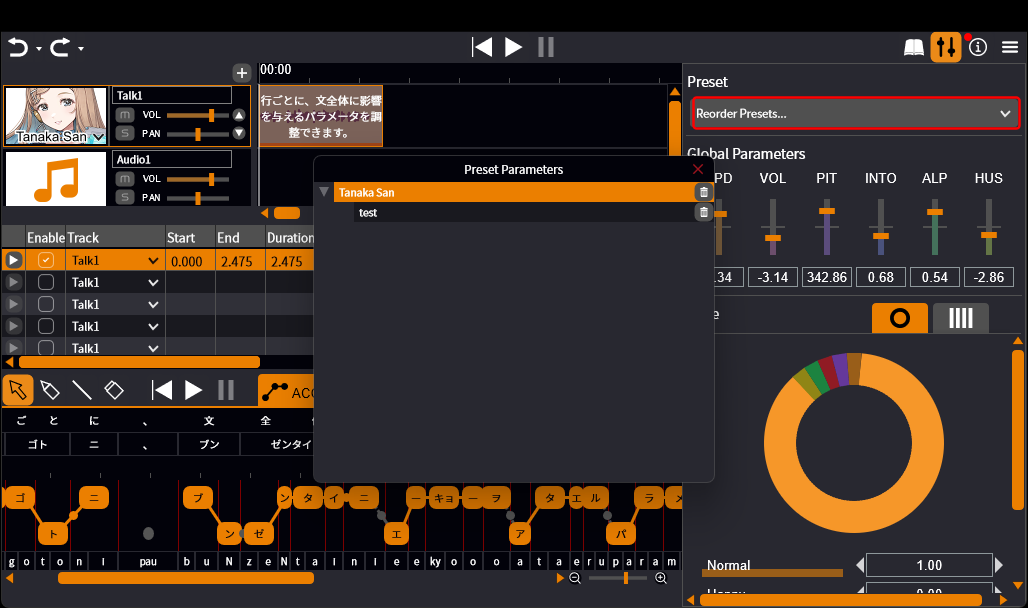
Adjusting Parameters in More Detail
Switch the tabs of the adjustment pane to adjust more detailed time-series parameters.
The "ACC" tab is for editing accents and is described in the chapters on editing sentences.
Adjusting the Style at a Specified Position
You can specify the positions in a sentence where a style applies, and adjust the style at each position.
- Click the "STY" tab of the adjustment pane. The parameter panel opens as well.
- Click the position where you want to apply a style.
A vertical bar appears at the clicked position ("Add Style Control Point").
Drag the vertical bar left or right to move it. The vertical bar at the beginning of the sentence cannot be moved or deleted.
- Adjust the style in the parameter panel.
The adjusted style is applied at the specified position.
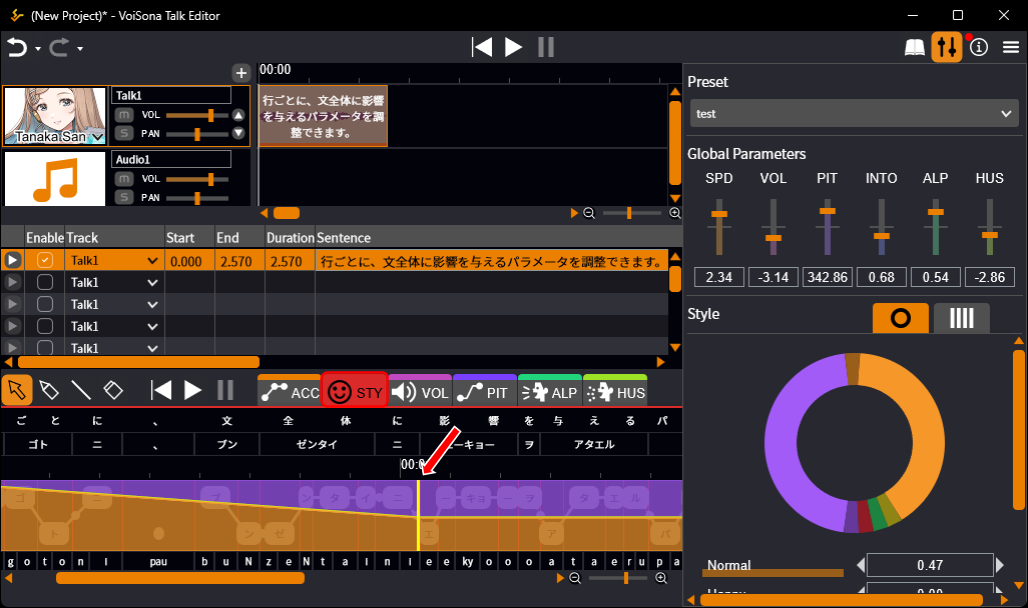
To delete a vertical bar, right-click it and select "Delete", or select it and press the Delete key. With the "Eraser Tool", click a vertical bar or drag across vertical bars to delete them.
Copying Styles
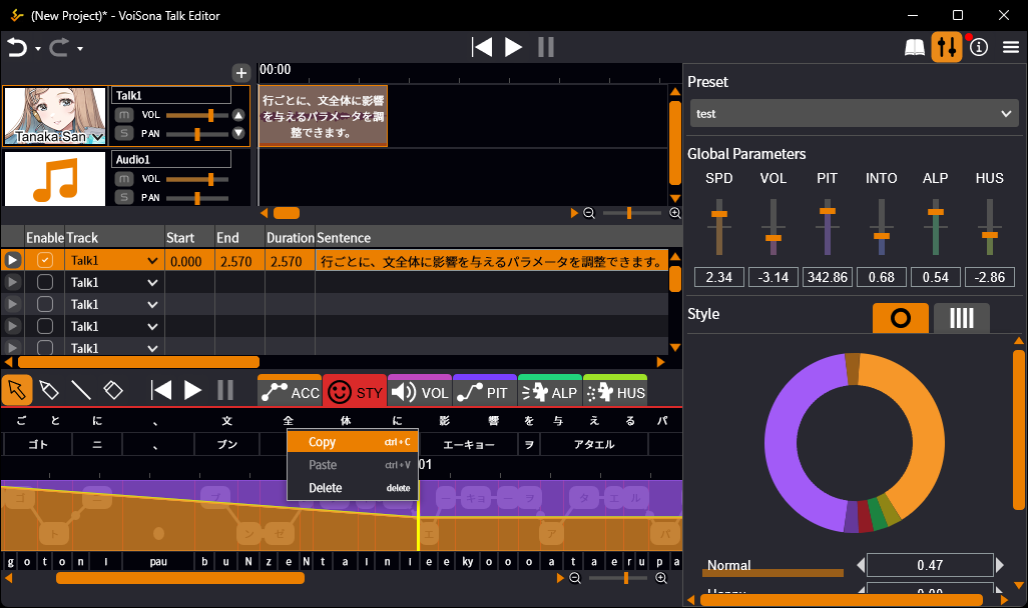
Right-click the vertical bar of the style you want to copy and select "Copy".
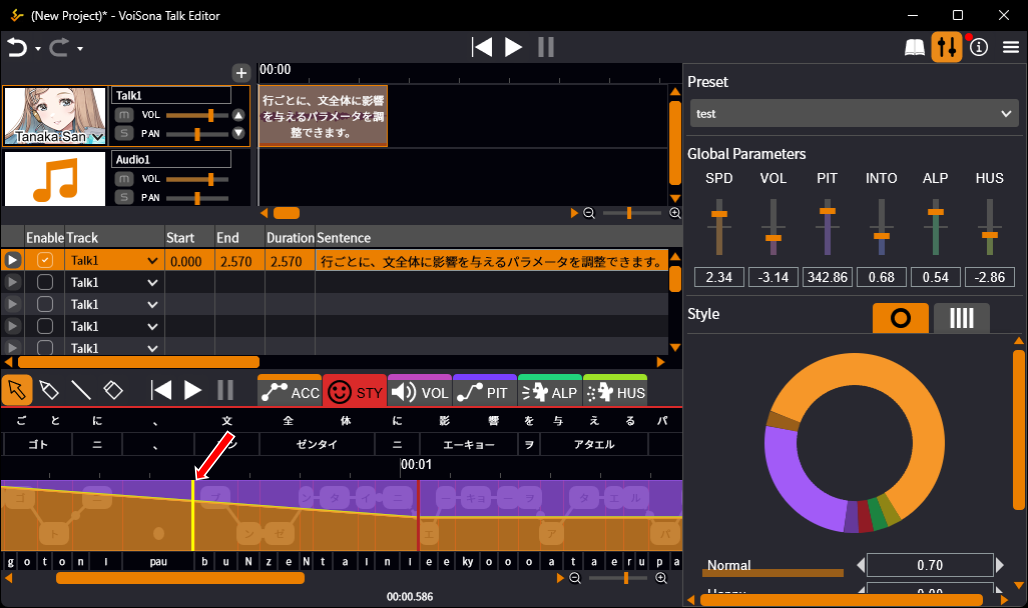
Then right-click the vertical bar where you want to apply the style and select "Paste" to apply the copied style there.
Adjusting Other Parameters
The other parameters can also be adjusted easily and freely.
- Click one of the "VOL", "PIT", "ALP", or "HUS" tabs of the adjustment pane.
- Select the "Draw Tool" or the "Line Tool" from the tool buttons.
Use the "Draw Tool" to adjust freehand, and the "Line Tool" to adjust in straight lines.
- Draw a line.
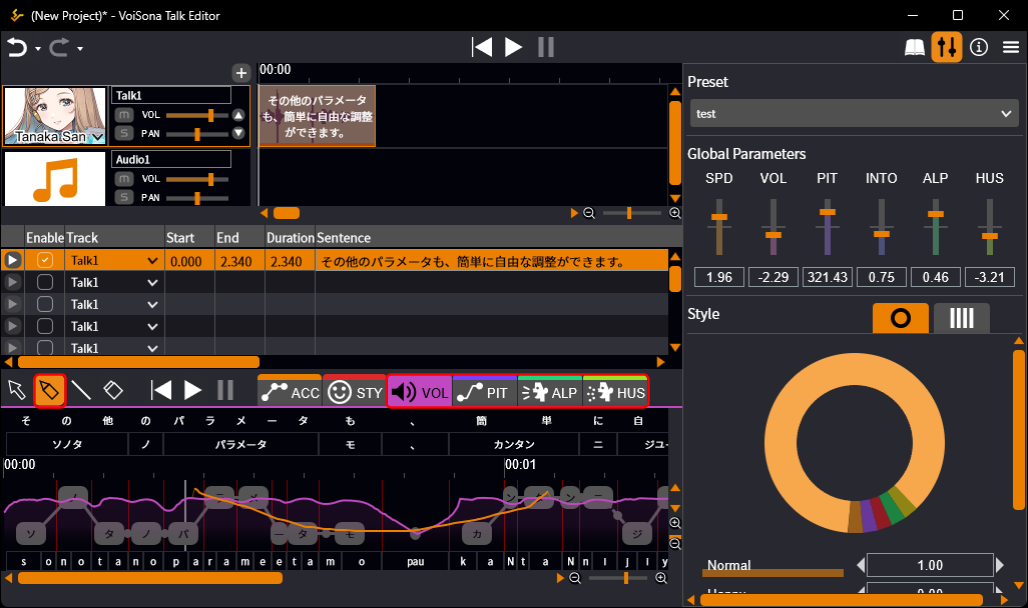
Drawn lines are shown in orange so that you can tell the drawn part from the generated parameter line. While you drag, the time and the value at the pointer are shown in the status bar at the bottom of the window.
Tools of the adjustment pane
- Selection Tool Selects a range of the parameter (see below).
- Draw Tool, Line Tool Draw the parameter freehand or in straight lines.
- Eraser Tool Drag over a drawn part to return it to the generated line.
- Time Selection Tool Sets the play range of the sentence. See Playing Back Sentences(link: 05b#Setting the Play Range).
Adjustable parameters
- VOL Volume, in dB (decibels).
- PIT Pitch, in Hz (hertz).
- ALP Alpha details. Lower values sound more childlike, and higher values sound more adult.
- HUS Huskiness. Higher values sound huskier.
Right-click the adjustment pane to select "Freeze Parameter" or "Reset Parameter". "Freeze Parameter" turns the whole current line, including the generated part, into a drawn line. "Reset Parameter" deletes all drawn lines of that parameter and returns to the generated line.
Selecting a Range and Operating on It
In the "VOL", "PIT", "ALP", and "HUS" tabs, you can drag with the "Selection Tool" to select a range.
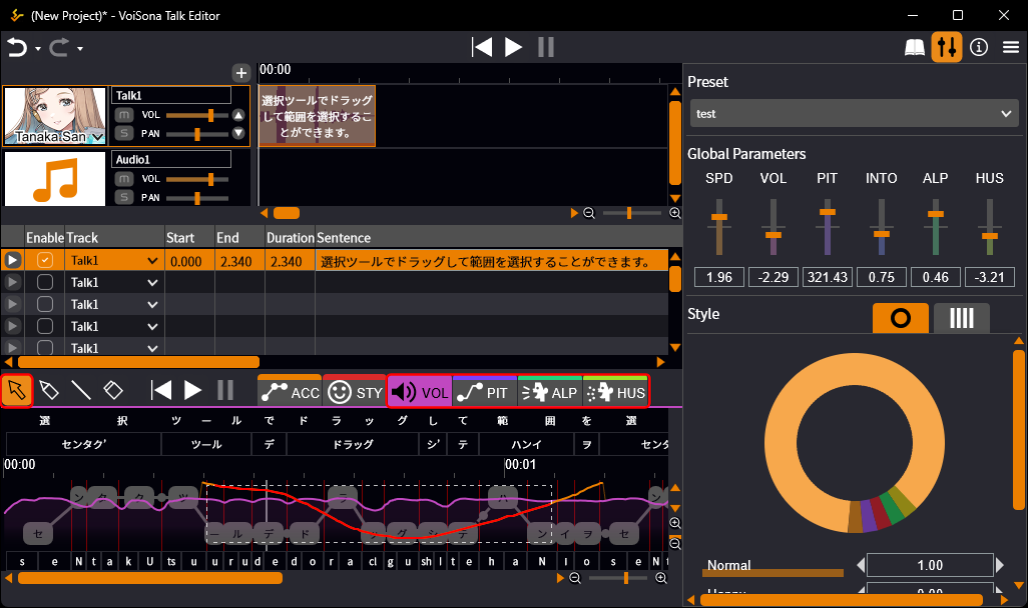
Hold down Alt while dragging to set the vertical range automatically so that it includes the parameter in the selected time range ("Auto Range").
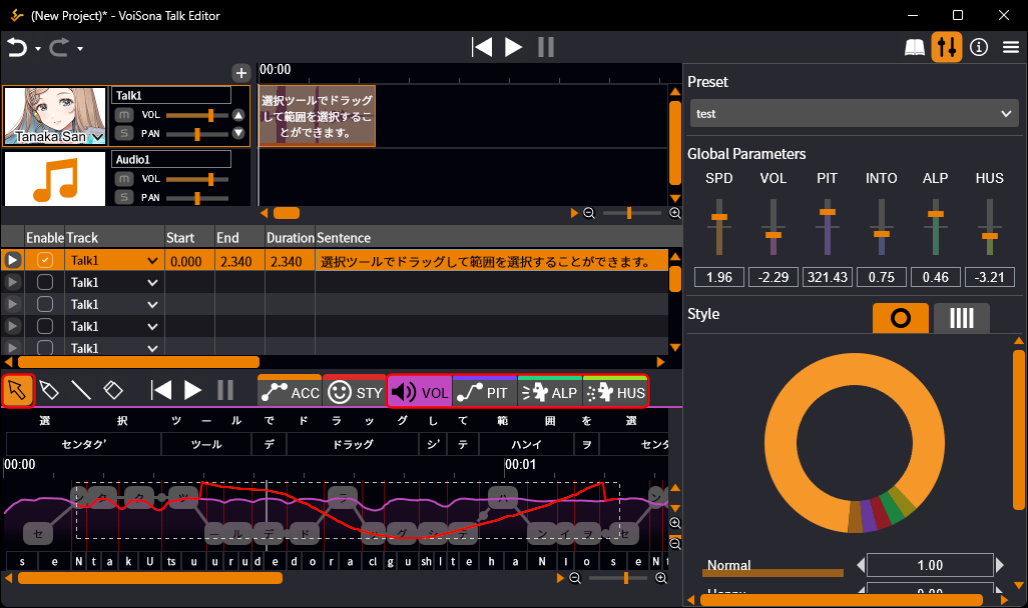
After selecting, you can operate on the parameters in the range as follows.
- Move Drag inside the selection. Hold down Shift to move only horizontally or vertically.
- Scale Drag an edge or a corner of the selection.
- Delete Press the Delete key.