
Selecting a Voice Library
Quick Start Guide2025/10/2 9:232026/10/5 10:08Installing VoiSona Talk2025/11/3 7:492026/9/1 15:12Signing In2025/11/3 7:492026/9/1 15:19Creating, Opening, and Saving Projects2026/10/2 10:252026/10/2 10:26Selecting a Voice Library2025/11/3 7:492026/9/1 15:28Entering Sentences2025/11/3 7:492026/9/1 16:49Playing Back Sentences2026/9/1 15:022026/9/1 15:04Editing Sentences (Japanese Voice Libraries)2025/11/3 7:492026/10/2 5:05Editing Sentences (English Voice Libraries)2026/10/5 16:182026/10/2 5:17Adjusting Parameters2025/11/3 7:492026/10/1 6:47Importing and Exporting Files2025/11/3 7:482026/10/4 17:18Setting Preferences2025/11/3 7:482026/10/4 17:19REST API Tutorial2025/11/3 7:482026/10/4 12:46Frequently Asked Questions (FAQ)2025/11/3 7:472026/10/3 13:55
You can choose the voice that reads the sentences from the voice libraries.
The voice library is set for each track.
Downloading and Selecting a Voice Library
You can choose any version from the voice libraries you subscribe to.
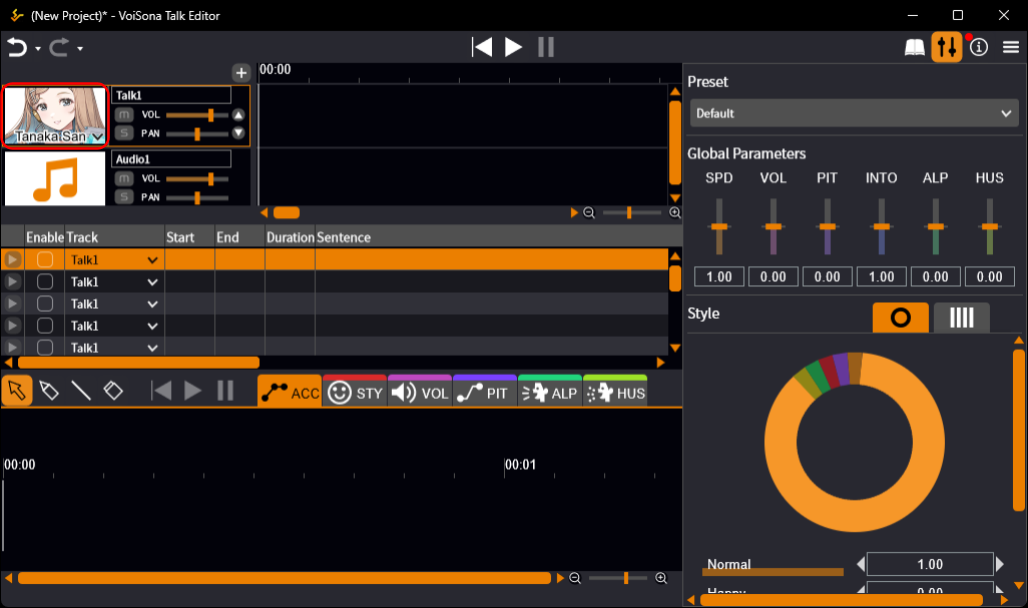
- Select a track in the track list and click the area labeled "Select Voice". A drop-down menu opens.
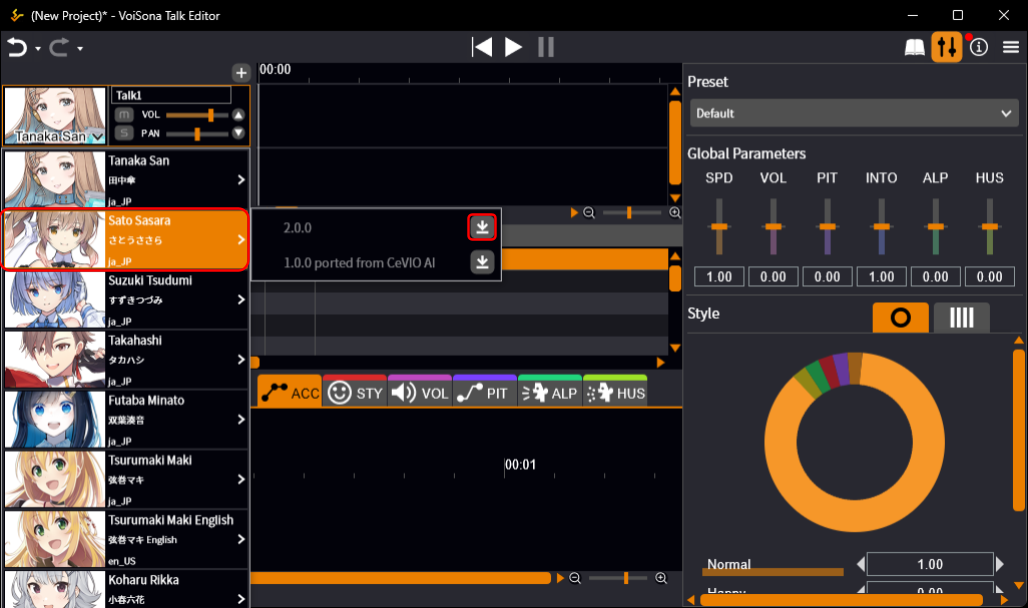
- Point to the voice library you want to use. The versions of the voice library are listed, newest first.
- Click the "Download Voice" button of the version you want to use. The download starts, and its progress is shown in the list.
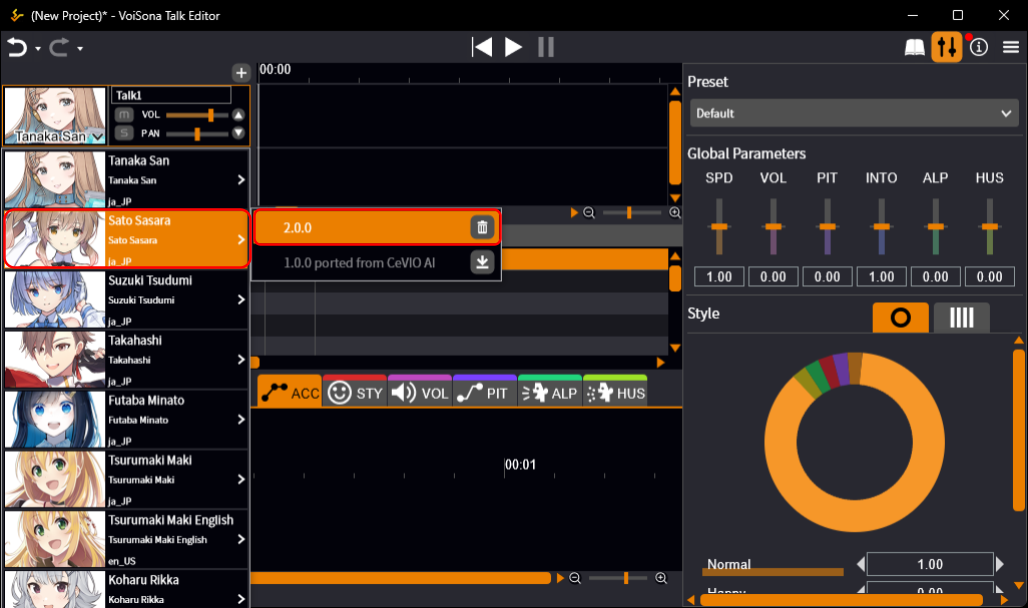
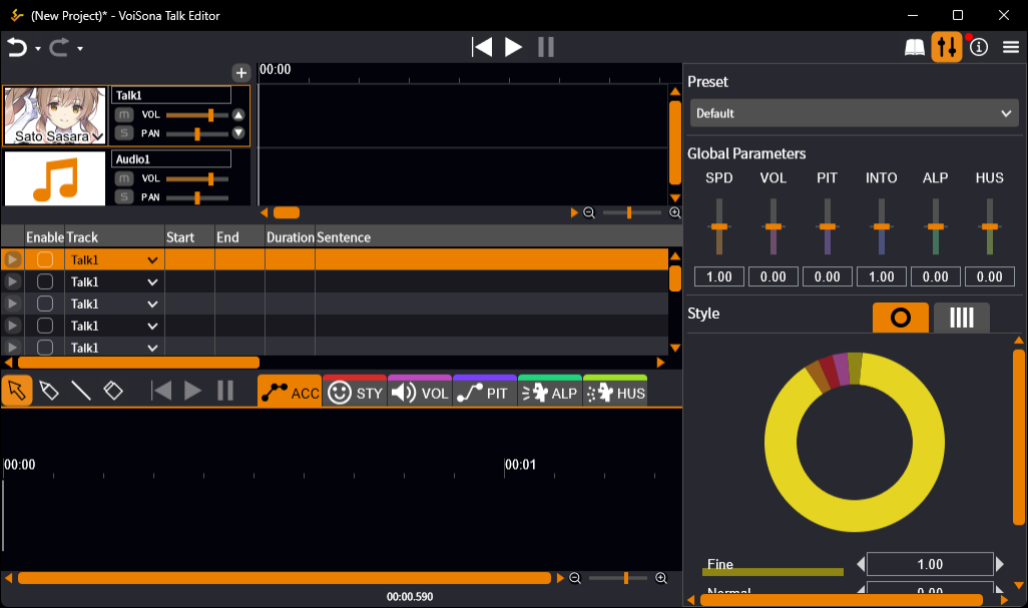
- When the download is complete, click the version number. The voice library is set for the track, and its image appears in the editing screen.
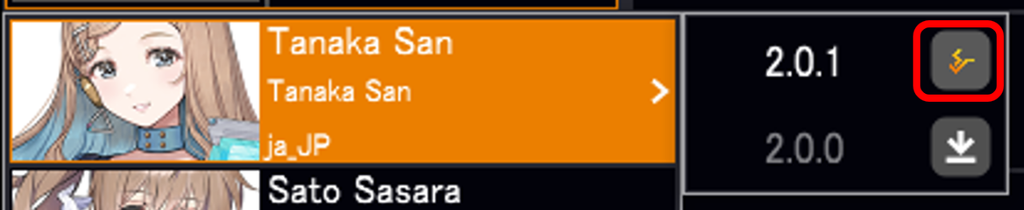
If the "Download Voice" button is not displayed
The running version of VoiSona Talk is too old for that voice library.
Click the button that is displayed instead to go to the DOWNLOAD page and update VoiSona Talk to the latest version.
Pointing to the button shows the version of VoiSona Talk that the voice library requires.
After updating, restart VoiSona Talk and the "Download Voice" button appears.
Each track can use a different voice library.
A newly added track starts with the voice library you selected most recently.
When you change the voice library of a track to one of a different language, the sentences that cannot be read in the new language are cleared.
The number of cleared sentences is shown in the status bar at the bottom of the window.
Adding Voice Libraries
You can add voice libraries by following these steps.
- Go to the ARTIST page and purchase a license.
- Restart the VoiSona Talk application.
When you sign in with an account that holds the licenses, the voice libraries are added to the list automatically.
Deleting a Voice Library
You can delete a downloaded voice library from your computer.
- Click "Select Voice" and point to the voice library.
- Click the "Delete Voice" button to the right of the version number. The voice library is deleted, and the "Download Voice" button is displayed again.
A voice library that a track is using cannot be deleted ("Selected voice cannot be deleted").
Change the voice library of that track first.