
Editing Sentences (English Voice Libraries)
Quick Start Guide2025/10/2 9:232026/10/5 10:08Installing VoiSona Talk2025/11/3 7:492026/9/1 15:12Signing In2025/11/3 7:492026/9/1 15:19Selecting a Voice Library2025/11/3 7:492026/9/1 15:28Entering Sentences2025/11/3 7:492026/9/1 16:49Playing Back Sentences2026/9/1 15:022026/9/1 15:04Editing Sentences (Japanese Voice Libraries)2025/11/3 7:492026/10/5 17:34Editing Sentences (English Voice Libraries)2026/10/5 16:182026/10/5 17:06Adjusting Parameters2025/11/3 7:492026/9/5 14:07Importing and Exporting Files2025/11/3 7:482026/6/5 15:39Setting Preferences2025/11/3 7:482026/9/1 7:41REST API Tutorial2025/11/3 7:482026/6/5 13:05Frequently Asked Questions (FAQ)2025/11/3 7:472026/5/4 15:06
In the adjustment pane at the bottom of the window, you can edit the pronunciation, stress, and durations of a sentence in detail for more natural reading.
This page is for English voice libraries.
For Japanese voice libraries, see Editing Sentences (Japanese Voice Libraries).
Editing PronunciationChanging the PronunciationEnglish PhonemesResetting PronunciationAdjusting DurationsEditing WordsSplitting and Joining WordsRegistering Words (User Dictionary)Editing StressAdjusting StressAdding and Deleting Pauses
Editing Pronunciation
This section explains the operations for editing pronunciation.
Changing the Pronunciation
For an English voice library, the pronunciation is shown as phonemes, and you can edit them directly.
- Click the pronunciation editing area.
- Edit the phonemes in half-width alphanumeric characters. Separate phonemes with "," and syllables with "|". Add a stress digit (0, 1, or 2) right after each vowel.
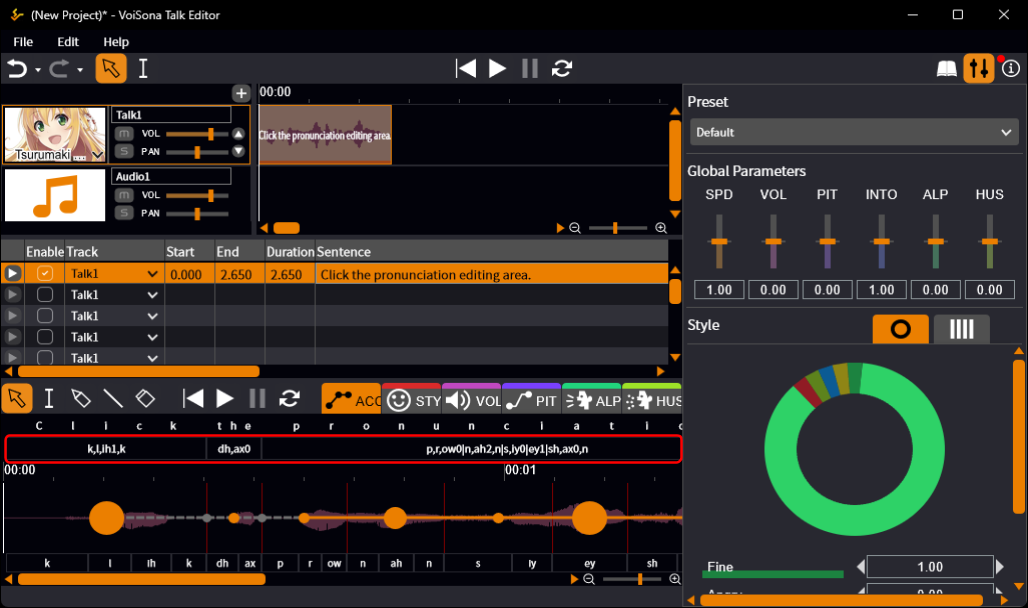
Words whose pronunciation used for synthesis differs from the generated pronunciation are shown in a different color.
How input and editing affect the pronunciation
In VoiSona Talk, when part of a sentence is changed, the pronunciation and stress of the unchanged parts are kept as far as possible.
Therefore, the same sentence can end up with a different pronunciation depending on how it was entered or edited.
The pronunciation of the unchanged parts is not reset automatically.
To return it to the generated pronunciation, see "Resetting Pronunciation" below.
English Phonemes
The English phonemes and their IPA symbols are as follows.
| Phoneme | IPA symbol |
|---|---|
| aa | ɑ |
| ae | æ |
| ax | ə, ɜ |
| axr | ər (ɚ), ɜr (ɝ) |
| ah | ʌ |
| ao | ɔ |
| aw | aʊ |
| ay | aɪ |
| b | b |
| ch | tʃ |
| d | d |
| dh | ð |
| eh | e, ɛ |
| ey | eɪ, ɛɪ |
| f | f |
| g | g |
| hh | h |
| ih | ɪ |
| iy | i |
| jh | dʒ |
| k | k |
| l | l |
| m | m |
| n | n |
| ng | ŋ |
| ow | oʊ |
| oy | ɔɪ |
| p | p |
| r | r |
| s | s |
| sh | ʃ |
| t | t |
| th | θ |
| uh | ʊ |
| uw | u |
| v | v |
| w | w |
| y | j |
| z | z |
| zh | ʒ |
| tt | Flapped t (better, little, etc.) |
| dd | Flapped d (middle, etc.) |
The stress of a syllable is written as a digit right after its vowel.
Note that changing the stress may make little difference in the synthesized speech.
- Weak stress: 0
- Primary stress (the most strongly pronounced syllable of the word): 1
- Secondary stress (a somewhat strongly pronounced syllable): 2
Resetting Pronunciation
Resetting the pronunciation returns it to the generated pronunciation. You can reset a whole sentence or a single word.
- Do one of the following.
- To reset the whole sentence Right-click the sentence in the sentence list and select "Reset Pronunciation", or right-click the pronunciation editing area and select "Reset Sentence Pronunciation".
- To reset one word Right-click the word in the pronunciation editing area and select "Reset Word Pronunciation".
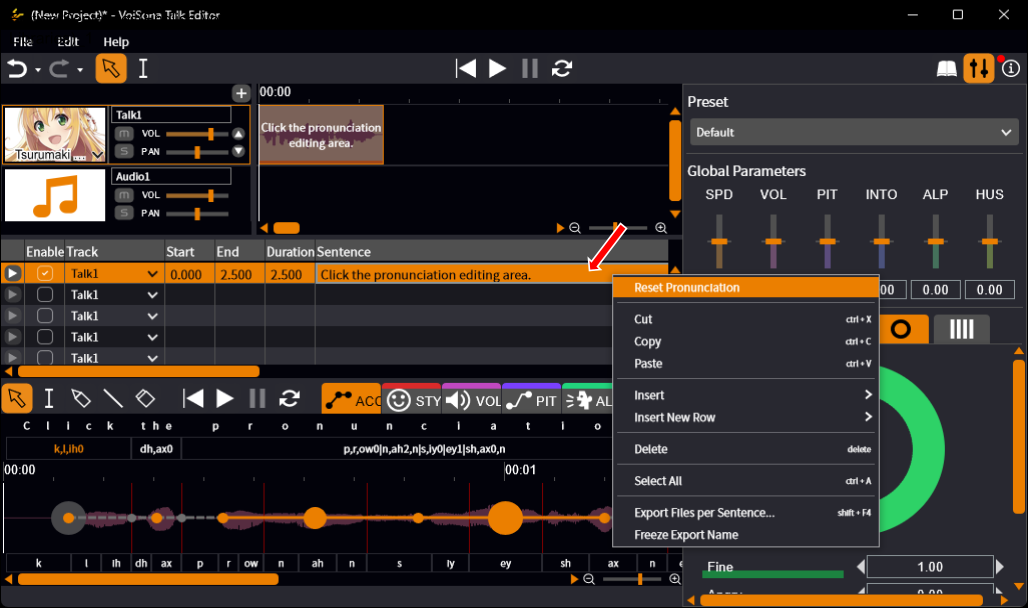
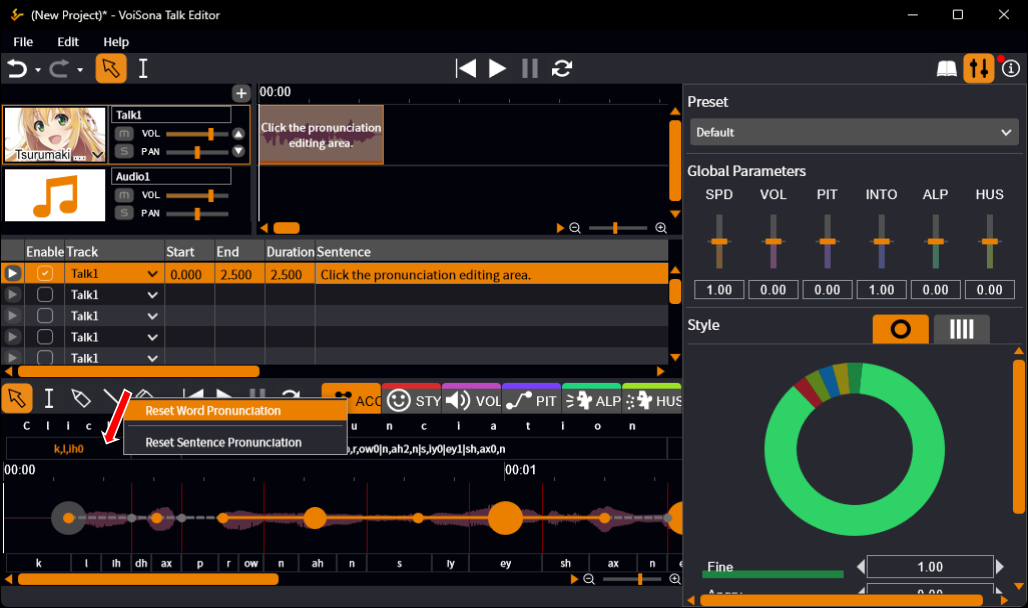
If the sentence contains words registered in the User Dictionary, their pronunciation is applied when you reset.
Adjusting Durations
In the adjustment pane, you can finely adjust the duration of each phoneme and syllable.
- Do one of the following.
- To adjust by phoneme Drag a phoneme boundary bar (shown in gray at the bottom of the adjustment pane)
- To adjust by syllable Drag a syllable boundary bar (shown in red) in the ACC tab
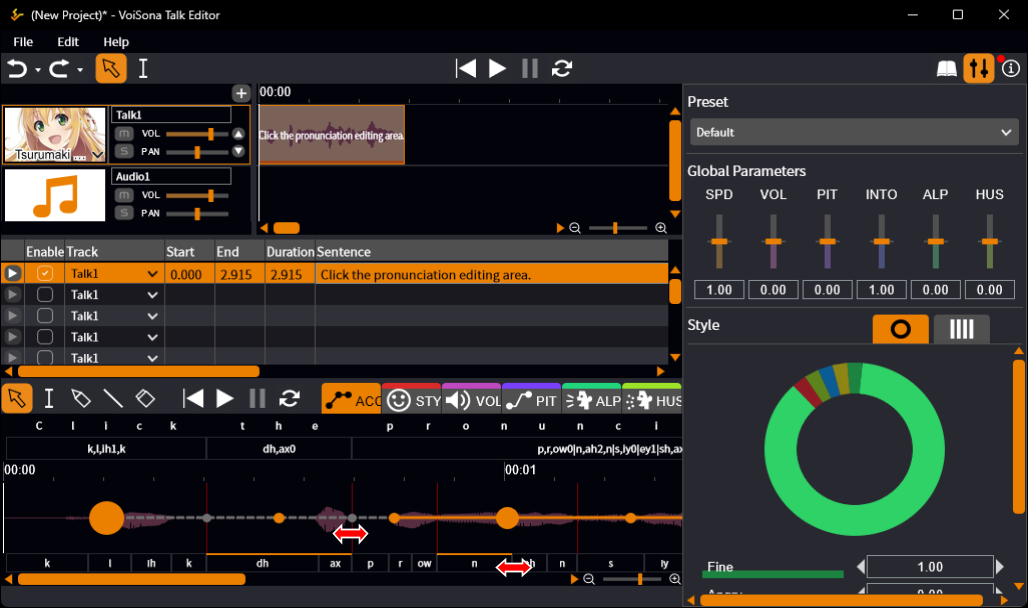
Hold down Ctrl while dragging to change only the two phonemes (or syllables) on either side of the bar. Everything after them stays where it is.
To return a duration to the generated duration, do one of the following.
- Double-click a boundary bar.
- Right-click a boundary bar and select "Reset Phoneme Duration" or "Reset Syllable Duration".
- Select the Eraser Tool and drag across the boundary bars.
Editing Words
Correcting word boundaries produces more natural synthesized speech.
You can also register words that need a special pronunciation in the User Dictionary.
Splitting and Joining Words
- Do one of the following in the pronunciation editing area.
- To split a word Move the mouse cursor between phonemes within the word. The mouse cursor changes to scissors. Click at that position.
- To join words Move the mouse cursor to the boundary between two words and hold down Ctrl. The mouse cursor changes to a bind. Click at that position.
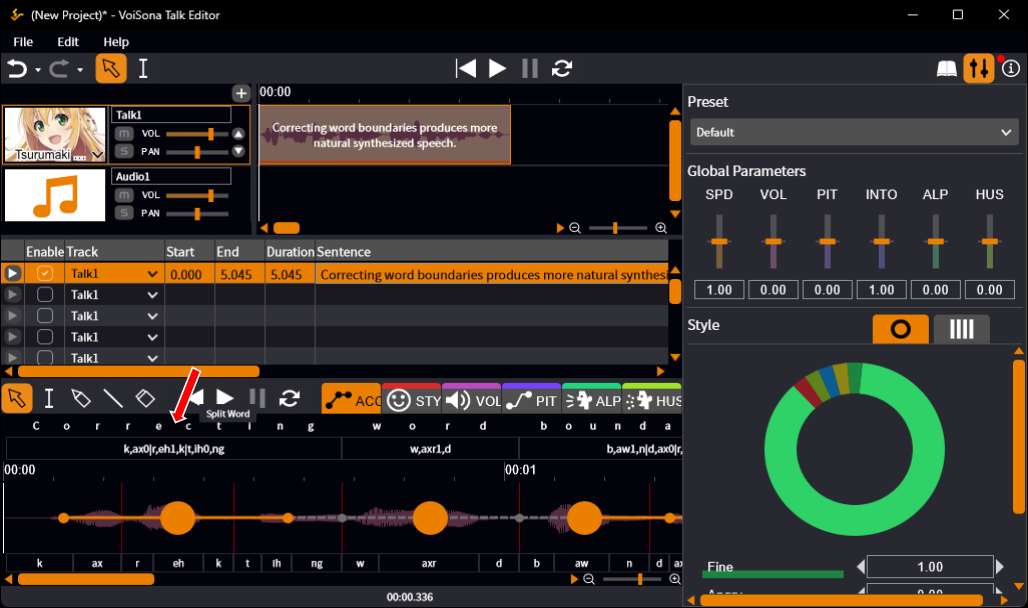
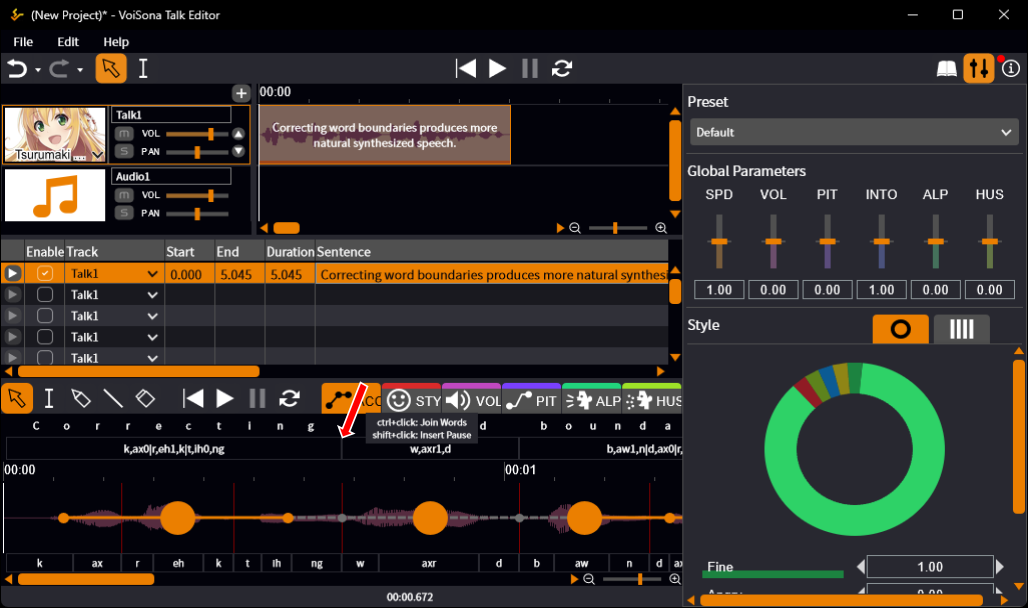
Shift-click a word boundary in the pronunciation editing area to insert a pause.
Registering Words (User Dictionary)
Register names and other words that are not normally read correctly in the User Dictionary to have them pronounced correctly.
- Click the "User Dictionary" button to open the panel.
- With <New> selected, set the following items.
- Representation Enter the word to register.
- Pronunciation Enter the phonemes of the word. Separate phonemes with "," and syllables with "|", and put a stress digit (0, 1, or 2) after every vowel. The list of phonemes is shown as a tooltip.
- POS Type Select the part of speech (verb, noun, adjective, adverb, symbol, numeric, determiner, preposition/sub-conjunction, pronoun, coordination conjunction), or "*" if you do not want to specify it.
- Accent The syllables of the pronunciation are shown here with their stress. Click a syllable to change its stress in the same way as in the ACC tab.
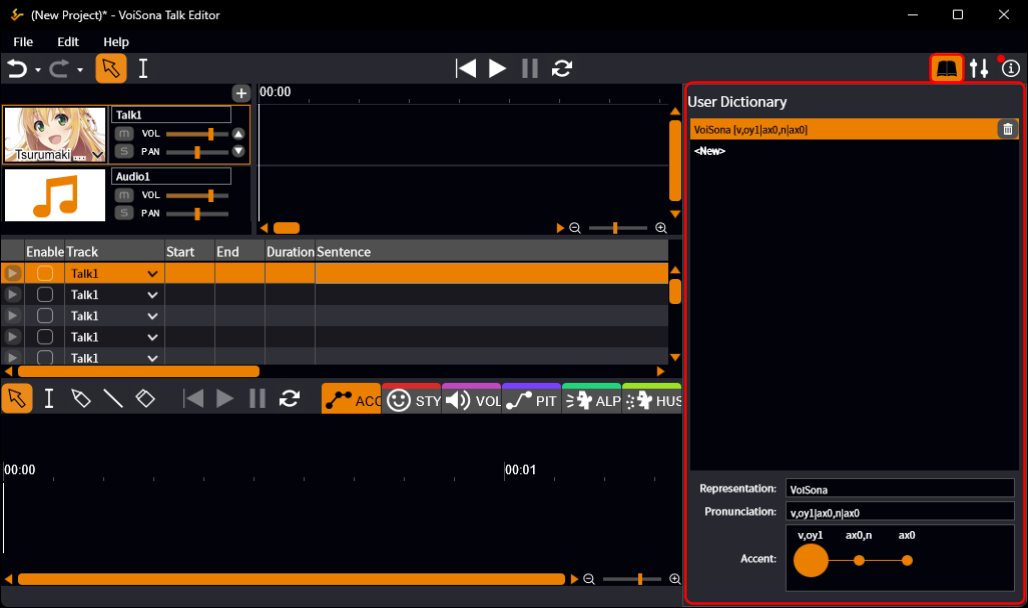
Changes to the User Dictionary are saved as you make them.
They are not applied automatically to sentences that have already been entered, so reset the pronunciation of those sentences to apply the dictionary.
Editing Stress
For an English voice library, the "ACC" tab shows the syllables of each word with their stress.
You can change which syllable carries the stress and how strong it is.
Adjusting Stress
- Click the "ACC" tab of the adjustment pane.
- You can do the following on the displayed syllables.
- Set the primary stress Click the syllable ("Set Primary Stress"). The other syllables of the word lose their primary stress.
- Set the secondary stress Shift-click the syllable ("Set Secondary Stress").
- Change the stress level of one syllable Ctrl-click the syllable ("Change Stress Level"). The level cycles through weak, primary, and secondary. Ctrl+Shift-click cycles in the opposite direction.
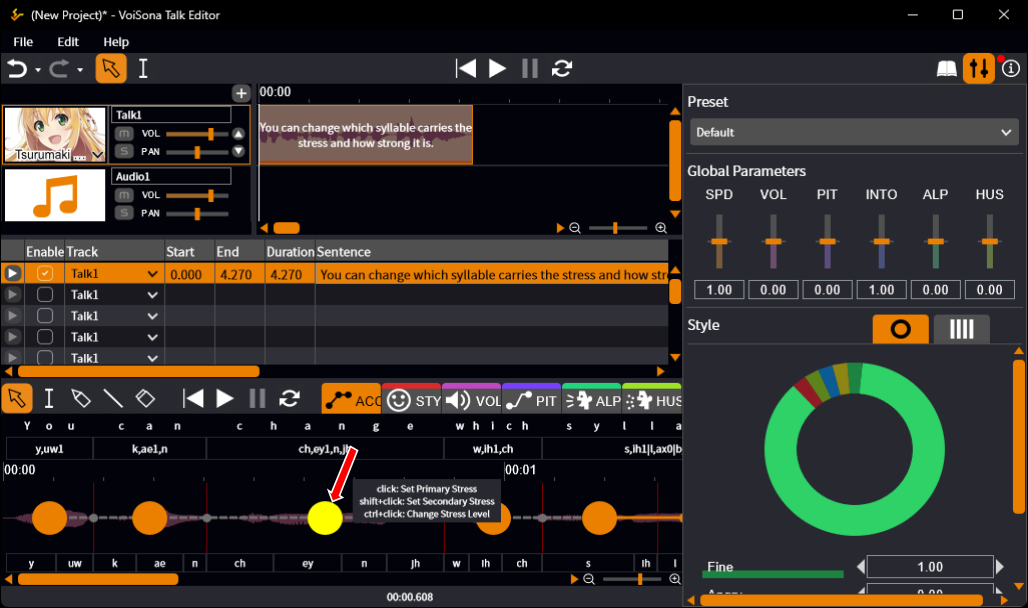
The generated stress stays visible as a reference shown in gray behind the syllables, so you can compare your edits with it.
To return the stress to the generated stress, do one of the following.
- Right-click a syllable and select "Reset Syllable Accent", "Reset Word Accent", or "Reset Sentence Accent".
- Select the Eraser Tool and drag across the syllables.
Adding and Deleting Pauses
You can add a pause at a word boundary or delete an existing pause.
- Right-click the circle at a word boundary or the circle on a pause.
- Select an operation from the menu.
- "Insert Pause" Adds a pause at the word boundary.
- "Delete Pause" Deletes the pause.
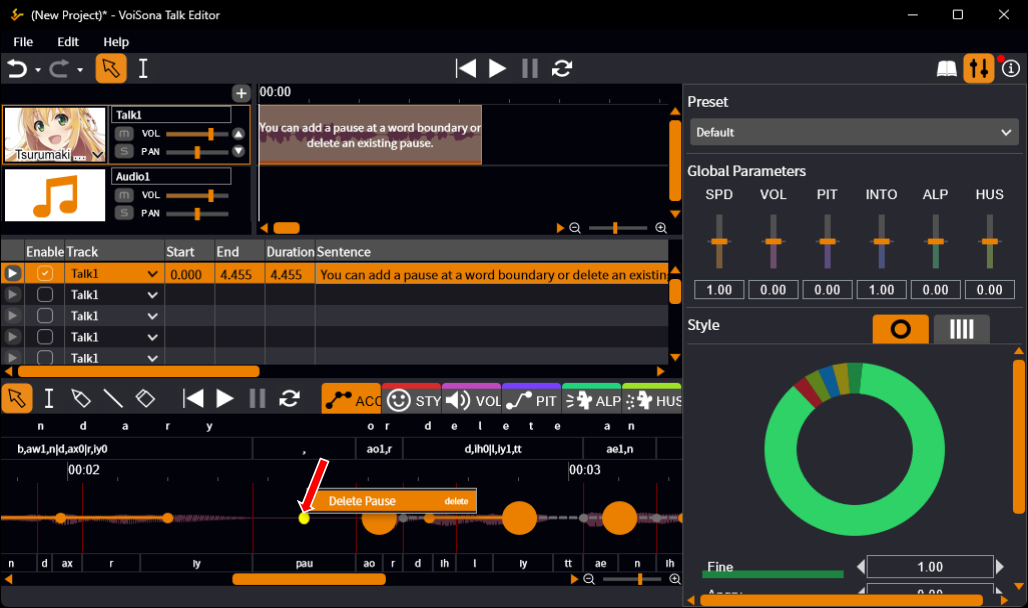
You can also insert a pause by Shift-clicking a word boundary in the pronunciation editing area.