
Playing Back Sentences
Quick Start Guide2025/10/2 9:232026/9/1 17:03Installing VoiSona Talk2025/11/3 7:492026/9/1 15:12Signing In2025/11/3 7:492026/9/1 15:19Selecting a Voice Library2025/11/3 7:492026/9/1 15:28Entering Sentences2025/11/3 7:492026/9/1 16:49Playing Back Sentences2026/9/1 15:022026/9/1 15:04Editing Sentences2025/11/3 7:492026/9/5 14:02Adjusting Parameters2025/11/3 7:492026/9/5 14:07Importing and Exporting Files2025/11/3 7:482026/6/5 15:39Setting Preferences2025/11/3 7:482026/9/1 7:41REST API Tutorial2025/11/3 7:482026/6/5 13:05Frequently Asked Questions (FAQ)2025/11/3 7:472026/5/4 15:06
You can play back all tracks or a single sentence, limit playback to a range, and repeat it while you edit.
Playing Back All Tracks
The audio of all tracks is played from the playback position cursor.
- Click the ruler of the track timeline. The playback position cursor moves to the clicked position.
- Click the "Play" button at the top of the window. Playback starts from the playback position cursor.
- Click the "Pause" button. Playback pauses at the playback position cursor.
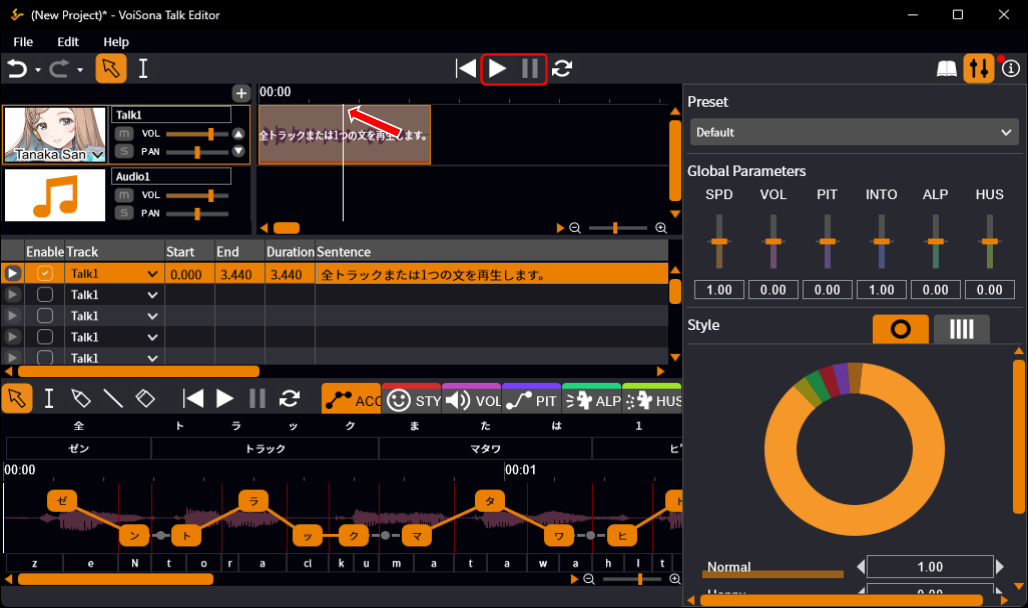
Click the button to the left of "Play" ("Reset Playback Position") to move the playback position cursor to the beginning.
Sentences whose "Enable" column in the sentence list is unchecked are not played.
Playing Back a Sentence
The adjustment pane has its own "Play" button for the sentence shown in it.
Use it to check one sentence while you edit its pronunciation, accent, or parameters.
- Select the sentence to check in the sentence list or on the track timeline.
- Click the "Play" button in the adjustment pane ("Play Sentence"). Only that sentence is played.
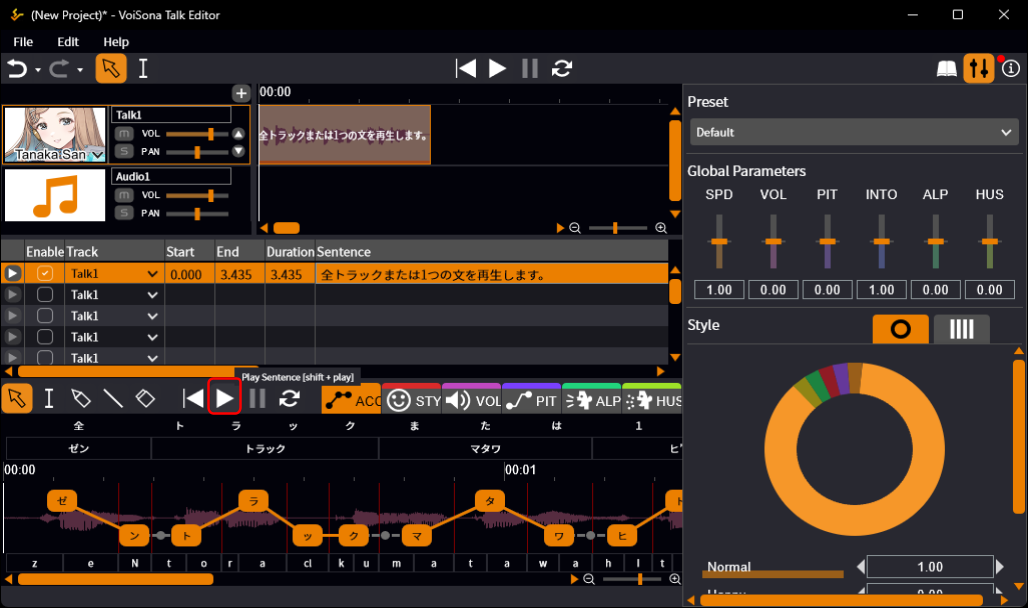
The button to the left of "Play" in the adjustment pane moves the playback position of the sentence to the beginning ("Reset Sentence Playback Position").
Playing a sentence pauses the playback of the tracks.
You can also play the sentence of a line with the "Play" column of the sentence list.
Setting the Play Range
You can limit playback to a range of the track timeline.
Only the range is played, and playback stops at its end.
- Click the "Time Selection Tool" button at the top of the window.
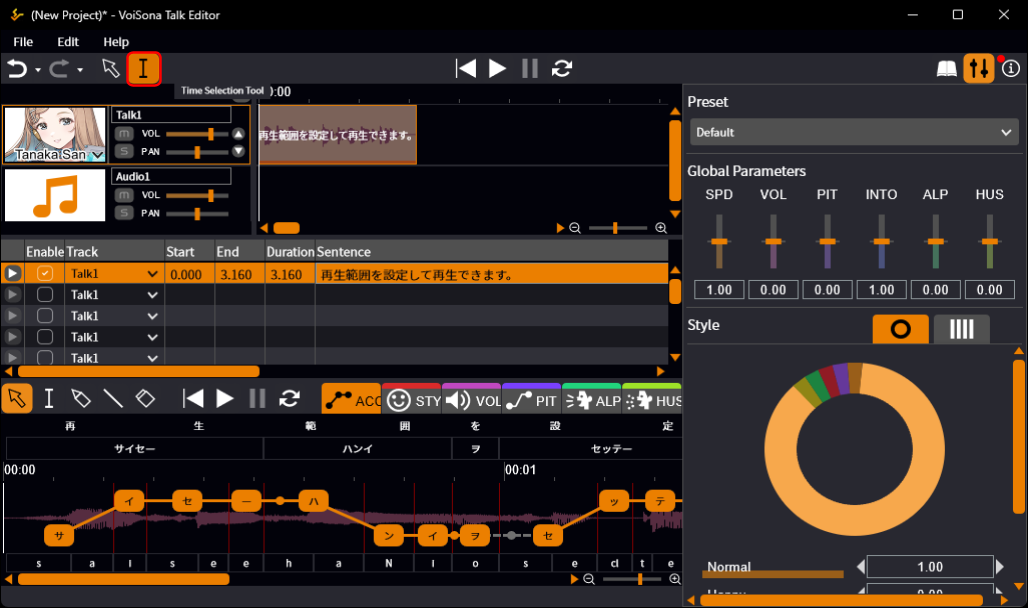
- Drag on the track timeline. The range is shown by a tinted background with a bar at each end, and the playback position cursor moves to its start.
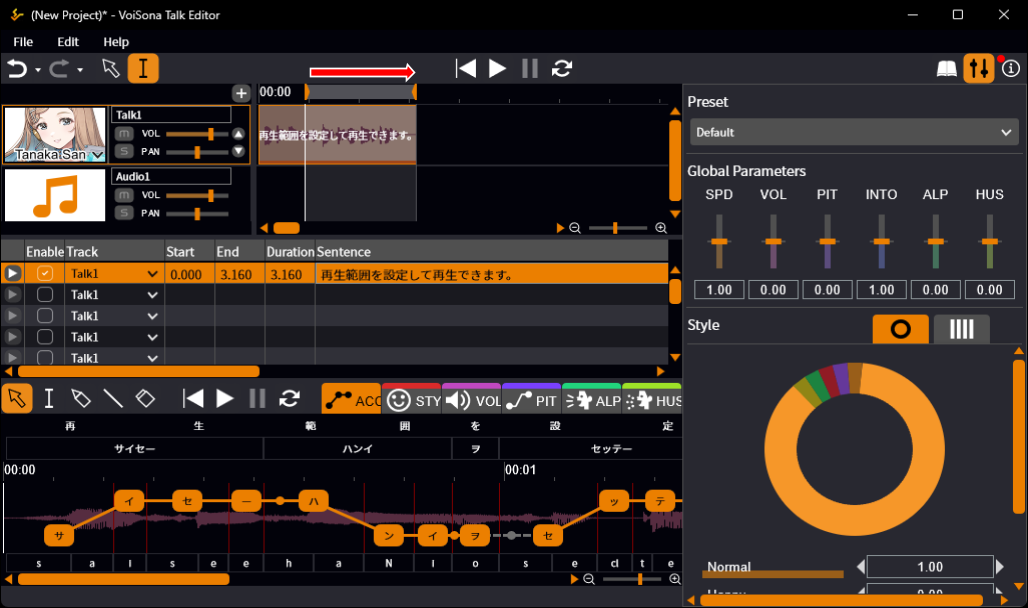
- To change the range, drag the bar at either end.
With the "Selection Tool", you can also set a range by dragging on the ruler of the track timeline or on a part with no sentence boxes.
Dragging over a sentence box moves the box instead.
The tool buttons of the adjustment pane also have a "Time Selection Tool".
It sets the play range of the sentence shown in the pane.
Shift-click to adjust the range: with a range set, the nearer end moves to the clicked position; without a range, a range from the playback position cursor to the clicked position is set.
To clear the range, click an empty part of the track timeline without dragging, or drag one end bar onto the other.
Clicking the ruler moves the playback position cursor and keeps the range.
Repeating Playback
- Click the "Loop Playback" button at the top of the window to turn it on. The play range is repeated. If no range is set, all tracks are repeated from beginning to end.
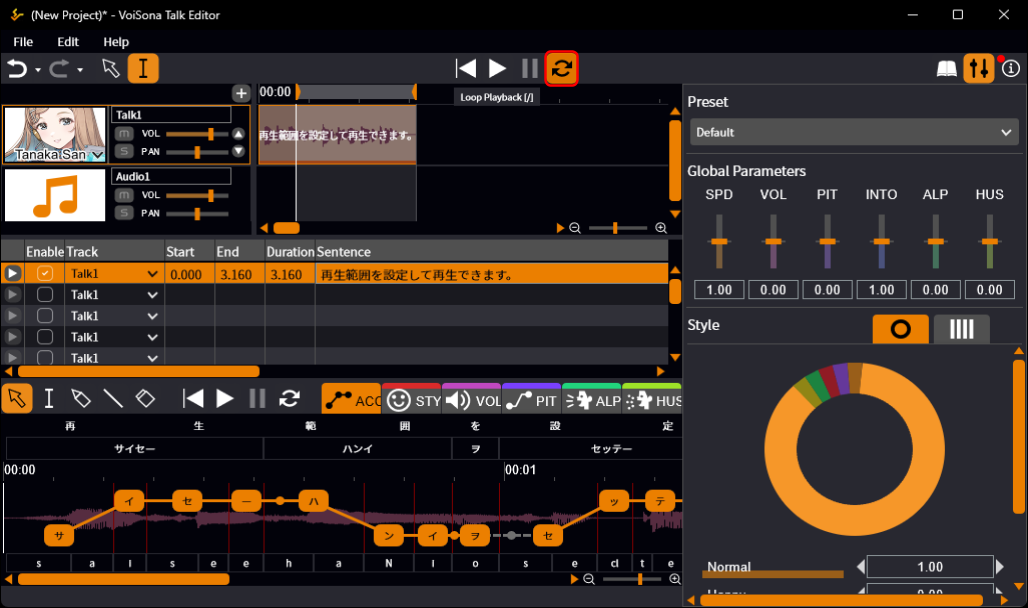
In the adjustment pane, the "Loop" button repeats the sentence ("Loop Sentence Playback").