Importing and Exporting Files
Quick Start Guide2025/10/2 9:232026/10/5 10:08Installing VoiSona Talk2025/11/3 7:492026/9/1 15:12Signing In2025/11/3 7:492026/9/1 15:19Creating, Opening, and Saving Projects2026/10/2 10:252026/10/2 10:26Selecting a Voice Library2025/11/3 7:492026/9/1 15:28Entering Sentences2025/11/3 7:492026/9/1 16:49Playing Back Sentences2026/9/1 15:022026/9/1 15:04Editing Sentences (Japanese Voice Libraries)2025/11/3 7:492026/10/2 5:05Editing Sentences (English Voice Libraries)2026/10/5 16:182026/10/2 5:17Adjusting Parameters2025/11/3 7:492026/10/1 6:47Importing and Exporting Files2025/11/3 7:482026/10/4 17:18Setting Preferences2025/11/3 7:482026/10/4 17:19REST API Tutorial2025/11/3 7:482026/10/4 12:46Frequently Asked Questions (FAQ)2025/11/3 7:472026/10/3 13:55
You can load files created in VoiSona Talk or other applications, and export the data being edited.
Importing FilesImporting an Audio FileExporting FilesExporting Files per SentenceQuick ExportExporting a Mixdown WAV FileChanging the Export NameReplacing Strings in Export Names
Importing Files
You can import files created in another project or application.
Change the voice library before importing.
- Select the track to import into.
- From the menu, select "File" > "Import" > "Import CCS/CCST File".
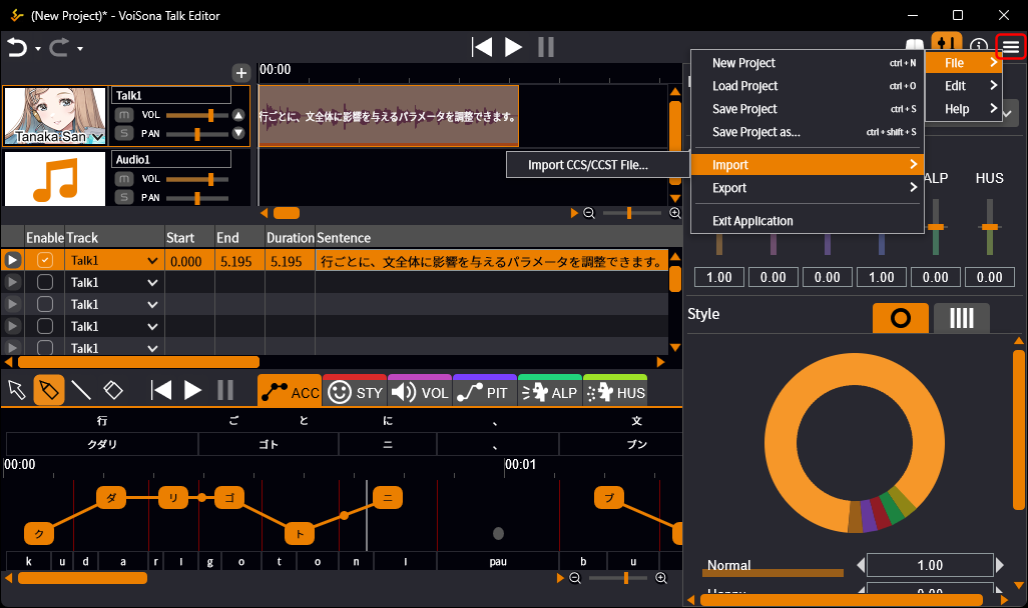
- Select the file and click "Open". The sentences of the talk track in the file are added to the selected track.
If the file contains more than one talk track, the "Select a CCS track to import" dialog appears.
Select the track to import.
Importable file formats
- CCS Files saved per project in CeVIO Creative Studio and CeVIO AI.
- CCST Files saved per track in CeVIO Creative Studio and CeVIO AI.
Importing an Audio File
You can load audio files such as WAV into an audio track.
- Right-click the audio track timeline and click "Add Audio Clip".

- Select the file and click "Open".
The audio file is loaded.
You can also load a file by dragging and dropping it onto the audio track timeline.
Exporting Files
You can export files for use in another project or application.
Each sentence can be exported as its own files, or all tracks can be mixed down into a single WAV file.
WAV files are exported at a sampling rate of 48 kHz regardless of the audio device settings.
The bit depth is set in "Bit-Depth for Export WAV Files" in "Defaults" in Preferences.
Exporting Files per Sentence
Each sentence is exported as separate files named with its export name.
- Do one of the following.
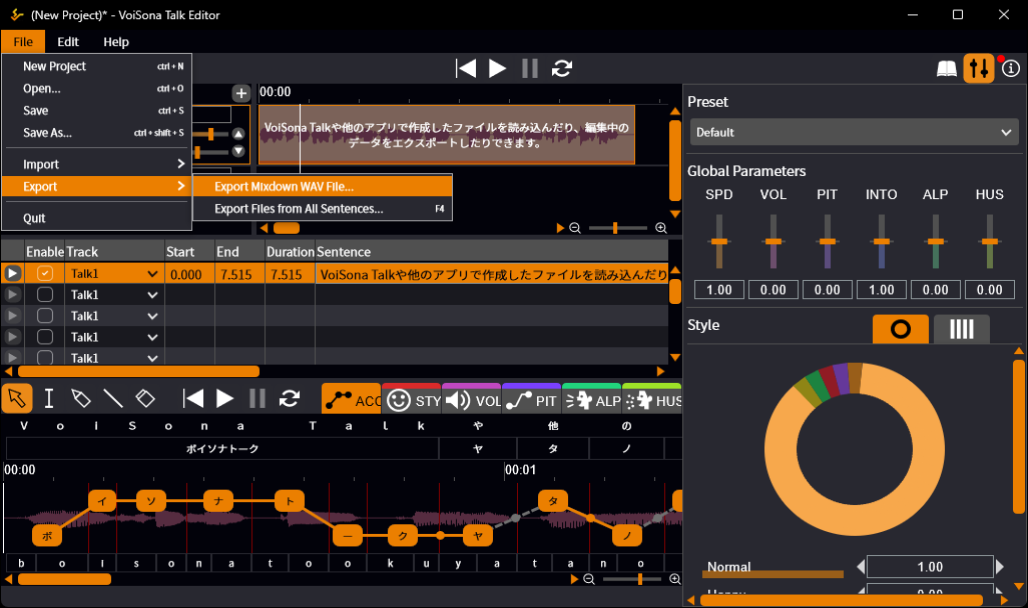
- To export all sentences Select "File" > "Export" > "Export Files from All Sentences..." from the menu bar.
- To export the selected sentences Select the sentences in the sentence list, right-click, and select "Export Files per Sentence...".
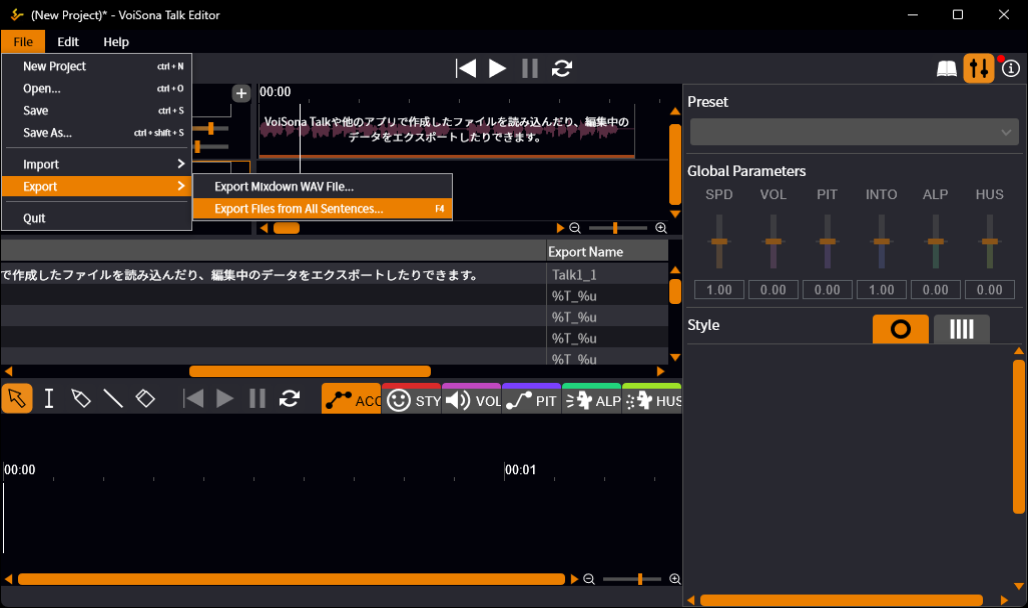
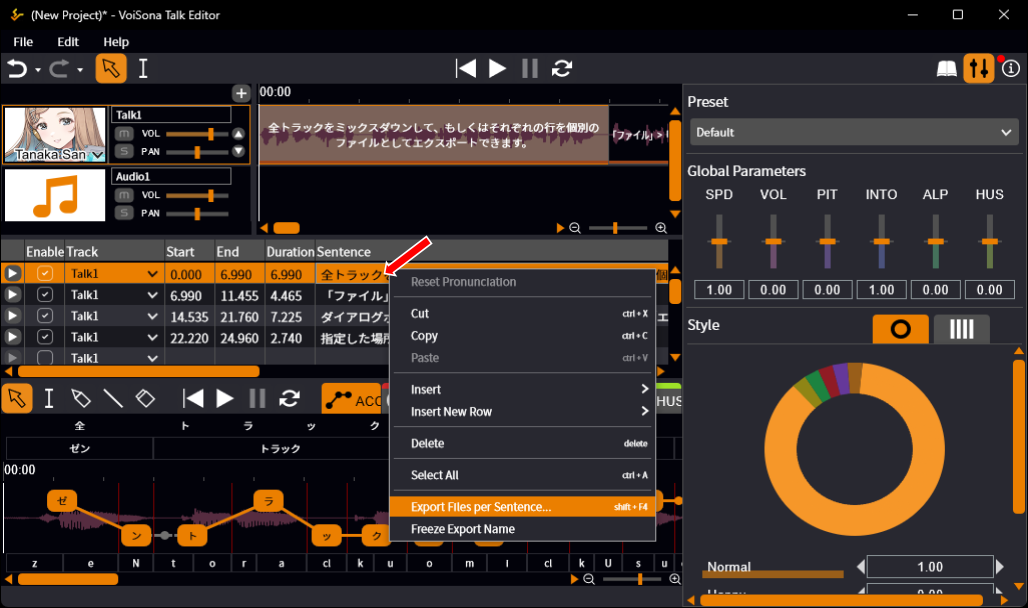
- In the dialog, check the "Target" column of the sentences to export. Sentences whose "Enable" column in the sentence list is unchecked start unchecked here. You can check them to include them.
- Set the following items.
- Location The folder to export into. Click the folder button to choose it.
- File types Check the file types to export: WAV, Text, Lab. At least one must be checked.
- Overwrite existing files Check this to overwrite files of the same name in the folder.
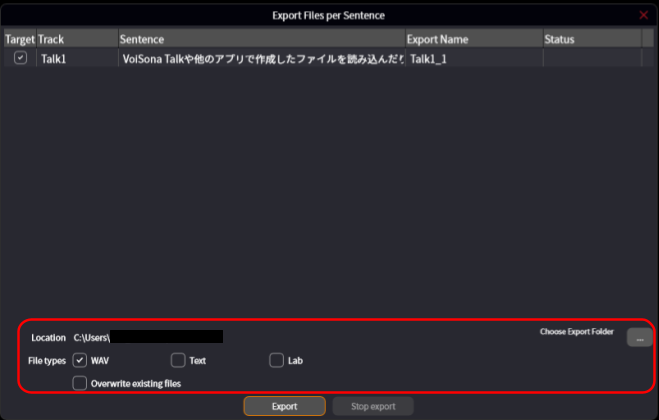
- Click "Export". The sentences are synthesized and written one by one. The state of each sentence is shown in the list: Waiting, Synthesizing, Done, Failed, or Canceled.
Exportable file formats
- WAV Audio file of the synthesized speech. One WAV file is output per sentence.
- Text Text file containing the entered sentence. One text file is output per sentence. The line endings follow "Line Endings" in "Defaults" in Preferences.
- Lab Lab file containing the timing information. One Lab file is output per sentence.
If two or more target sentences have the same export name, a message tells you so before the export starts, and numbers are added to the file names to keep them apart.
Click "Stop export" to stop the export.
Files that have already been written are kept.
The location, file types, and overwrite setting you used are remembered and applied the next time you open this dialog.
"Export WAV", "Export Text", and "Export Lab" are also available as commands.
They open the same dialog with only that file type checked.
You can assign shortcut keys to them in "Shortcuts" in Preferences.
Quick Export
Quick Export exports the selected sentences without showing a dialog, using the settings in Preferences.
- In "Defaults" in Preferences, set the following items.
- Destination for Quick Export The folder to export into.
- Files to Quick Export The file types to export: WAV, Text, Lab.
- Overwrite Existing Files on Quick Export Whether to overwrite files of the same name.
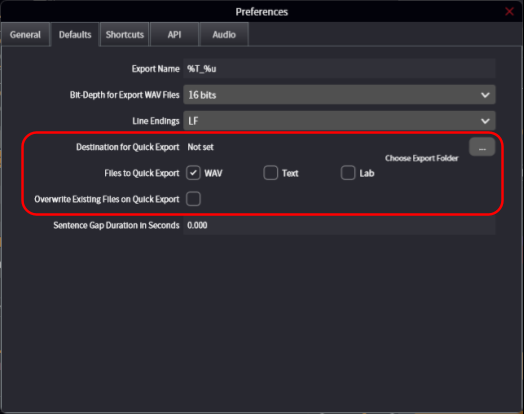
- Select the sentences in the sentence list and press Ctrl+E. The files are exported to the destination folder, and the result is shown in the status bar at the bottom of the window, such as "Exported 3 sentences (WAV, Text, C:\...)".
If the destination is not set, no file type is selected, or all selected sentences are unchecked in the "Enable" column, the export dialog opens under the name "Quick Export" instead.
The settings you make there are saved as the Quick Export settings.
Quick Export does not rename files. If two or more selected sentences have the same export name, nothing is exported, and the status bar tells you so.
Sentences whose "Enable" column is unchecked are skipped.
If any sentence fails to export, the progress dialog opens so that you can see which one failed.
Exporting a Mixdown WAV File
All tracks are mixed down into a single WAV file.
- Select "File" > "Export" > "Export Mixdown WAV File..." from the menu bar.
- Specify the save location, enter a file name, and click "Save". The progress is shown while the file is written. Click "Cancel" to stop.
Changing the Export Name
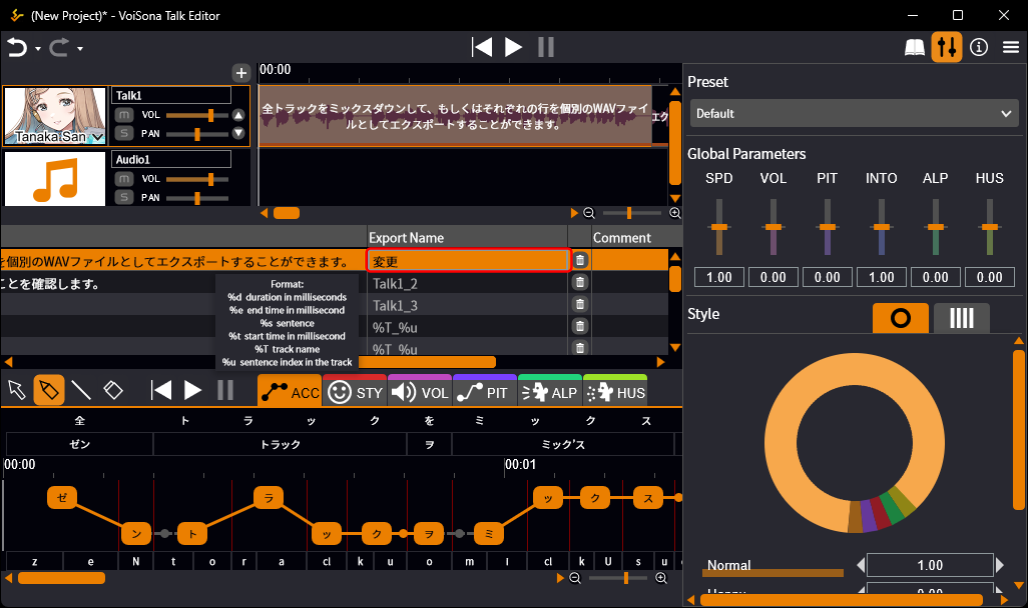
You can change the file name used for the files exported per sentence by following these steps.
- Select an item in the "Export Name" column of the sentence list.
- Enter a string or symbols and confirm.
Replacing Strings in Export Names
This feature is experimental, and its specification may change in a future version.
If you set the following symbols in Preferences or in the "Export Name" column, they are automatically replaced with the corresponding strings.
| Symbol | Replaced with | Notes |
|---|---|---|
| %d | Duration of the synthesized speech (ms) | Leading zero padding is supported (the number of digits must be specified) (e.g. "%04d" with a duration of 0.895 → 0895) |
| %e | End time of the synthesized speech (ms) | Leading zero padding is supported (the number of digits must be specified) (e.g. "%04e" with an end time of 0.895 → 0895) |
| %s | Sentence | The characters \/:*?"><| in the original are all replaced with _ (underscore) The maximum number of characters after replacement can be specified (e.g. "%4s" with the sentence "おはようございます" → おはよう) |
| %t | Start time of the synthesized speech (ms) | Leading zero padding is supported (the number of digits must be specified) (e.g. "%05t" with a start time of 0.000 → 00000) |
| %T | Track name | The characters \/:*?"><| in the original are all replaced with _ (underscore) The maximum number of characters after replacement can be specified (e.g. "%4T" with the track name "トラック1" → トラック) |
| %u | Index within the track (from 1) | Leading zero padding is supported (the number of digits must be specified) (e.g. "%02u" for the first sentence of a track → 01) |
The initial value is "%T_%u", and it can be changed in Preferences.
In the "Export Name" column, the symbols are shown before a sentence is entered, and the replaced string is shown after a sentence is entered.
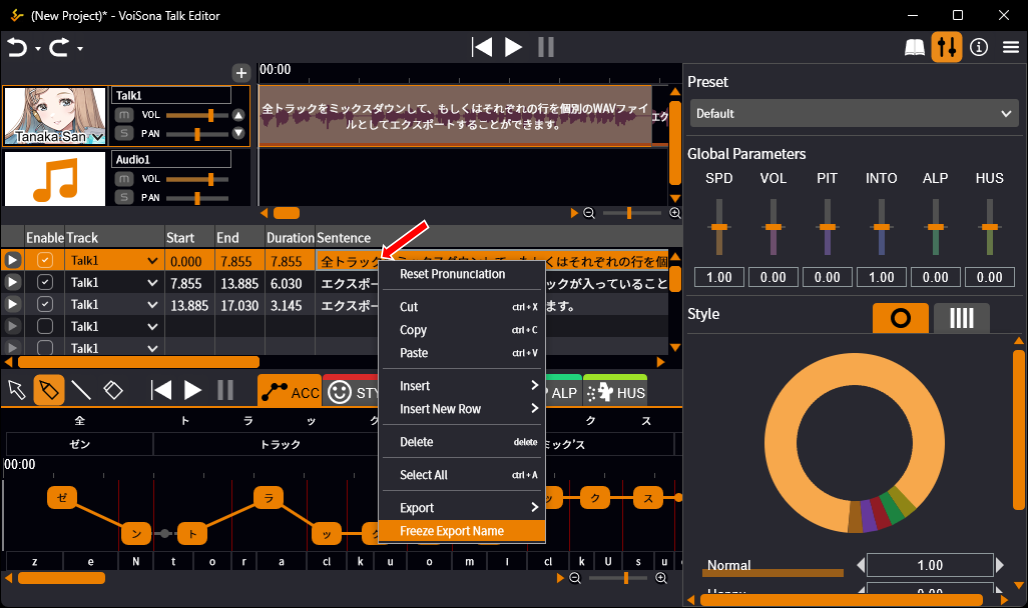
Right-click a sentence and select "Freeze Export Name" to overwrite it with the replaced string; string replacement is then no longer applied.