Entering Sentences
Quick Start Guide2025/10/2 9:232026/10/5 10:08Installing VoiSona Talk2025/11/3 7:492026/9/1 15:12Signing In2025/11/3 7:492026/9/1 15:19Creating, Opening, and Saving Projects2026/10/2 10:252026/10/2 10:26Selecting a Voice Library2025/11/3 7:492026/9/1 15:28Entering Sentences2025/11/3 7:492026/9/1 16:49Playing Back Sentences2026/9/1 15:022026/9/1 15:04Editing Sentences (Japanese Voice Libraries)2025/11/3 7:492026/10/2 5:05Editing Sentences (English Voice Libraries)2026/10/5 16:182026/10/2 5:17Adjusting Parameters2025/11/3 7:492026/10/1 6:47Importing and Exporting Files2025/11/3 7:482026/10/4 17:18Setting Preferences2025/11/3 7:482026/10/4 17:19REST API Tutorial2025/11/3 7:482026/10/4 12:46Frequently Asked Questions (FAQ)2025/11/3 7:472026/10/3 13:55
In VoiSona Talk, you can easily add sentences and arrange them freely.
Entering a SentenceMoving SentencesMoving a Sentence on the Track TimelineMoving a Sentence by Specifying a TimeChanging the Track of a SentenceEditing the Sentence ListDeleting a LineInserting a New LineAdding from the Track TimelineCopying and Pasting LinesEditing TracksAdding a TrackInserting or Deleting a Track from the Track TimelineRenaming a Track
Entering a Sentence
You can enter a sentence by following these steps.
- Click a cell in the "Sentence" column of the sentence list.
- Type the text.
- Press the Enter key. The input is confirmed.
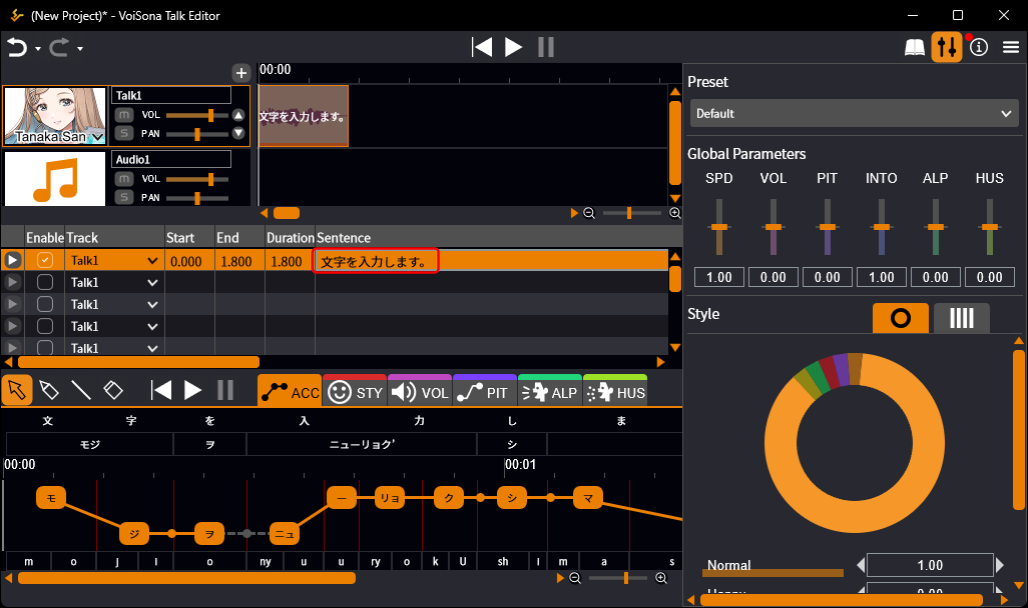
Press Ctrl+Enter to confirm and select the next line.
"Enter Key Selects Next Row" in Preferences swaps the roles of Enter and Ctrl+Enter.
Characters you can enter and the maximum length
- Japanese voice library Japanese text made up of full-width hiragana, katakana, and kanji.
- English voice library English text made up of half-width letters and digits.
- The half-width character "<" cannot be entered.
- Up to 500 characters per sentence.
Tips for natural reading
The synthesized speech is influenced by the whole sentence in that line.
For more natural reading, enter one sentence per line and separate long sentences appropriately with "、".
Adding "?" or "!" at the end of a sentence also changes the way it is spoken.
Columns of the sentence list
- Play Plays the sentence of that line.
- Enable Uncheck it to leave the sentence out of playback and export.
- Track, Start, End, Duration The track the sentence belongs to, and its start time, end time, and duration.
- Sentence, Export Name, Comment The text, the file name used when exporting, and a free note for the sentence.
- Delete Deletes the line.
Right-click the column header and select "Reset Columns" to return the column widths and order to the initial state.
Moving Sentences
You can change the start time of an entered sentence or move it to another track.
Moving a Sentence on the Track Timeline
When you enter a sentence, a sentence box appears on the track timeline.
Move this sentence box to place the sentence freely.
- Do one of the following.
- To change the start or end time Drag the sentence box left or right
- To change the track Drag the sentence box up or down
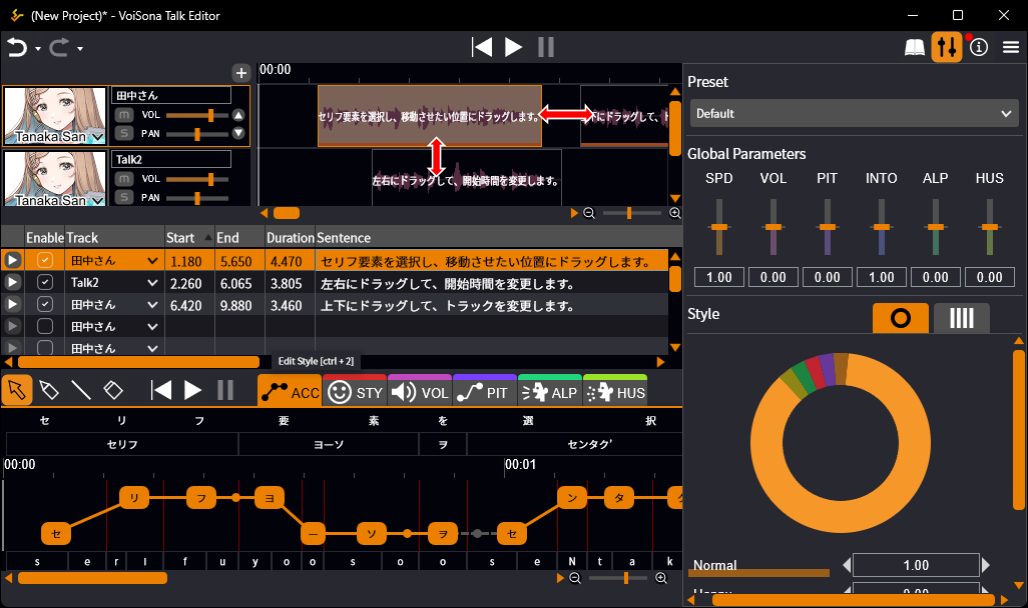
Hold down Ctrl while clicking to select multiple sentence boxes.
A sentence cannot be moved to a track whose voice library is in a different language.
The sentence box returns to its track, and the reason is shown in the status bar at the bottom of the window.
Moving a Sentence by Specifying a Time
You can also move a sentence by clicking the item in the "Start" or "End" column of the line and entering the start or end time.
The change is also reflected on the track timeline.
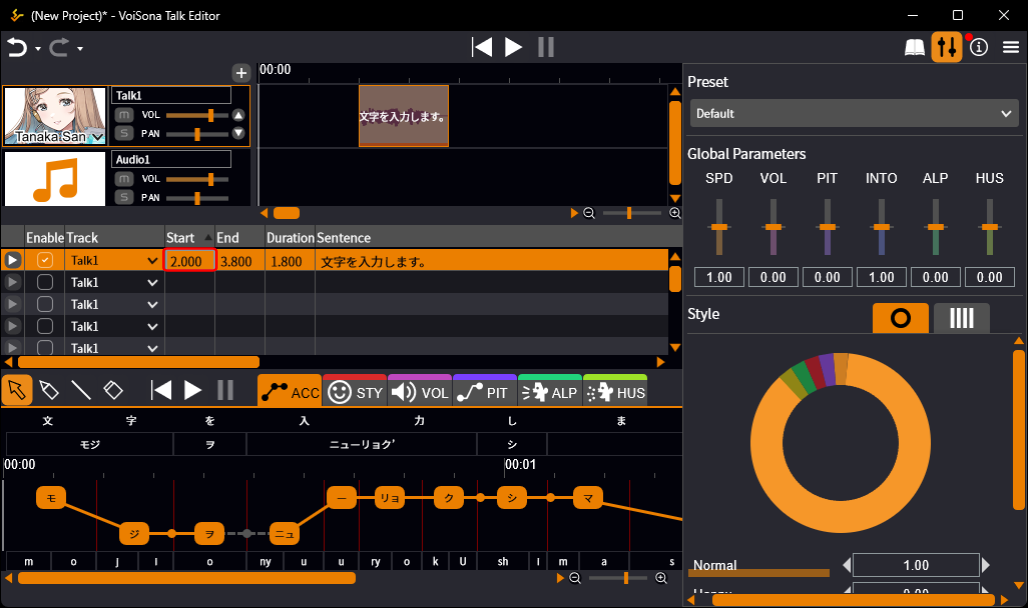
Click the "Start" column header to sort the list by start time in ascending order.

Changing the Track of a Sentence
You can change the track of a sentence by following these steps.
- Click the item in the "Track" column of the line.
- Select the track from the drop-down menu.
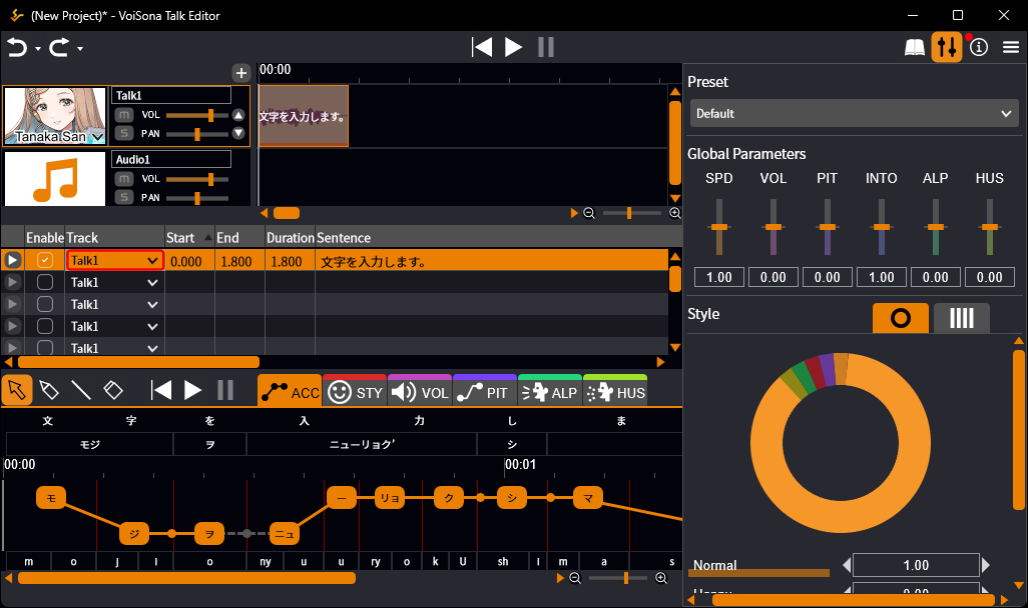
Tracks whose voice library is in a different language are grayed out and cannot be selected.
While the menu is open, the reason is shown in the status bar.
When the selected sentences are in different languages, the track cannot be changed at all.
Click the "Track" column header to sort the list in the same order as the track list.

Editing the Sentence List
Edit the sentence list by deleting or inserting lines and other operations.
Deleting a Line
You can delete a line by following these steps.
- Click the trash can button of the line you want to delete. The line is deleted, and the lines below move up automatically.
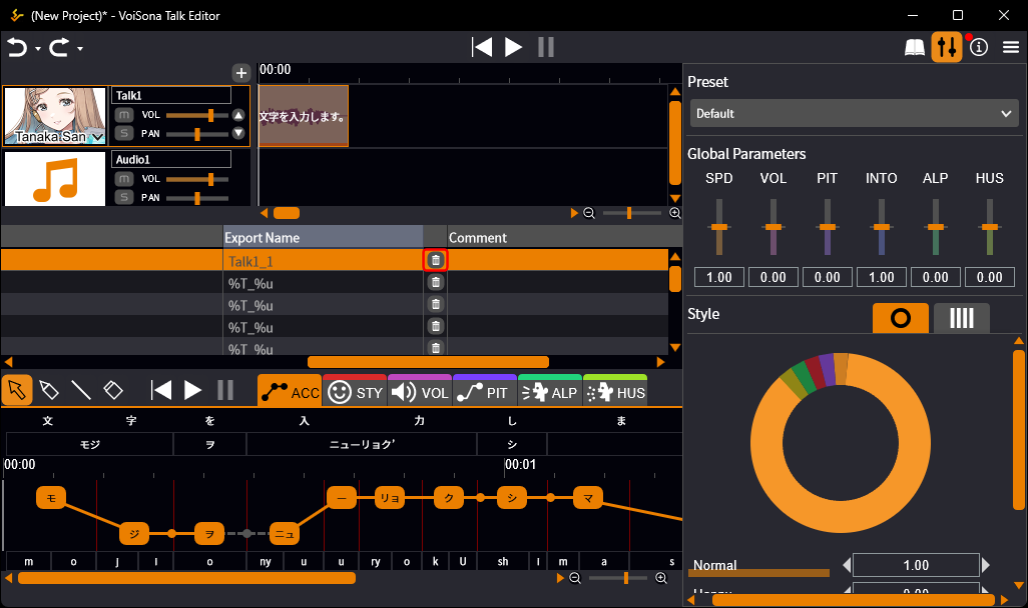
You can also select lines and press the Delete key.
Inserting a New Line
You can insert a line by following these steps.
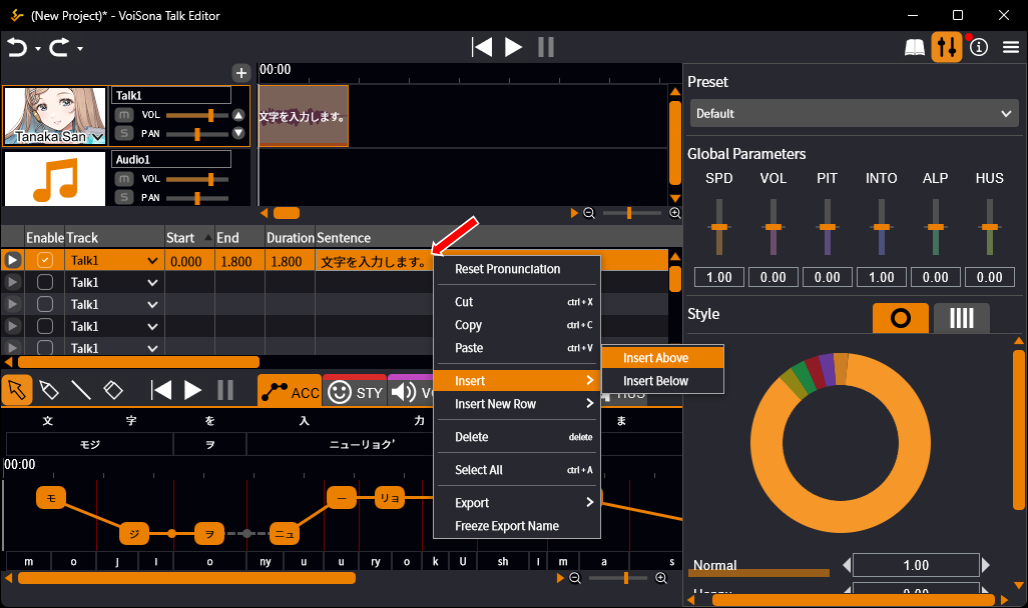
- Right-click a line and select "Insert New Row" > "Insert Above" or "Insert Below". A blank line is inserted above or below that line.
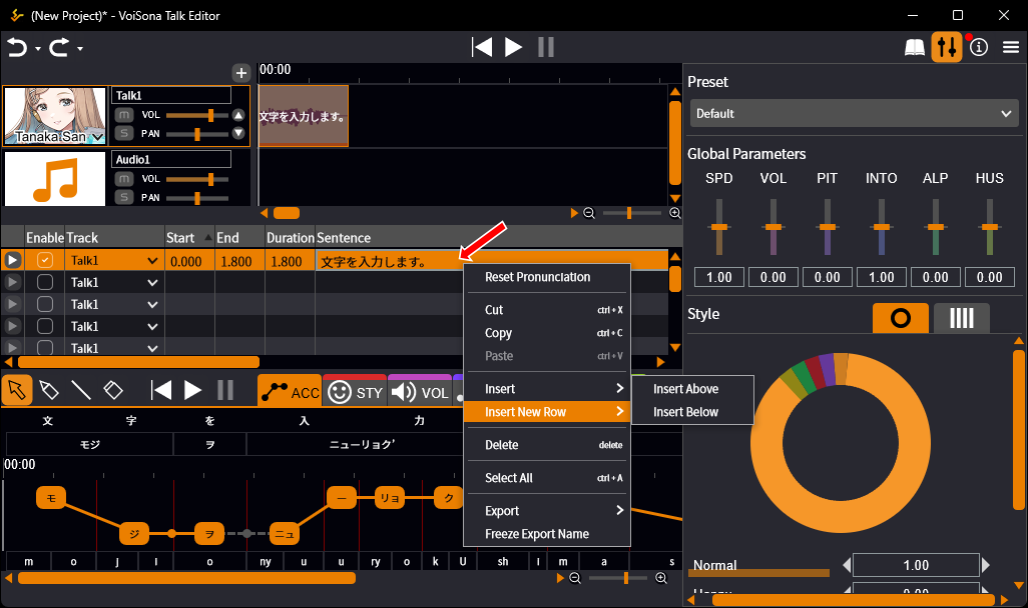
When you enter a sentence with Ctrl+Enter in the last line of a track, a new line is inserted below it.
A new sentence is placed on the track timeline after the previous sentence, with the gap set in "Sentence Gap Duration in Seconds" in Preferences.
Adding from the Track Timeline
Right-click the track timeline and select "Add New Sentence" to add a blank line at the corresponding position in the sentence list.
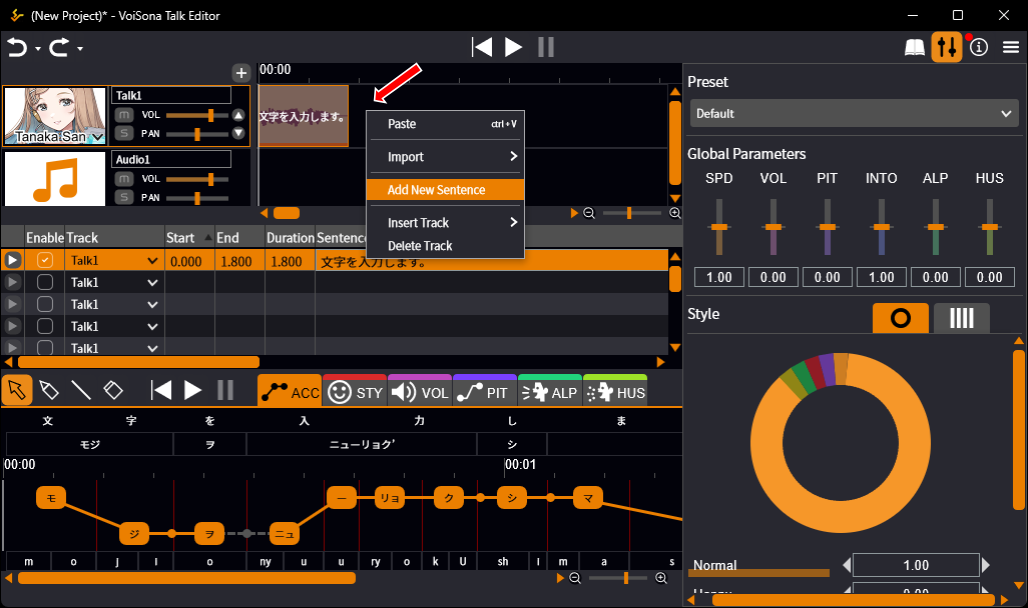
Copying and Pasting Lines
You can copy lines and insert or paste them elsewhere, including text from other applications.
- Select lines in the sentence list, right-click, and select "Copy", or copy text in another application.
- Do one of the following.
- To insert the copied lines as new lines Right-click a line and select "Insert" > "Insert Above" or "Insert Below".
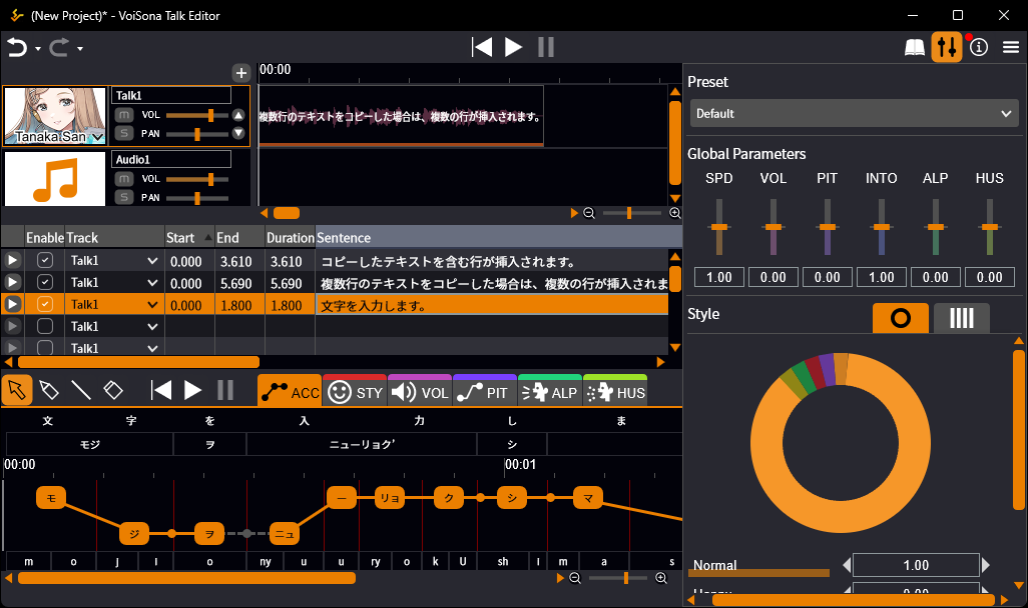
- To overwrite existing lines Select the line to start from, right-click, and select "Paste".
Difference between "Insert" and "Paste"
- Insert All copied lines are inserted as new lines.
- Paste Overwrites the sentences from the selected line downward, one line per copied line. If the copied lines run past the last line, new lines are added.
Editing Tracks
In VoiSona Talk, you can create multiple tracks.
A different voice library can be set for each track.
Adding a Track
You can add a track by following these steps.
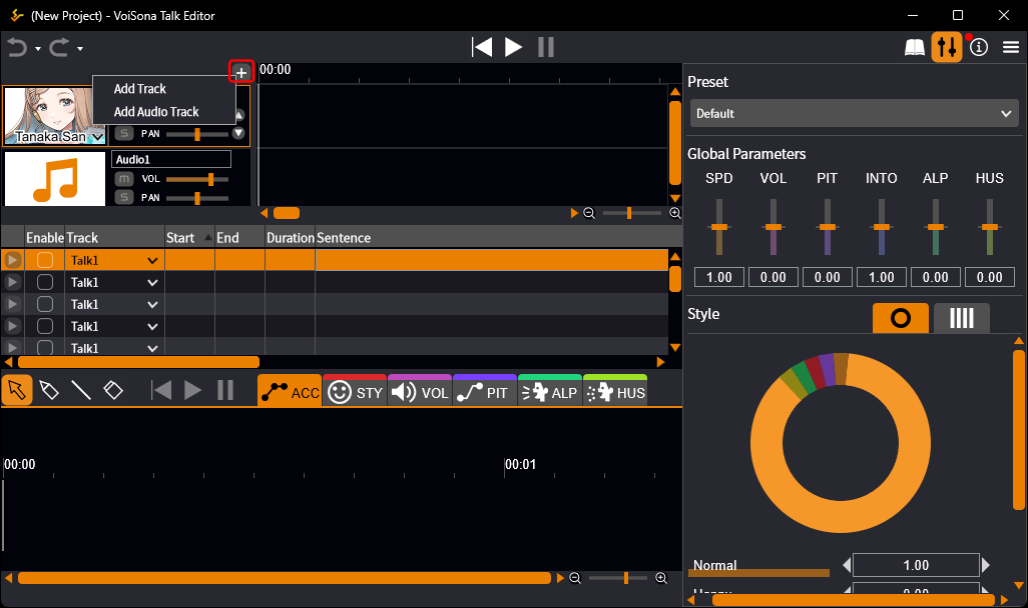
- Select "+" > "Add Track" or "Add Audio Track". A new track is added at the bottom of the track list, and a new line is added to the sentence list.
Select a track and click the up or down button to change the order ("Move Track Up" / "Move Track Down").

Each track has "Mute" and "Solo" buttons.
"Mute" silences the track, and "Solo" plays only the tracks with "Solo" turned on.
Inserting or Deleting a Track from the Track Timeline
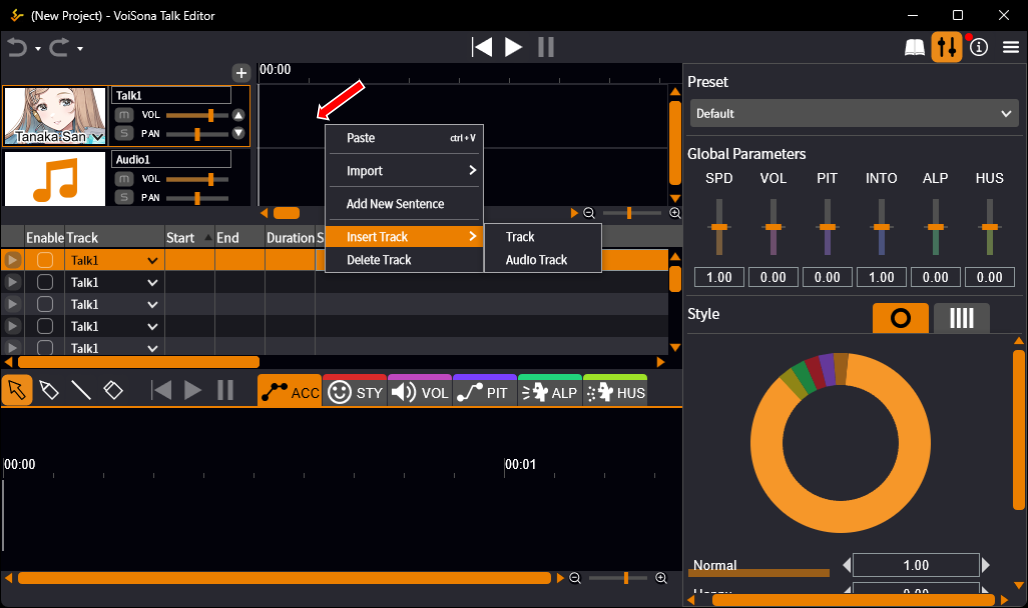
Right-click the track timeline and select "Insert Track" > "Track" or "Audio Track" to insert a new track above that track.
Select "Delete Track" to delete that track.
Renaming a Track
You can edit the name of a track by following these steps.
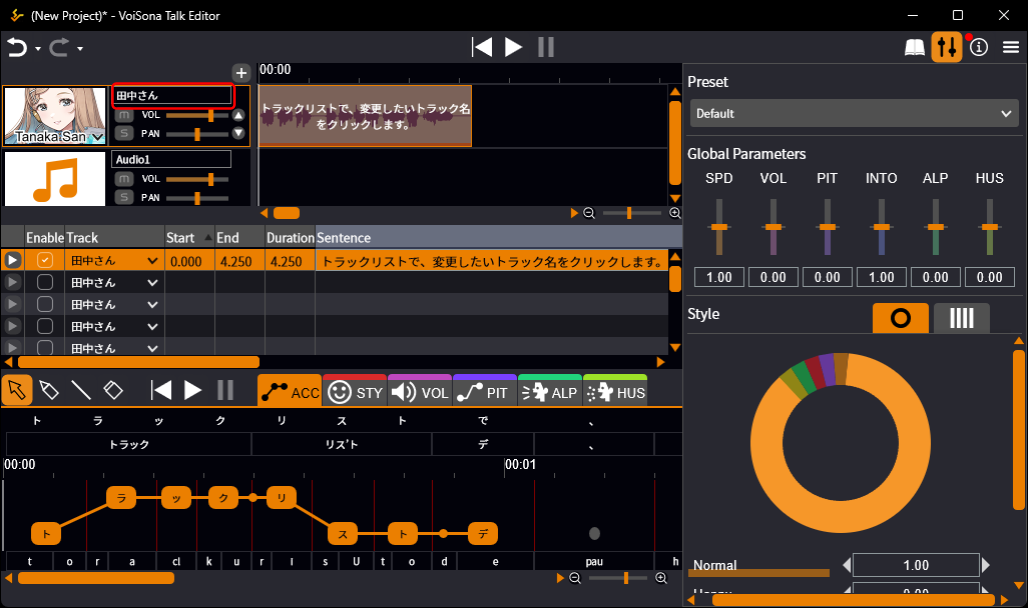
- In the track list, click the name of the track you want to change.
- Edit the text and confirm. The track name changes in both the track list and the sentence list.