
Quick Start Guide
Quick Start Guide2025/10/2 9:232026/10/5 10:08Installing VoiSona Talk2025/11/3 7:492026/9/1 15:12Signing In2025/11/3 7:492026/9/1 15:19Creating, Opening, and Saving Projects2026/10/2 10:252026/10/2 10:26Selecting a Voice Library2025/11/3 7:492026/9/1 15:28Entering Sentences2025/11/3 7:492026/9/1 16:49Playing Back Sentences2026/9/1 15:022026/9/1 15:04Editing Sentences (Japanese Voice Libraries)2025/11/3 7:492026/10/2 5:05Editing Sentences (English Voice Libraries)2026/10/5 16:182026/10/2 5:17Adjusting Parameters2025/11/3 7:492026/10/1 6:47Importing and Exporting Files2025/11/3 7:482026/10/4 17:18Setting Preferences2025/11/3 7:482026/10/4 17:19REST API Tutorial2025/11/3 7:482026/10/4 12:46Frequently Asked Questions (FAQ)2025/11/3 7:472026/10/3 13:55
This section introduces the basic operations to first-time users of VoiSona Talk.
For details on each operation, see the corresponding chapter of this manual.
- Launch VoiSona Talk.
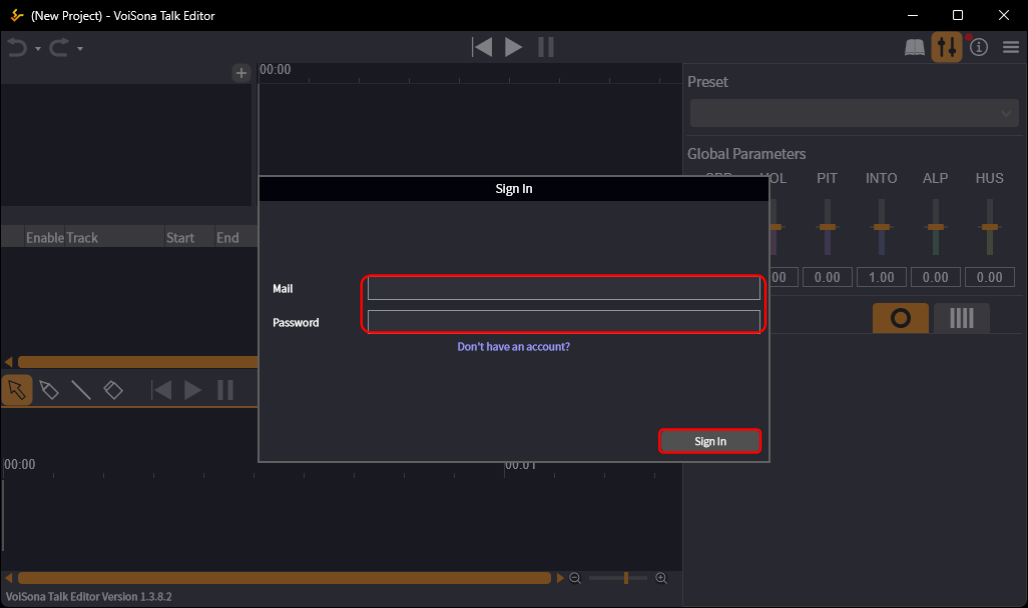
- Enter your registered email address and password, then click "Sign In".
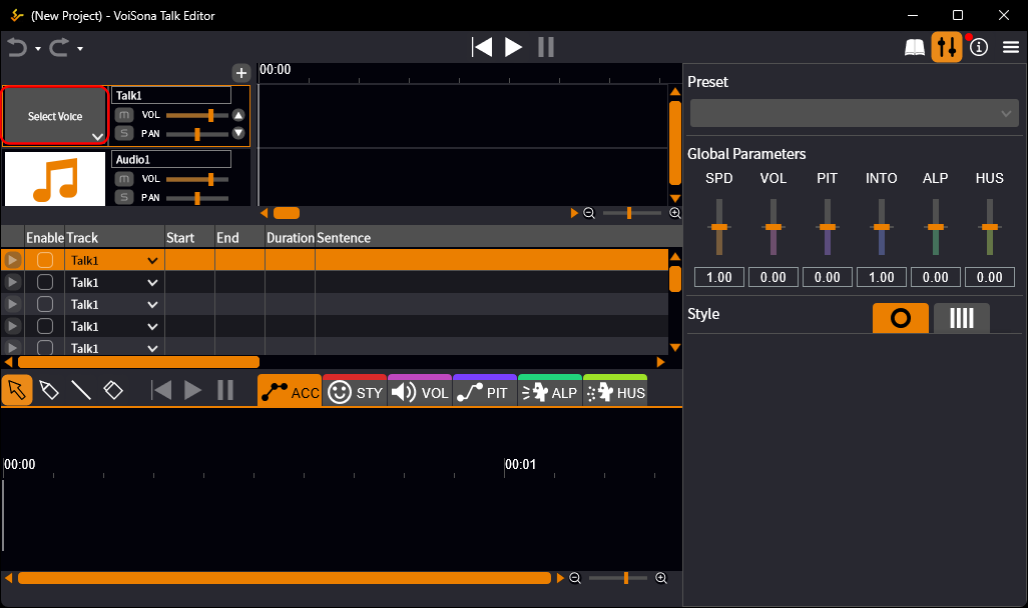
- Click the area labeled "Select Voice". A drop-down menu opens.
- Point to the voice library you want to use, and click the "Download Voice" button of its newest version. The download starts.
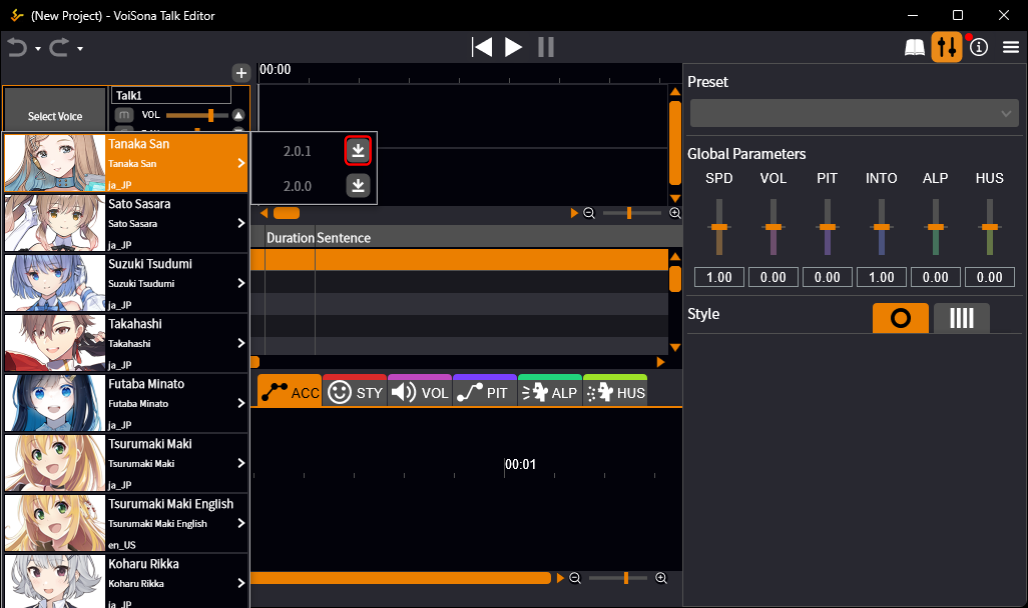
- When the download is complete, click the version number. The voice library is set for the track, and its image appears.
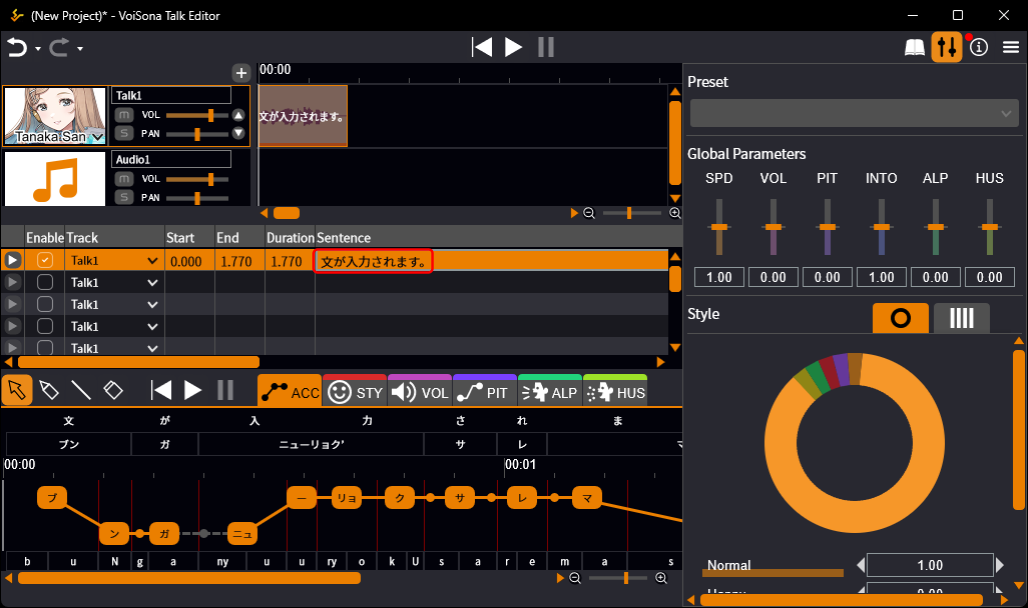
- Click a cell in the "Sentence" column of the sentence list, type the text, and press Enter to confirm. The sentence is entered.
- Click the ruler of the track timeline. The playback position cursor moves.
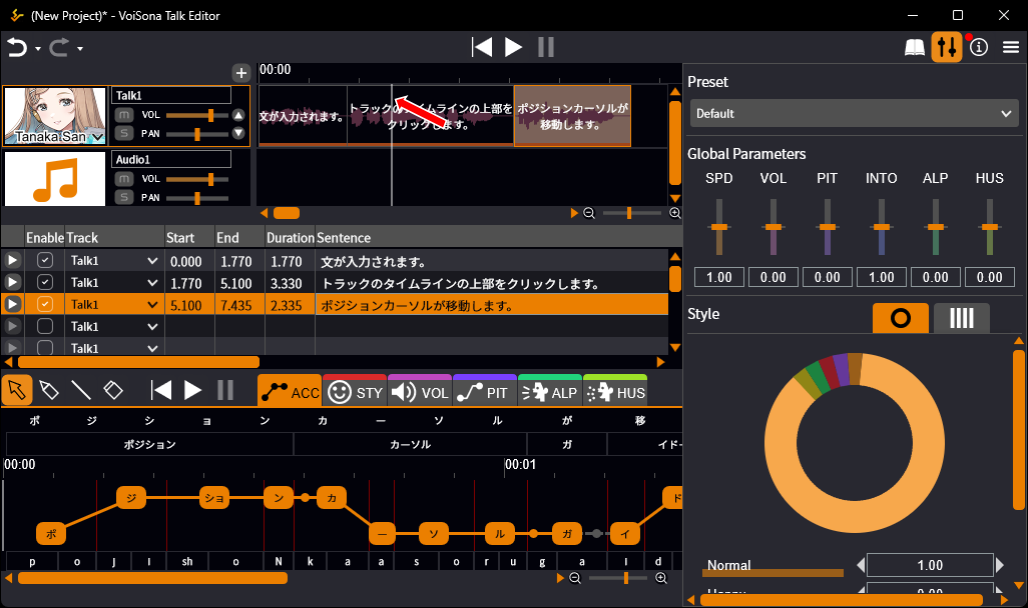
- Click the "Play" button. All tracks are played from the playback position cursor.
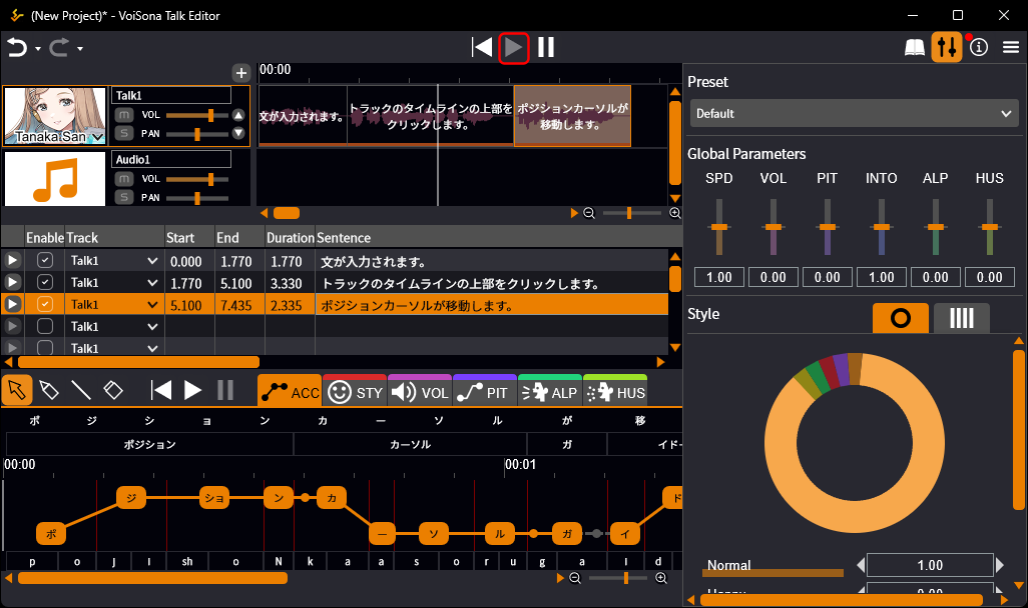
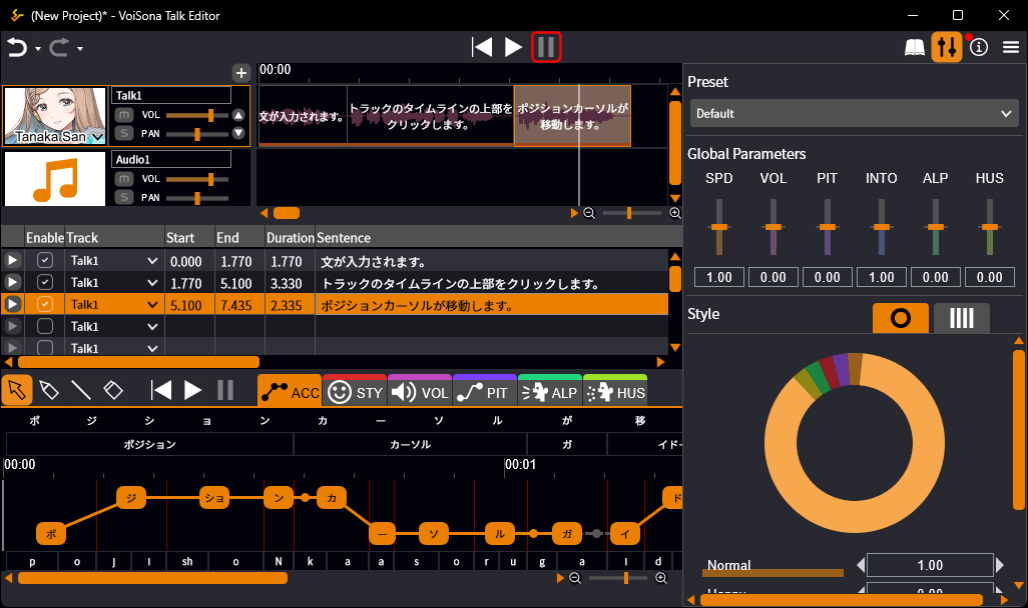
- Click the "Pause" button. Playback pauses at the playback position cursor.
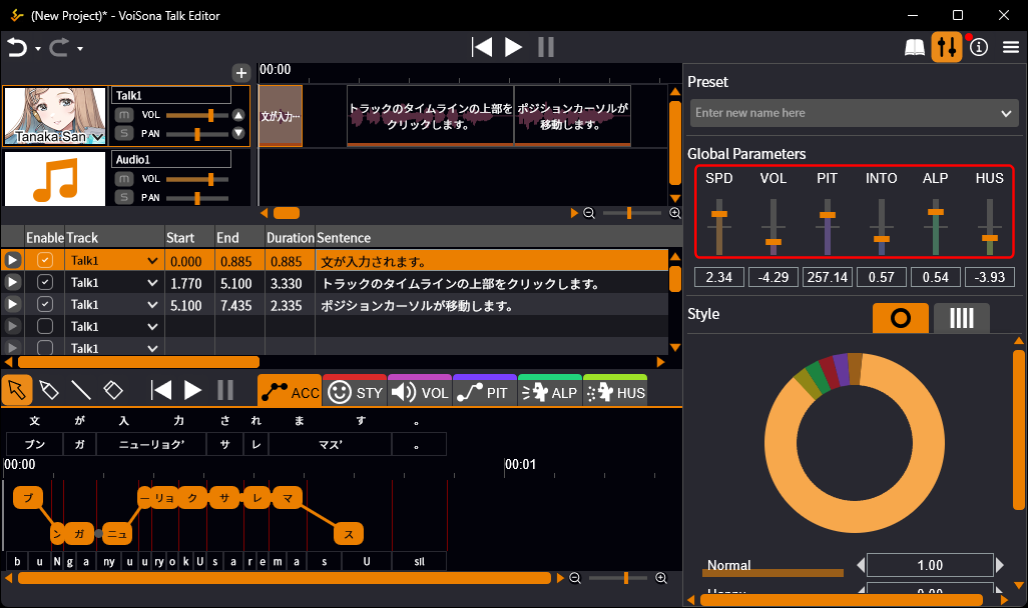
- If the panel is not displayed, click the "Parameter" button and drag the "SPD", "VOL", "PIT", "INTO", "ALP", and "HUS" sliders. The parameters that affect the whole sentence are adjusted.
- Click a mora in the "ACC" tab of the adjustment pane. The mora becomes the accent nucleus, and the accent changes.
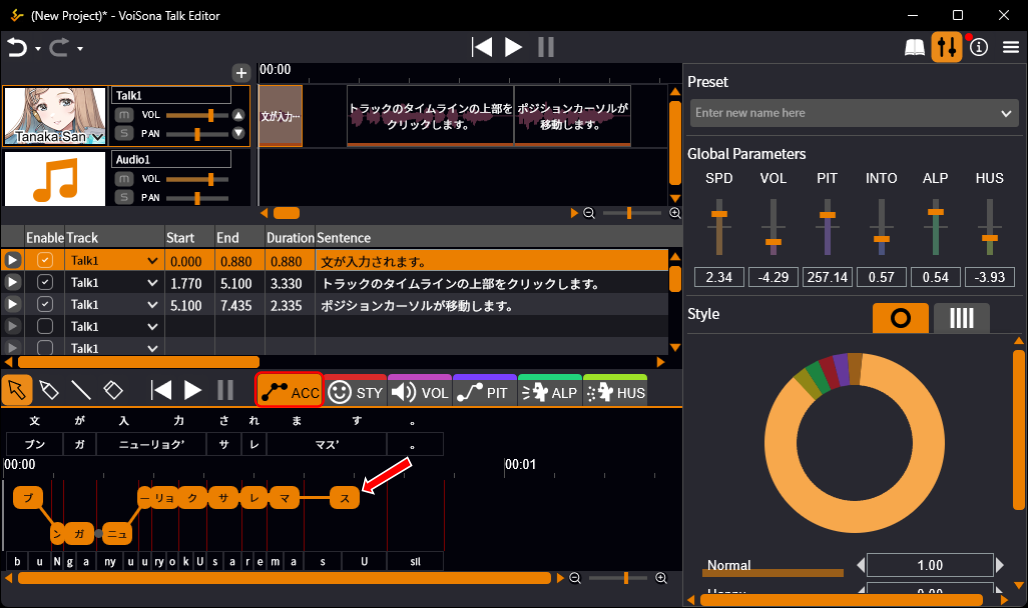
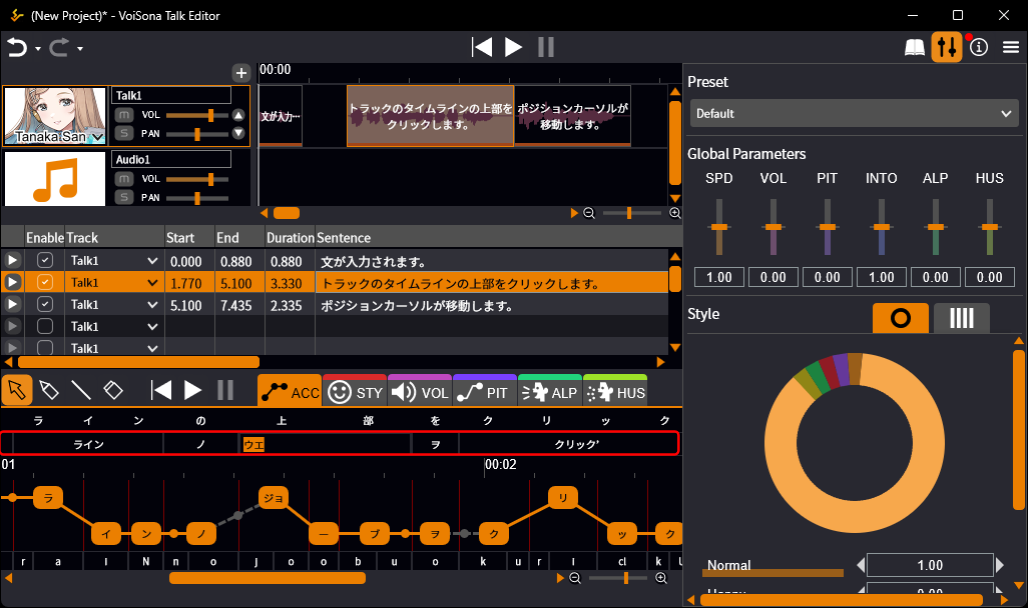
- Edit the kana in the pronunciation editing area. The pronunciation changes.
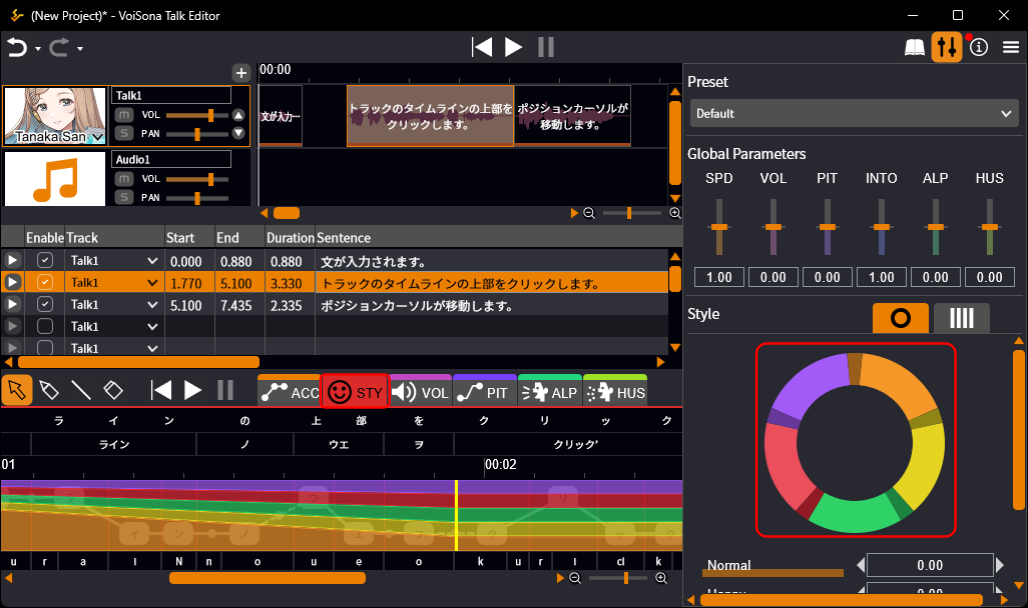
- Click the "STY" tab.
- Click the adjustment pane to specify a position, then adjust the style in the parameter panel. The style of the sentence is finely adjusted.
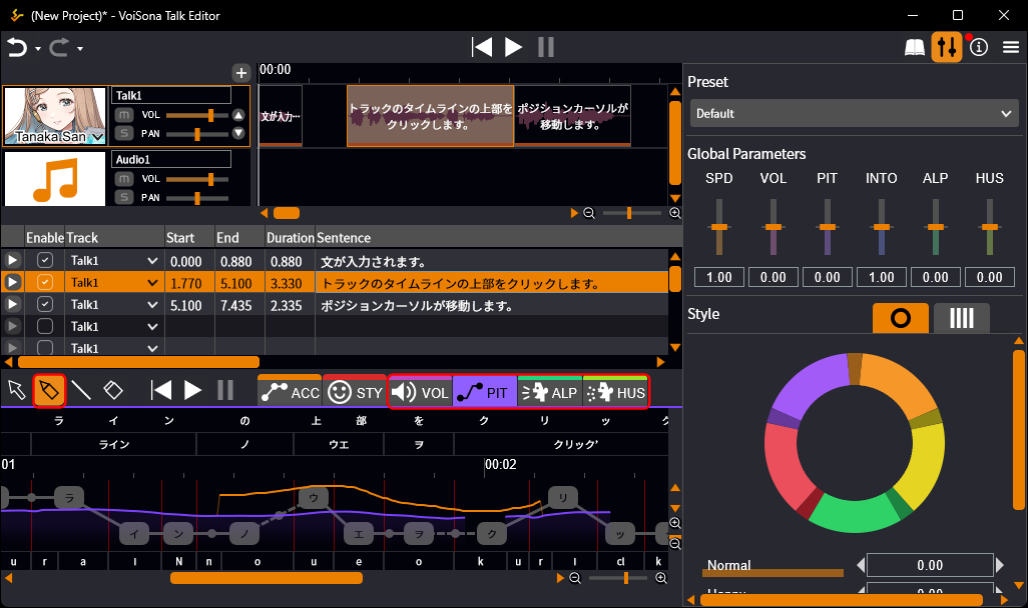
- Click one of the "VOL", "PIT", "ALP", or "HUS" tabs.
- Select the "Draw Tool" and draw lines freely. Each parameter is finely adjusted.
- Select "File" > "Export" > "Export Mixdown WAV File..." from the menu bar.
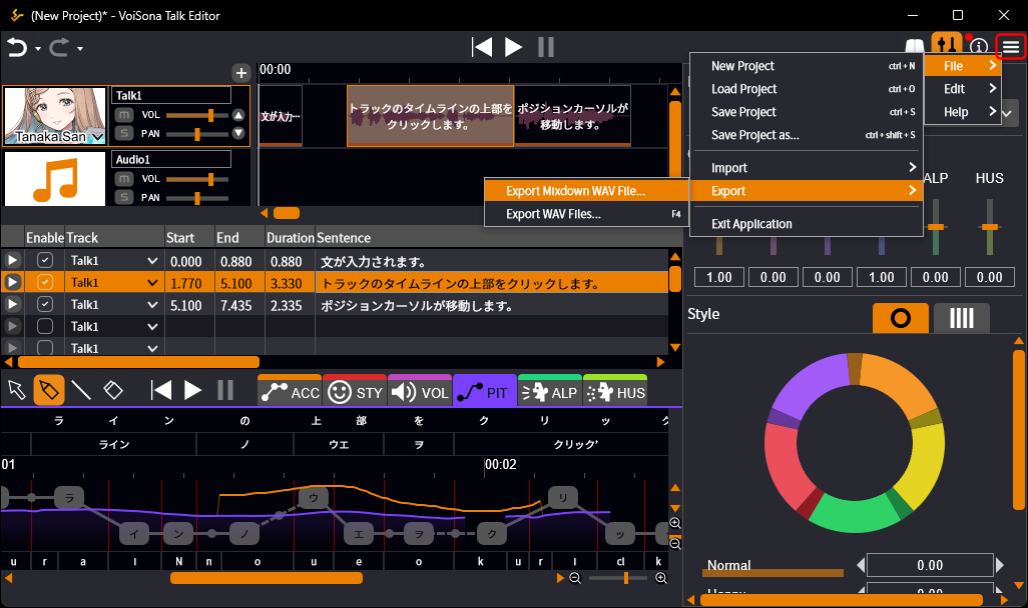
- Specify the save location, enter a file name, and click "Save". All tracks are mixed down and saved as a WAV file in the specified location.